The Scroll Text Block shows a line of large text that slides sideways as the page scrolls. The text repeats along the line, so the line is always full.
Use it between sections as a large moving title, a list of services, or a brand statement.
How to Add a Scroll Text Block
Follow these steps to add and configure the Scroll Text Block in the Gutenberg editor.
Step 1: Add the Scroll Text Block
- Open a page or post in the WordPress Gutenberg editor.
- Click the + button to open the block inserter.
- Search for Scroll Text under ShapeBlock.
- Insert the Scroll Text Block into your page.
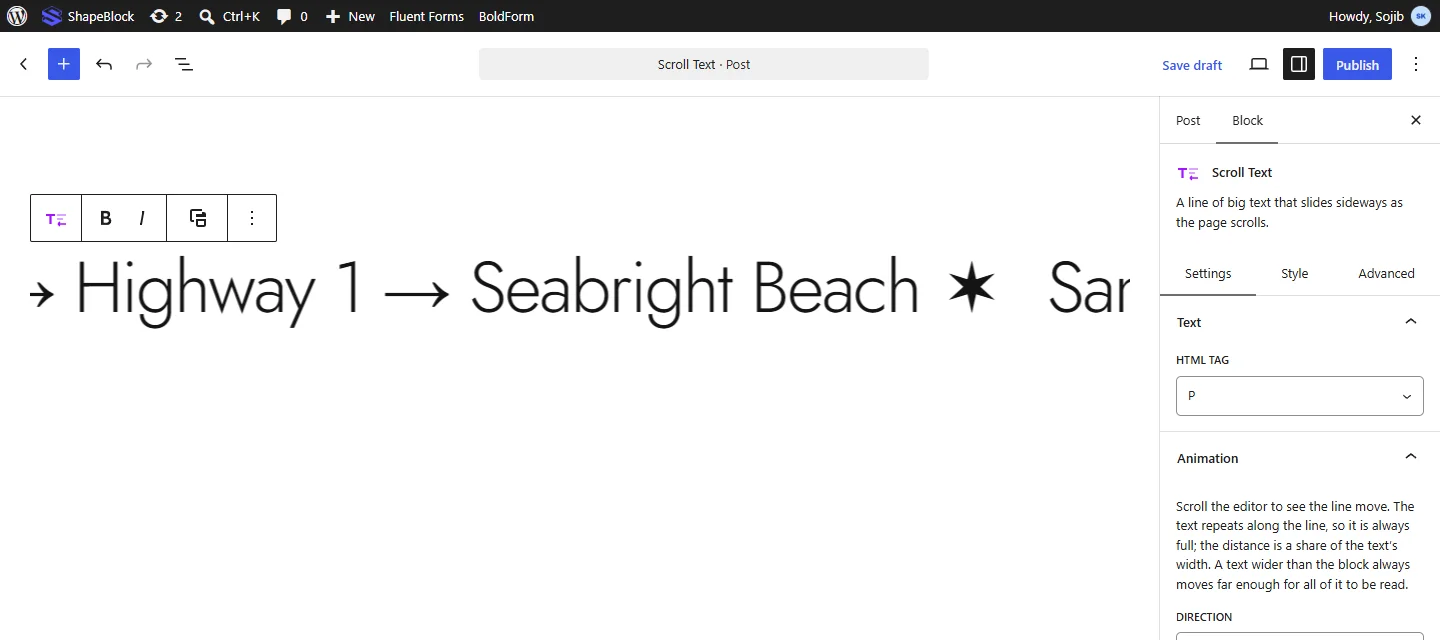
- Select the block to access its settings in the right-hand sidebar.
- Type your text directly on the block. Scroll the editor to see the line move.

Step 2: Configure the Scroll Text Block
Select the Scroll Text Block and open its settings in the right-hand sidebar. The available tabs are:
- Settings: Set the HTML tag and the scroll direction and distance.
- Style: Set the text color, outlined letters, and typography.
- Advanced: Configure the block padding, margin, and background.
Settings Tab
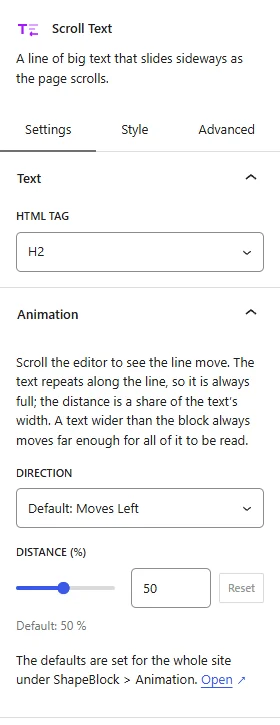
The Settings tab contains the Text and Animation panels.
1. Text
- HTML Tag: Choose the tag used for the line, such as a heading tag, P, or DIV.
2. Animation
- Direction: Choose whether the line Moves Left or Moves Right as the page scrolls down.
- Distance (%): Set how far the line moves, as a share of the text width. A text wider than the block always moves far enough for all of it to be read.
Note: Each Animation setting starts on Default, which uses the value set for the whole site under ShapeBlock > Animation. The current site value is shown in the control. Change a setting here to use a different value for this block only.
Style Tab
The Style tab contains the Text panel.
1. Text
- Colour: Set the text color.
- Outlined Letters: Show the letters as outlines only, with no fill.
- Outline Colour: Set the color of the letter outlines. This option appears when Outlined Letters is on.
- Typography: Customize the font family, size, weight, style, text transform, line height, and letter spacing. Responsive settings are available.

Advanced Tab
The Advanced tab provides additional spacing and background controls for the Scroll Text Block. These settings apply to the entire block.
1. Spacing
- Padding: Set the inner spacing around the entire Scroll Text Block. Configure the top, right, bottom, and left values separately.
- Margin: Set the outer spacing around the entire Scroll Text Block. Configure the top, right, bottom, and left values separately.
Both controls support responsive settings for desktop, tablet, and mobile devices.
2. Background
- Background: Customize the background of the entire Scroll Text Block using a background color or gradient.
Note: The background applies to the whole block area.
Live demo: see the Scroll Text Block in action on the Scroll Text demo page.