
The Simple Gallery Block lets you display multiple images in a responsive grid. You can customize the number of columns, image size, spacing, captions, descriptions, hover effects, and lightbox animations to create an attractive image gallery.
How to Add a Simple Gallery Block
Follow these steps to add the Simple Gallery Block to your page or post.
Step 1: Add the Simple Gallery Block
- Open the page or post where you want to add the Simple Gallery Block.
- Click the + (Add Block) button.
- Search for Simple Gallery in the block search field.
- Select the Simple Gallery block from the ShapeBlock category.
- The block will be added to your editor.
- Select the block to access its customization options in the sidebar.

Step 2: Configure the Simple Gallery Block
The Simple Gallery Block includes four tabs for customization:
- Settings: Add images, choose thumbnail sizes and image order, configure the lightbox, captions, descriptions, and hover effects.
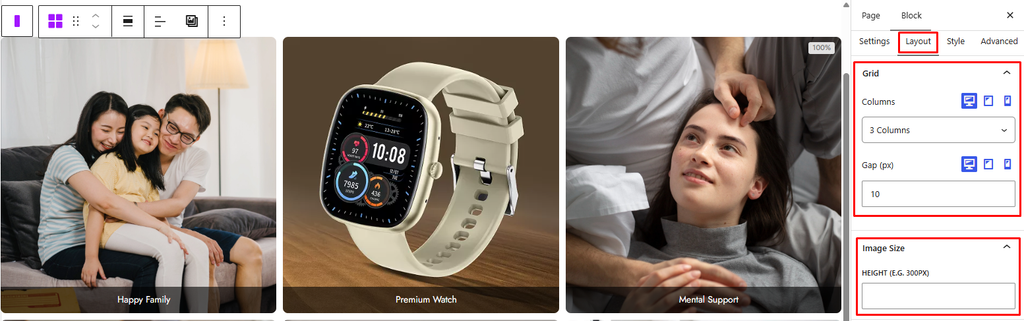
- Layout: Control the number of columns, spacing between images, and image height.
- Style: Customize image corners, caption appearance, and hover overlays.
- Advanced: Adjust the spacing and background of the entire block.
Settings Tab
The Settings tab contains the following panels.
1. Gallery
- Add Images: Select multiple images from the WordPress Media Library to create the gallery.
- Edit / Replace Images: Edit or replace the selected images.
- Thumbnail Size: Choose the image size used in the gallery.
- Thumbnail
- Medium
- Large
- Full
- Order By: Choose how the gallery images are ordered.
- Default
- Title
- ID
- Date
- Random
- Enable Lightbox: Enable or disable the lightbox for viewing images in an enlarged overlay.
- Lightbox Animation: Choose the animation used when the lightbox opens or moves between images.
- Fade
- Zoom In
- Zoom Out
- Slide Up
- Slide Down
- Flip
- None
- Animation Speed (ms): Set the lightbox animation duration in milliseconds. This option appears when a lightbox animation other than None is selected.
2. Caption
- Show Caption: Enable or disable image captions.
- Caption Source: Choose the source of the caption. This option appears when Show Caption is enabled.
- Media Library Caption
- Image Title
- None
- Show Description: Display the description saved in each image’s Description field in the WordPress Media Library. Empty descriptions are hidden automatically.
3. Hover
- On Hover: Choose the content displayed when visitors hover over an image.
- Default
- Icon
- Text
- Hover Text: Enter the text to display on hover. This option appears when Text is selected.
- Hover Icon: Select the icon to display on hover. This option appears when Icon is selected.

Layout Tab
The Layout tab contains the following panels.
1. Grid
- Columns: Choose the number of gallery columns separately for desktop, tablet, and mobile devices.
- 1 Column
- 2 Columns
- 3 Columns
- 4 Columns
- 5 Columns
- 6 Columns
- Gap (px): Set the space between gallery images. The value can be adjusted separately for desktop, tablet, and mobile devices.
2. Image Size
- Height (e.g. 300px): Set a custom height for the gallery images. Enter a value with a unit, such as
300px.
Style Tab
The Style tab contains panels for customizing image appearance, captions, and hover effects. Some panels appear only when the related feature is enabled.
1. Image
- Border Radius: Adjust the corner radius of the gallery images.
2. Caption Style
This panel appears when Show Caption or Show Description is enabled.
- Alignment: Set the alignment of the caption and description.
- Default
- Left
- Center
- Right
- Caption Color: Customize the caption text color.
- Caption Background: Set a background color or gradient behind the caption.
- Description Color: Customize the description text color. This option appears when Show Description is enabled.
3. Hover Overlay
This panel appears when Icon or Text is selected under On Hover.
- Overlay Color: Set the hover overlay background color or gradient.
- Icon Size (px): Set the hover icon size. This option appears when Icon is selected.
- Icon Color: Customize the hover icon color. This option appears when Icon is selected.
- Text Color: Customize the hover text color. This option appears when Text is selected.

Advanced Tab
The Advanced tab contains settings that apply to the entire Simple Gallery Block, not to individual gallery images.
1. Spacing
- Padding: Adjust the inner spacing around the entire block. Responsive settings are available for desktop, tablet, and mobile.
- Margin: Adjust the outer spacing around the entire block. Responsive settings are available for desktop, tablet, and mobile.
2. Background
- Background: Set a background color or gradient for the entire block.


