Custom Code
The chat bubble in the corner of this page was added this way.
Paste code into the header or footer of your site without touching a theme file: Google Analytics, Tag Manager, Search Console, a pixel or a live chat. Run it on every page or chosen pages, and leave out your own visits.
Video guide
See it built,
step by step.
The live demo first, then turning Custom Code on and pasting a live chat into your footer.
Custom Code, in short
Your service gives you code. This is where it goes.
Your theme and footer are built from blocks, so there is no file to edit. Open one screen, paste, save.
1ShapeBlock › Extensions
Switch on the Custom Code card, then click its gear.
2Paste the code into its box
Header, after the opening body tag, or footer. Keep its script tags.
3Save Changes
Open your site. It runs right away.
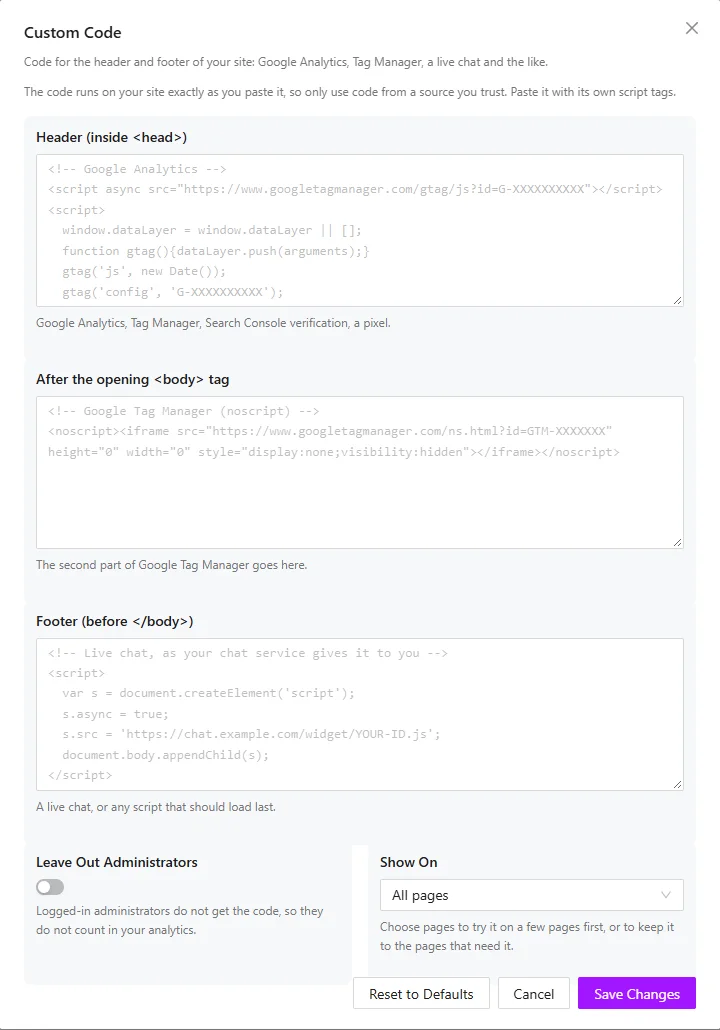
The real settings. The grey text in each box is an example of what goes there, and it is never saved.
Which box
Three places on the page, one box each.
Header, inside <head>
Things that must load first
Google Analytics, Google Tag Manager, Search Console verification, a Meta or LinkedIn pixel.
After the opening <body> tag
The second half of some codes
Google Tag Manager gives you two pieces of code. The noscript piece goes here.
Footer, before </body>
Things that can load last
A live chat such as Tawk.to or Crisp, a cookie banner, a feedback widget.
Live on this page
Look at the bottom corner of your screen.
That chat bubble is a Tawk.to code pasted into the Footer box of this very site. No theme file was opened and no plugin was added for it.
Paste the code your chat service gives you, turn the extension on, and the bubble is on every page.
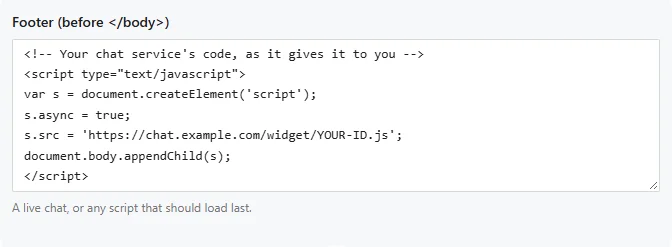
A chat code in the Footer box.
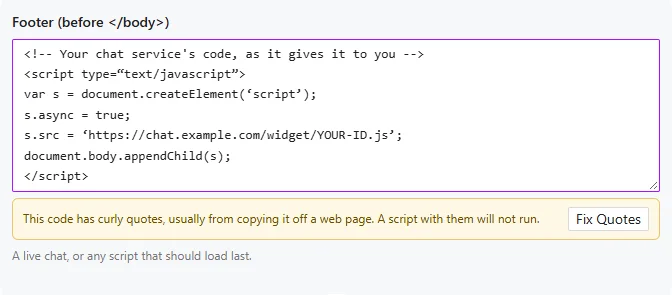
A mistake it catches
Copied from a web page? Check the quotes.
Code copied off a blog or a document often picks up curly quotes. A script with curly quotes will not run, and nothing tells you why.
Custom Code tells you. One click on Fix Quotes turns them back into straight ones.
Two more settings
Keep your own visits out of the numbers.
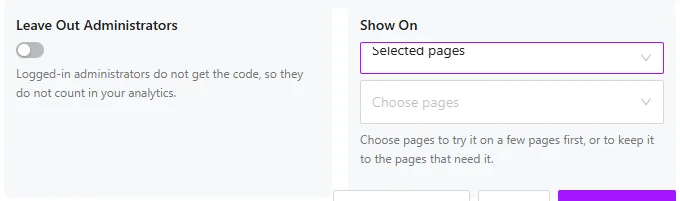
Leave Out Administrators keeps the code away from you while you are logged in, so your own clicks do not count in Analytics.
Show On runs the code on every page, or only on the pages you pick, such as a thank-you page with a conversion tag.
Good to know.
Only trusted accounts
Only an administrator allowed to post unfiltered HTML can see or change the code.
Nothing while it is off
With the switch off, nothing is printed and nothing loads.
Never in your dashboard
The code runs on your pages, not in wp-admin or on the login page, so a bad paste cannot lock you out.
Printed exactly as pasted
So use code only from a service you trust, and paste it with its own script tags.