
The Accordion Block lets you display questions and answers in collapsible sections. Visitors can click a question to expand its answer, making it easier to organize FAQs and other content in a compact layout.
You can customize the questions, answers, icons, spacing, colors, typography, borders, and other styling options to match your website design.
How to Add an Accordion Block
Follow these steps to add and configure the Accordion Block in the Gutenberg editor.
Step 1: Add the Accordion Block
- Open a page or post in the WordPress Gutenberg editor.
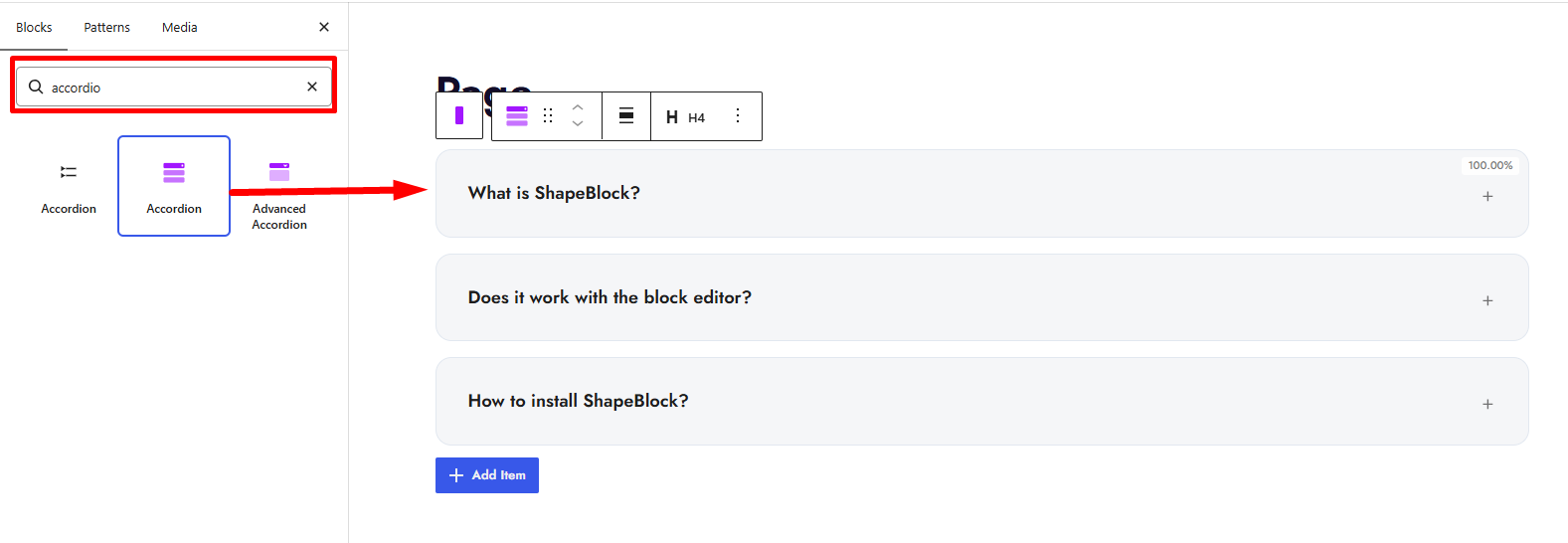
- Click the + button to open the block inserter.
- Search for Accordion under ShapeBlock.
- Insert the Accordion Block into your page.
- Select the block to access its settings in the right-hand sidebar.
- Add or edit questions and answers using the Items panel.
Step 2: Configure the Accordion Block
Select the Accordion Block and open its settings in the right-hand sidebar. The available tabs are:
- Settings: Add and manage accordion items, configure the title tag and icons, and control the default opening behavior.
- Layout: Configure the spacing between accordion items and the position of the accordion icons.
- Style: Customize the appearance of accordion items, question titles, answers, and accordion icons.
- Advanced: Configure the shared advanced settings available for ShapeBlock blocks.
Settings Tab
Use the Settings tab to manage accordion items and configure the general behavior of the block.
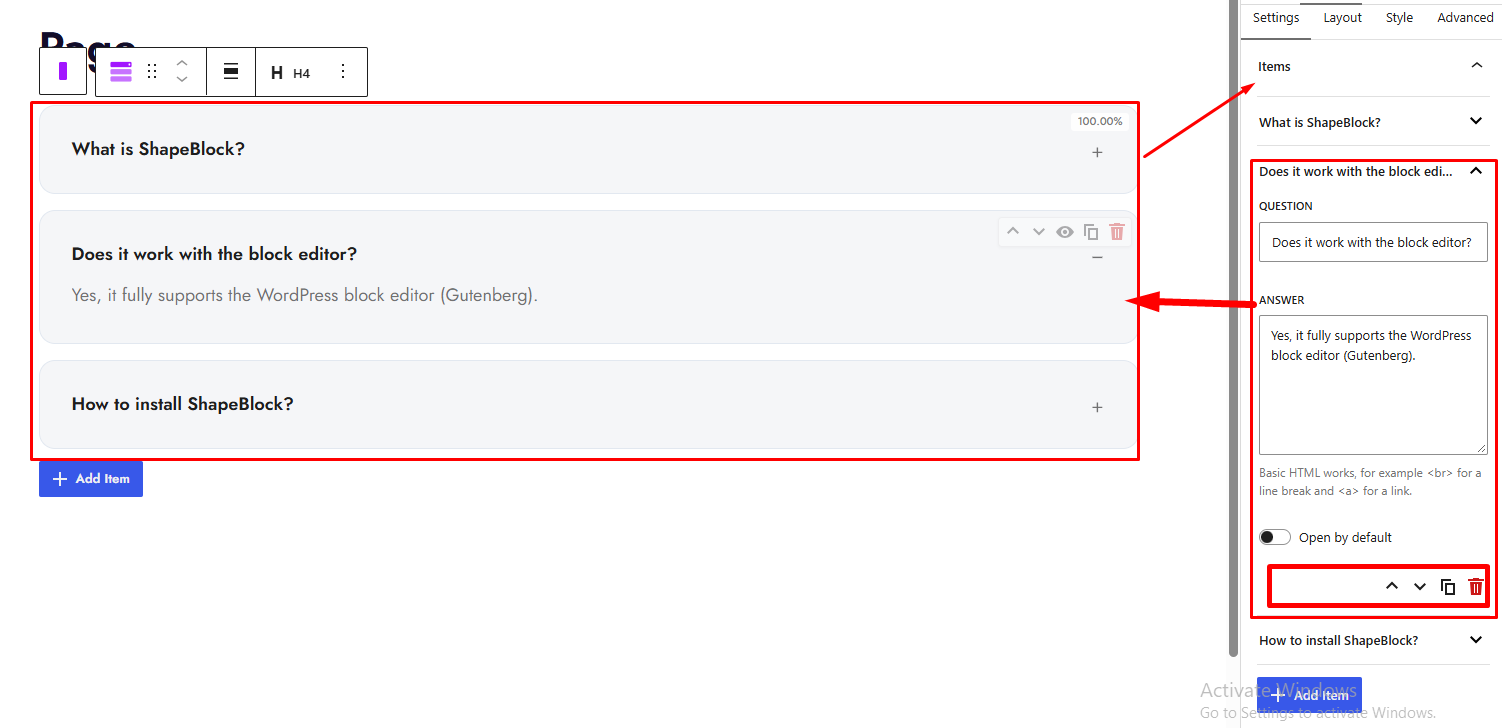
1. Items
Use the Items panel to create and manage questions and answers.
- Question: Enter the question displayed in the accordion header.
- Answer: Add the answer displayed when the question is expanded. Basic HTML, such as links and line breaks, is supported.
- Open by Default: Choose whether an individual accordion item should be open by default.
Item Management Actions:
- Move Up: Move an item higher in the list.
- Move Down: Move an item lower in the list.
- Duplicate: Create a copy of an existing item.
- Remove: Delete an item from the accordion.
- Add Item: Add a new question and answer.
2. General
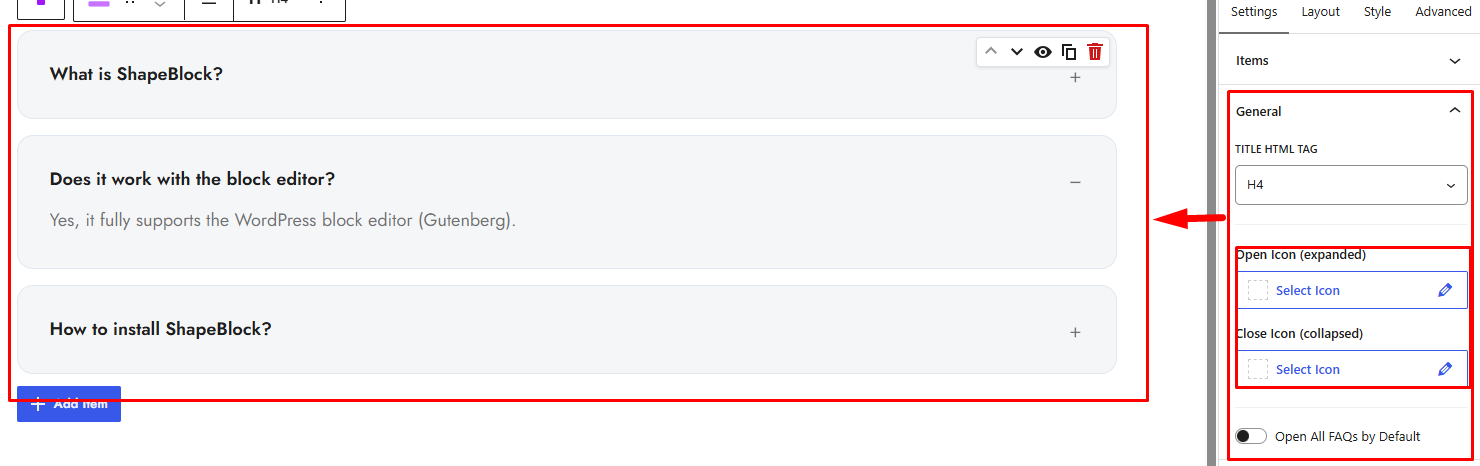
Use the General panel to configure the accordion title tag, icons, and opening behavior.
- Title HTML Tag: Choose the HTML tag used for question titles, including H1–H6, div, span, or p.
- Open Icon (expanded): Choose the icon displayed when an accordion item is expanded.
- Close Icon (collapsed): Choose the icon displayed when an accordion item is collapsed.
- Open All FAQs by Default: Keep all accordion answers open by default.
- Enable Sticky: Enable sticky behavior for the accordion when Open All FAQs by Default is enabled.
Layout Tab
Use the Layout tab to control the spacing between accordion items and the position of the accordion icons.
1. Spacing & Position
- Items Space (gap px): Set the space between accordion items. Responsive settings are available for desktop, tablet, and mobile devices.
- Icon Position: Choose whether the accordion icon appears on the right or left side of the question.

Style Tab
Use the Style tab to customize the appearance of accordion items, question titles, answers, and accordion icons.
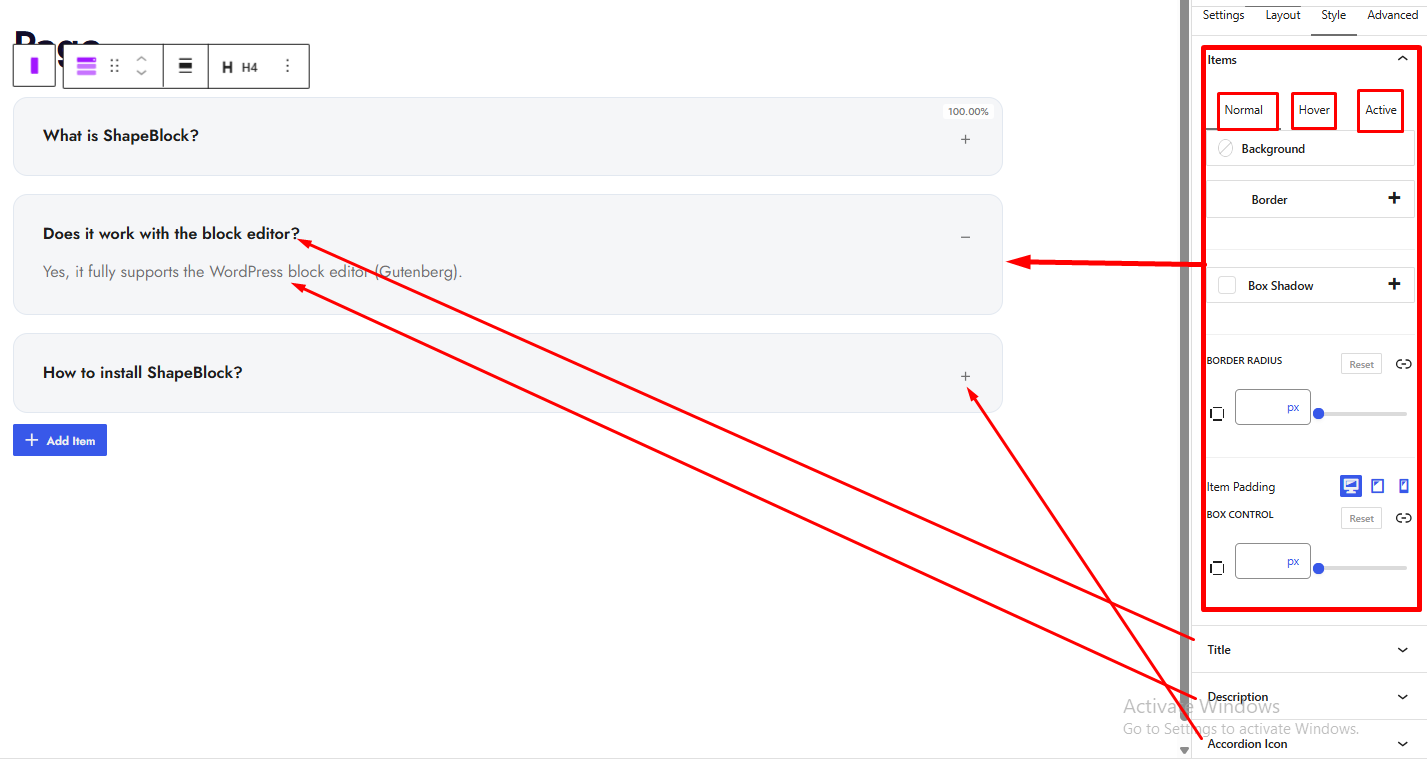
1. Items
Customize the overall appearance of each accordion item.
- Background: Set the item background color or gradient.
- Border: Customize the item border width, color, and style.
- Box Shadow: Add and customize a shadow around the item.
- Border Radius: Set the radius of the item corners.
- Item Padding: Adjust the inner spacing of each item. Responsive settings are available for desktop, tablet, and mobile devices.
The Background, Border, and Box Shadow controls support Normal, Hover, and Active states where applicable.
2. Title
Use the Title panel to customize the appearance of accordion questions.
- Typography: Customize the question typography, including responsive settings for desktop, tablet, and mobile devices.
- Color: Set the question text color.
- Question Background: Set the question background color or gradient.
- Question Border: Customize the question border.
- Question Box Shadow: Add a shadow to the question header.
- Question Padding: Adjust the inner spacing around the question text. Responsive settings are available for desktop, tablet, and mobile devices.
- Question Border Radius: Customize the corner radius of the question header.
The available question styling controls include Normal, Hover, and Active states.
3. Description
Use the Description panel to customize the appearance of accordion answers.
- Typography: Customize the answer typography, including responsive settings for desktop, tablet, and mobile devices.
- Color: Set the answer text color.
- Background: Set the answer background color or gradient.
- Border: Customize the answer border.
- Border Color: Set the answer border color for the Hover and Active states.
- Border Radius: Customize the corner radius of the answer area.
- Answer Padding: Adjust the inner spacing around the answer content. Responsive settings are available for desktop, tablet, and mobile devices.
The available answer styling controls include Normal, Hover, and Active states where applicable.
4. Accordion Icon
Use the Accordion Icon panel to customize the appearance, size, and position of the accordion icons.
- Color: Set the icon color.
- Background: Set the icon background color or gradient.
- Border: Customize the icon border.
- Border Color: Set the icon border color for the Hover and Active states.
- Vertical Position (px): Adjust the vertical position of the icon.
- Icon Size (px): Set the icon size.
- Box Size (px): Set the size of the icon container.
- Border Radius: Customize the corner radius of the icon container.
The icon styling controls include Normal, Hover, and Active states where applicable.
Advanced Tab
The Advanced tab provides additional spacing and background controls for the Accordion Block. These settings apply to the entire block, not to individual accordion items.
1. Spacing
- Padding: Set the inner spacing around the entire Accordion Block. Configure the top, right, bottom, and left values separately.
- Margin: Set the outer spacing around the entire Accordion Block. Configure the top, right, bottom, and left values separately.
Both controls support responsive settings for desktop, tablet, and mobile devices.
Note: These spacing controls apply to the entire block and are separate from the item, question, and answer spacing options in the Style tab.
2. Background
- Background: Customize the background of the entire Accordion Block using a background color or gradient.
Note: This background applies to the block container, not to individual accordion items. To customize individual item backgrounds, use Style → Items.


