
The Post Grid Block displays WordPress posts in a customizable grid. You can select posts by category or individual post, control the number and order of posts, configure featured images, titles, excerpts, metadata, Read More buttons, and pagination. You can also customize the card design, typography, spacing, and responsive column layout.
How to Add a Post Grid Block
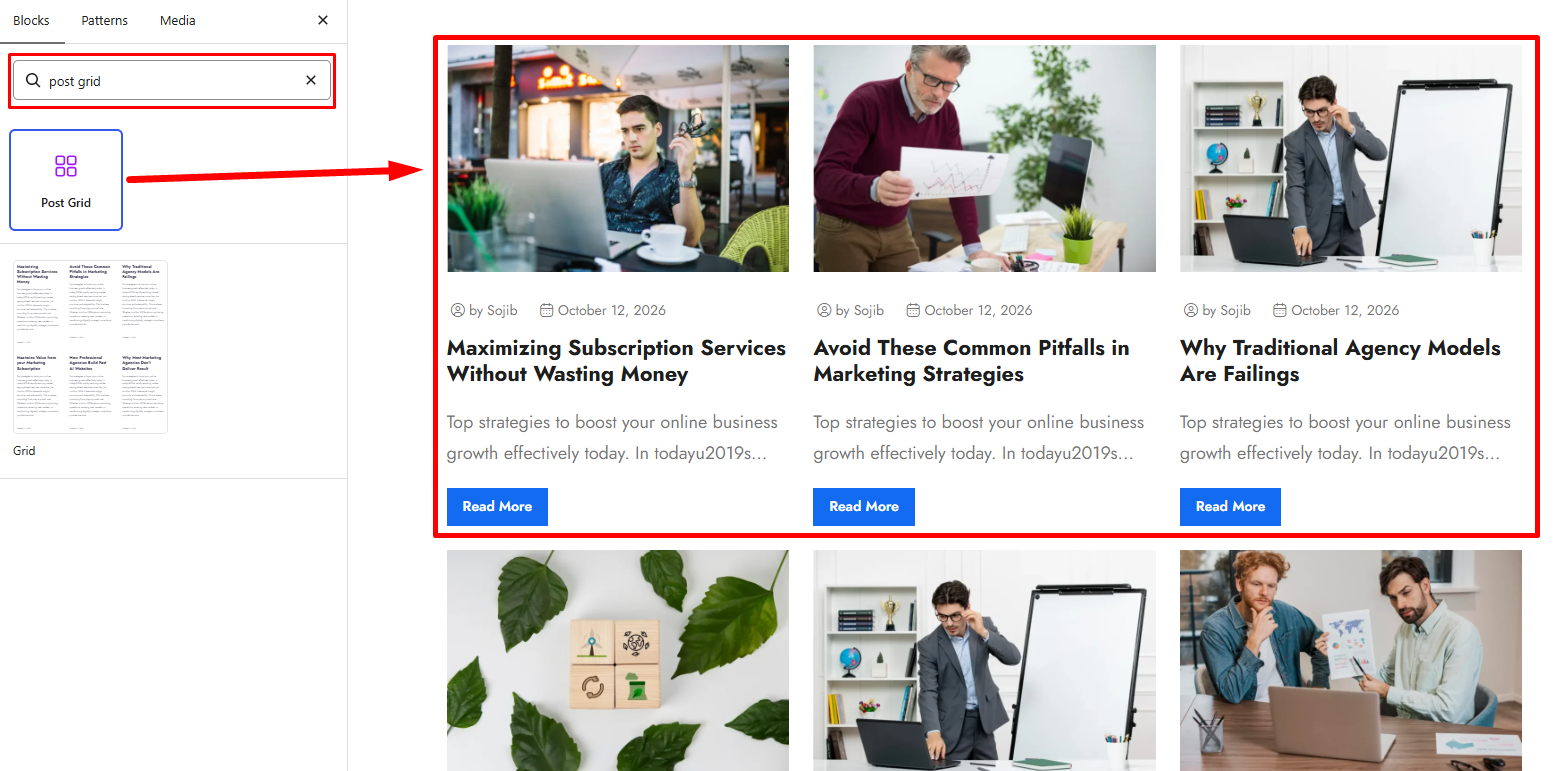
Step 1: Add the Post Grid Block
- Open the page or post where you want to display your blog posts.
- Click the + (Add Block) button in the Gutenberg editor.
- Search for Post Grid.
- Select the Post Grid Block to insert it into your page.
Step 2: Configure the Post Grid Block
Select the Post Grid Block and open the block settings panel. The available tabs are:
- Settings: Configure the post query, title, excerpt, metadata, Read More button, and pagination.
- Layout: Choose the card style, number of columns, image size, and thumbnail height.
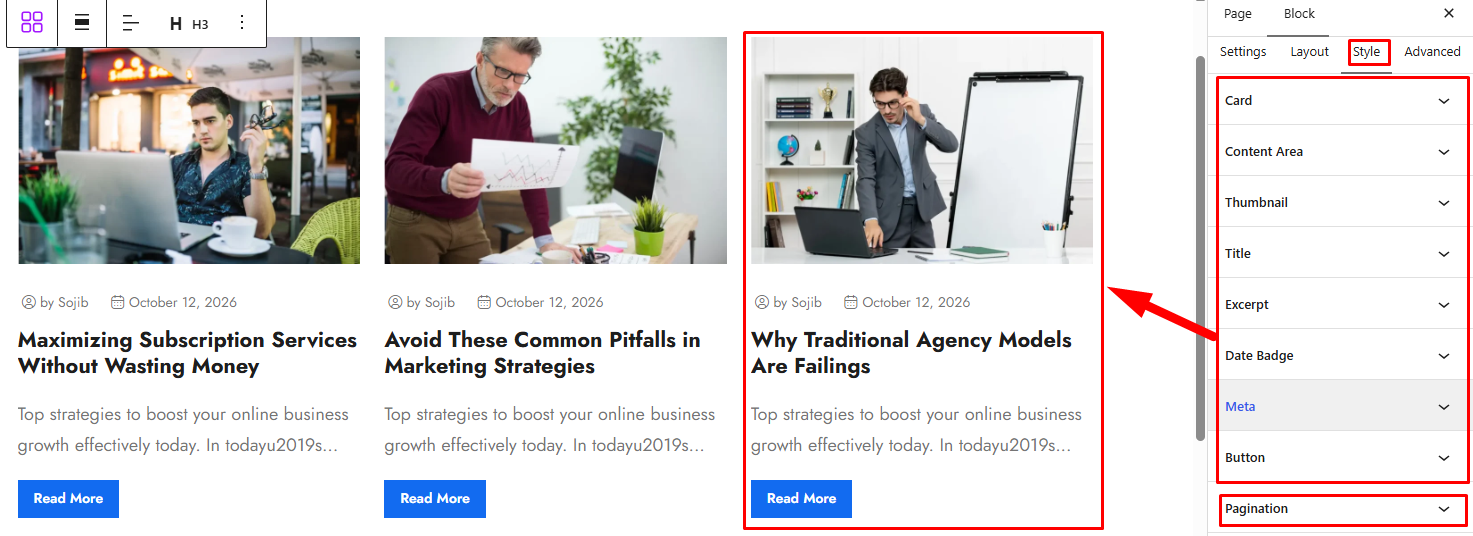
- Style: Customize card backgrounds, borders, images, titles, excerpts, metadata, buttons, and pagination.
- Advanced: Configure the block’s spacing and background.
Settings Tab
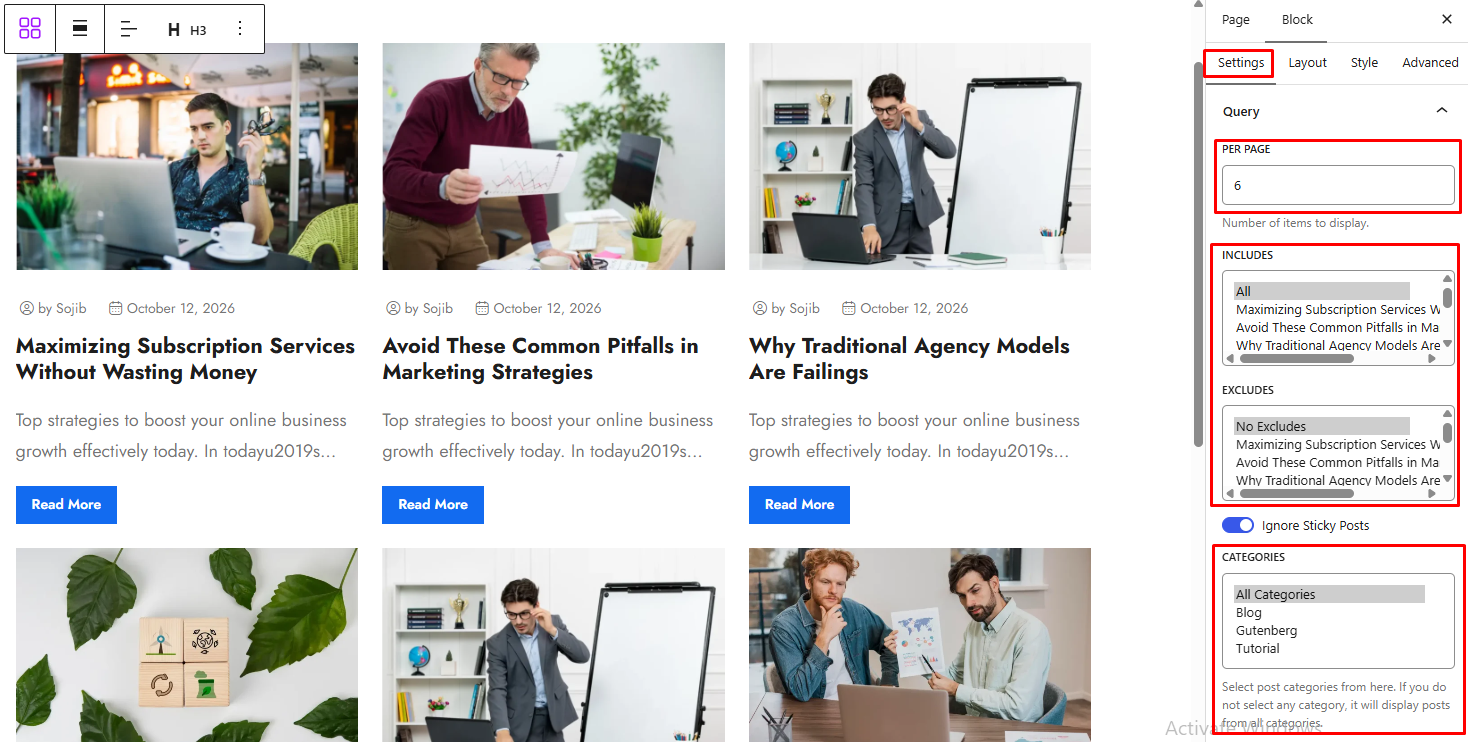
1. Query
Control which WordPress posts appear in the grid and how they are ordered.
- Per Page: Set the number of posts to display.
- Includes: Select specific posts to include. Choose All to include all posts.
- Excludes: Select specific posts to exclude from the grid. Choose No Excludes if you do not want to exclude any posts.
- Ignore Sticky Posts: Enable this option to ignore the special ordering of sticky posts.
- Categories: Select the post categories to display. If no category is selected, posts from all categories are displayed.
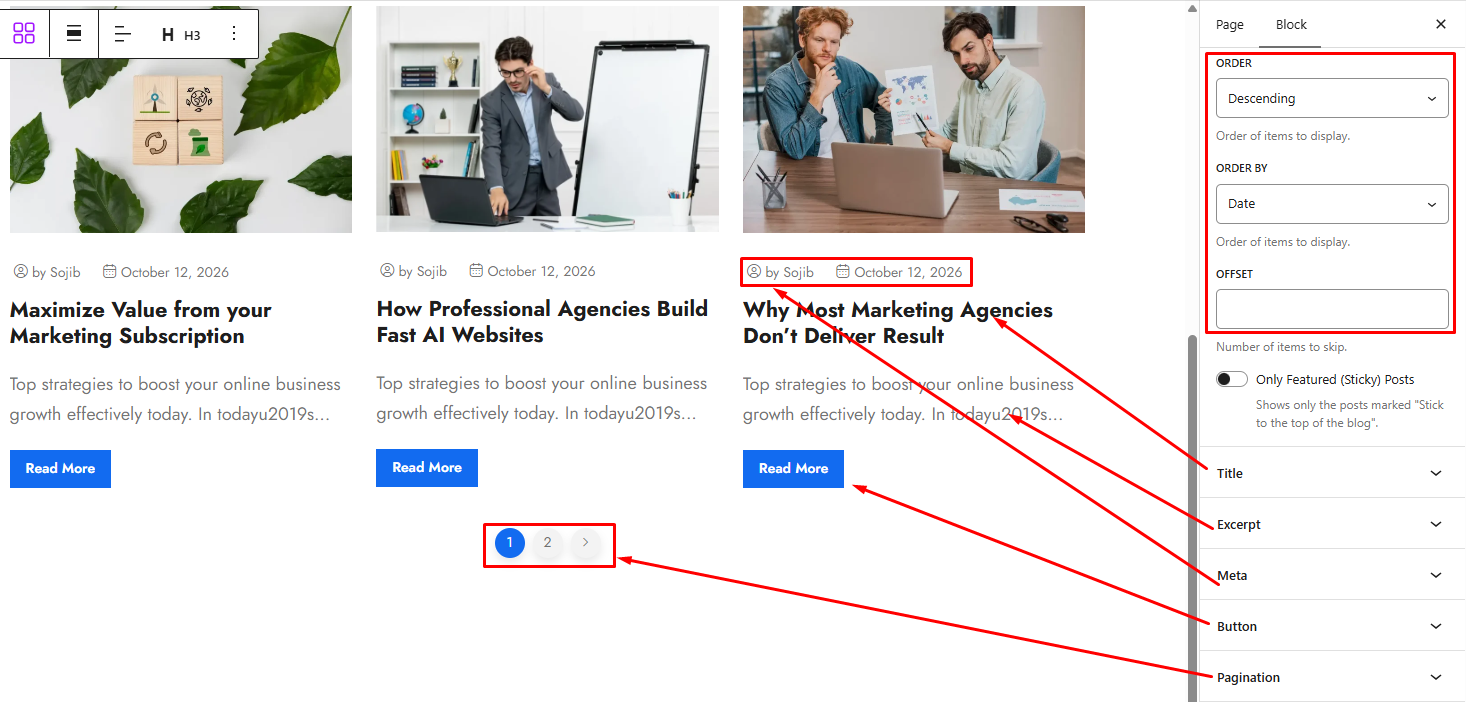
- Order: Choose the post order:
- Ascending: Display posts in ascending order.
- Descending: Display posts in descending order.
- Order By: Choose how posts are sorted.
- Date: Sort by publication date.
- Title: Sort by post title.
- Name: Sort by post slug.
- ID: Sort by post ID.
- Random: Display posts in random order.
- Offset: Set the number of posts to skip before displaying results.
- Only Featured (Sticky) Posts: Display only posts marked as sticky in WordPress.
2. Title
Configure how post titles are displayed.
- Title HTML Tag: Choose the HTML heading tag for post titles: H2, H3, H4, H5, or H6.
- Title Length (words): Set the maximum number of words displayed in a post title.
3. Excerpt
Control whether post excerpts appear and how much text is displayed.
- Show Excerpt: Enable or disable post excerpts.
- Excerpt Length (words): Set the maximum number of words displayed in each excerpt. This option appears when Show Excerpt is enabled.
4. Meta
Configure the post metadata displayed in each card.
- Show Meta: Enable or disable post metadata.
- Items to Show: Select the metadata items to display. Multiple options can be selected.
- Author: Display the post author.
- Date: Display the publication date.
- Category: Display the post category.
- Tag: Display post tags.
- Comments Count: Display the number of comments.
- Author Prefix: Add text before the author’s name, such as “by.” This option appears when Author is selected.
- Position: Choose where the metadata appears.
- Default: Use the default position.
- Above Title: Display metadata above the post title.
- Below Title: Display metadata below the post title.
- Below Content: Display metadata below the post content.
- Show Date Badge: Display the post date as a badge near the top of the card.
The metadata controls appear when Show Meta is enabled.
5. Button
Configure the Read More button displayed on post cards.
- Show Button: Enable or disable the Read More button.
- Keep the button at the bottom of the card: Align buttons along the bottom of cards when excerpts have different lengths. This option is intended for the Default card style.
- Button Text: Customize the button label, such as “Read More.”
- Button Icon: Select an icon to display with the button.
- Icon Position: Choose where the icon appears relative to the button text.
- Before: Display the icon before the text.
- After: Display the icon after the text.
The button options appear when Show Button is enabled.
6. Pagination
Configure pagination for the post grid.
- Show Pagination: Enable or disable pagination.
- Pagination Type: Choose the pagination type. The default available option is Numeric, which displays numbered page links.
Layout Tab
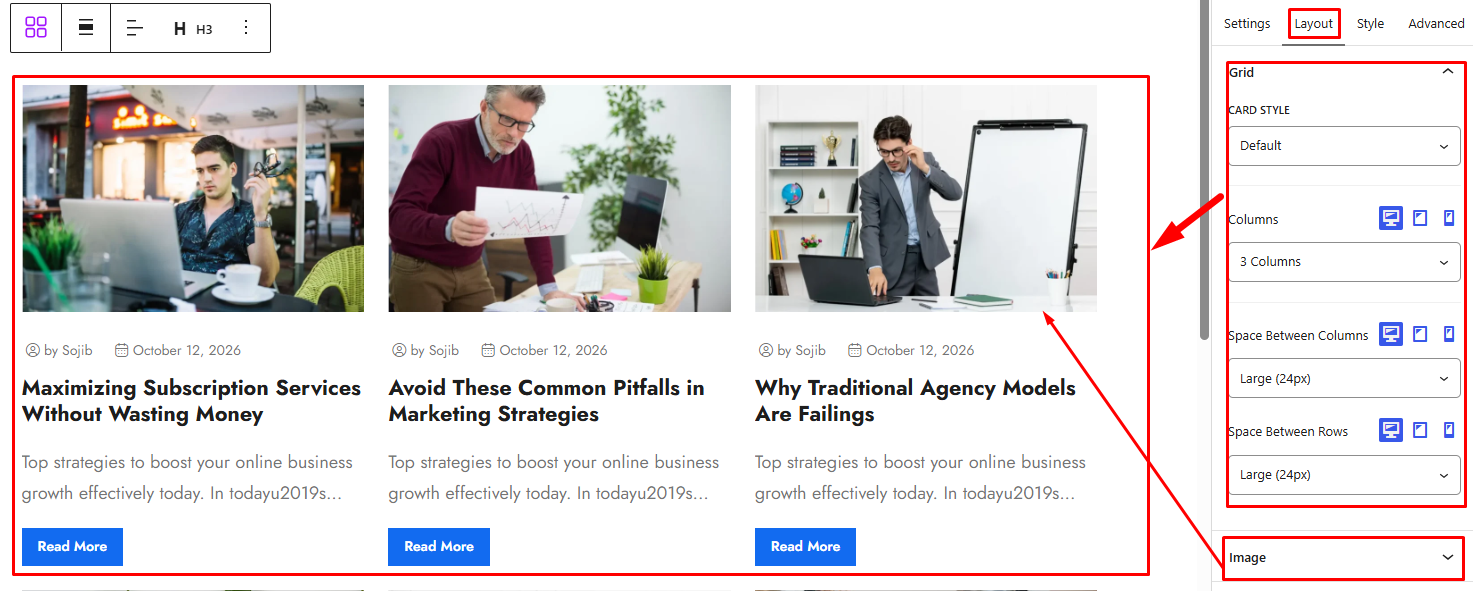
1. Grid
Choose the card design and configure the responsive grid.
- Card Style: Choose the appearance of the post cards.
- Default: Use the standard card layout.
- Style 1: Use the alternative card layout.
- Columns: Set the number of columns for Desktop, Tablet, and Mobile devices. Available column counts range from 1 to 6.
2. Image
Configure the featured image displayed on each post card.
- Image Size: Choose the WordPress image size to use. Available options depend on the image sizes registered by your WordPress theme and plugins.
- Thumbnail Height: Set the height of the post thumbnail. This control supports responsive settings and units.
Style Tab
1. Card
Customize the overall appearance of post cards.
- Background: Set the card background color or gradient.
- Background (Hover): Set the card background color or gradient when visitors hover over a card.
- Border Color: Set the card border color.
- Box Shadow: Customize the default card shadow.
- Lift the card on hover: Enable a lifting effect when visitors hover over a card.
- Overlay: Set the overlay background color or gradient used by the card design.
- Box Shadow: Customize the card shadow for the applicable card state.
- Border: Configure the card border, including its width, color, and style.
- Border Radius: Adjust the roundness of the card corners.
- Padding: Set the inner spacing of the card. This control supports responsive settings.
- Margin: Set the outer spacing around the card. This control supports responsive settings.
2. Content Area
Customize the area below the featured image that contains metadata, the title, excerpt, and button.
- Text Align: Align the content to the Left, Center, Right, or Justify. This control supports responsive settings.
- Padding: Set the inner spacing of the content area. This control supports responsive settings.
3. Thumbnail
Customize the featured image’s hover effect and corners.
- Hover Animation: Choose the image hover animation.
- None: Disable the hover animation.
- Left Right: Apply a horizontal movement effect.
- Top Bottom: Apply a vertical movement effect.
- Zoom: Enlarge the image on hover.
- Border Radius: Adjust the roundness of the thumbnail corners.
4. Title
Customize the appearance and spacing of post titles.
- Normal: Set the title color in its default state.
- Hover: Set the title color when visitors hover over the card.
- Padding: Set the inner spacing around the title. This control supports responsive settings.
- Margin: Set the outer spacing around the title. This control supports responsive settings.
- Text Align: Align the title text. This control supports responsive settings.
- Typography: Customize the title typography, including font family, size, weight, style, text transform, line height, and letter spacing. This control supports responsive settings.
5. Excerpt
Customize the appearance and spacing of post excerpts.
- Color: Set the excerpt text color.
- Padding: Set the inner spacing around the excerpt. This control supports responsive settings.
- Margin: Set the outer spacing around the excerpt. This control supports responsive settings.
- Text Align: Align the excerpt text. This control supports responsive settings.
- Typography: Customize the excerpt typography, including font family, size, weight, style, text transform, line height, and letter spacing. This control supports responsive settings.
6. Date Badge
Customize the badge used to display the post date.
- Color: Set the date text color.
- Background: Set the date badge background color or gradient.
7. Meta
Customize the appearance of post metadata.
- Meta Style: Choose the metadata design.
- Default: Use the default metadata layout.
- Style 1: Use the first alternative metadata style.
- Style 2: Use the second alternative metadata style.
- Style 3: Use the third alternative metadata style.
- Text — Normal: Set the metadata text color in its default state.
- Text — Hover: Set the metadata text color when visitors hover over a card.
- Icon — Normal: Set the metadata icon color in its default state.
- Icon — Hover: Set the metadata icon color when visitors hover over a card.
- Margin: Set the spacing around the metadata area.
- Typography: Customize the metadata typography, including font family, size, weight, style, text transform, line height, and letter spacing.
8. Button
Customize the appearance of the Read More button.
- Background — Normal: Set the button background color or gradient.
- Background — Hover: Set the button background color or gradient on hover.
- Color — Normal: Set the button text color.
- Color — Hover: Set the button text color on hover.
- Padding: Set the inner spacing of the button.
- Margin: Set the outer spacing around the button.
- Border Radius: Adjust the roundness of the button corners.
- Border: Customize the button border, including its width, color, and style.
- Text Align: Align the button text. This control supports responsive settings.
- Typography: Customize the button typography, including font family, size, weight, style, text transform, line height, and letter spacing.
9. Pagination
Customize the appearance of the pagination controls.
- Color: Set the pagination text color.
- Background: Set the pagination background color or gradient.
- Border: Customize the pagination button border.
- Border Radius: Adjust the roundness of the pagination button corners.
- Typography: Customize the pagination typography, including font family, size, weight, style, text transform, line height, and letter spacing.
Advanced Tab
1. Spacing
Control the spacing around the entire Post Grid Block.
- Padding: Set the inner spacing around the block. Responsive settings are available.
- Margin: Set the outer spacing around the block. Responsive settings are available.
2. Background
Customize the background of the entire Post Grid Block.
- Background: Set a background color or gradient for the block.


