
The ShapeBlock Features List Block lets you display a vertical list of features, services, benefits, or steps. Each item can include an icon, number, or image, along with a title and description. You can also customize the layout, styling, spacing, and optional connector lines.
How to Add a Features List Block
Follow these steps to add and configure the Features List Block in the Gutenberg editor.
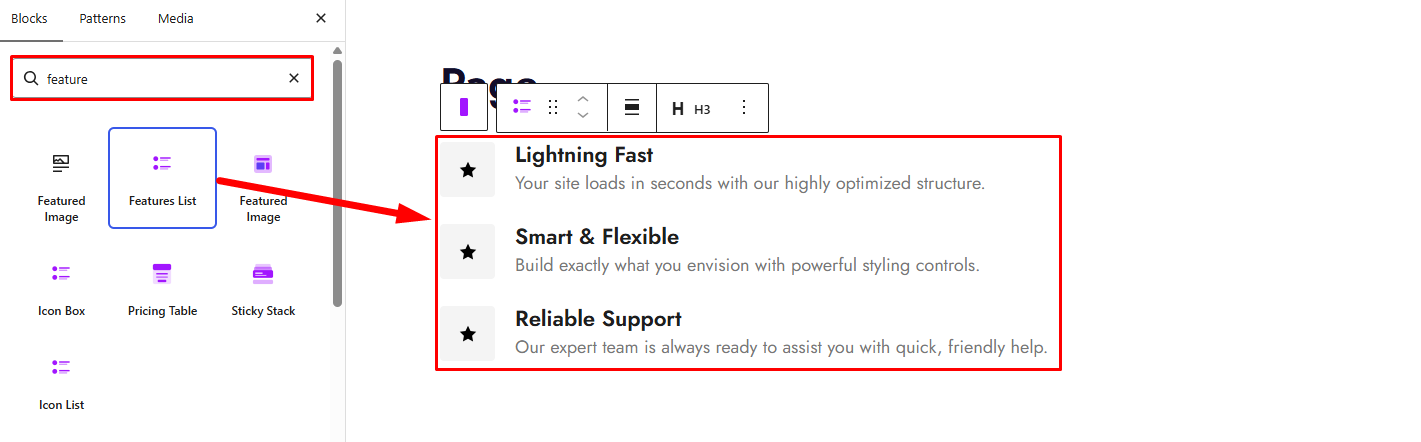
Step 1: Add the Features List Block
- Open a page or post in the WordPress Gutenberg editor.
- Click the + button to open the block inserter.
- Search for Features List under ShapeBlock.
- Insert the Features List Block into your page.
- Select the block to access its settings in the right-hand sidebar.
- Edit the feature items and customize their appearance using the available settings.
Step 2: Configure the Features List Block
Select the Features List Block and open its settings in the right-hand sidebar. The available tabs are:
- Settings: Add and manage feature items, choose an icon, number, or image, configure title tags, and enable connector lines.
- Layout: Adjust icon direction, vertical alignment, item spacing, middle spacing, and margins.
- Style: Customize the list background, borders, icons, titles, descriptions, and connector appearance.
- Advanced: Configure the block’s outer padding, margin, and background.
Settings Tab
The Settings tab contains the List Settings and Connector panels. Use these panels to manage feature items and configure connector options.
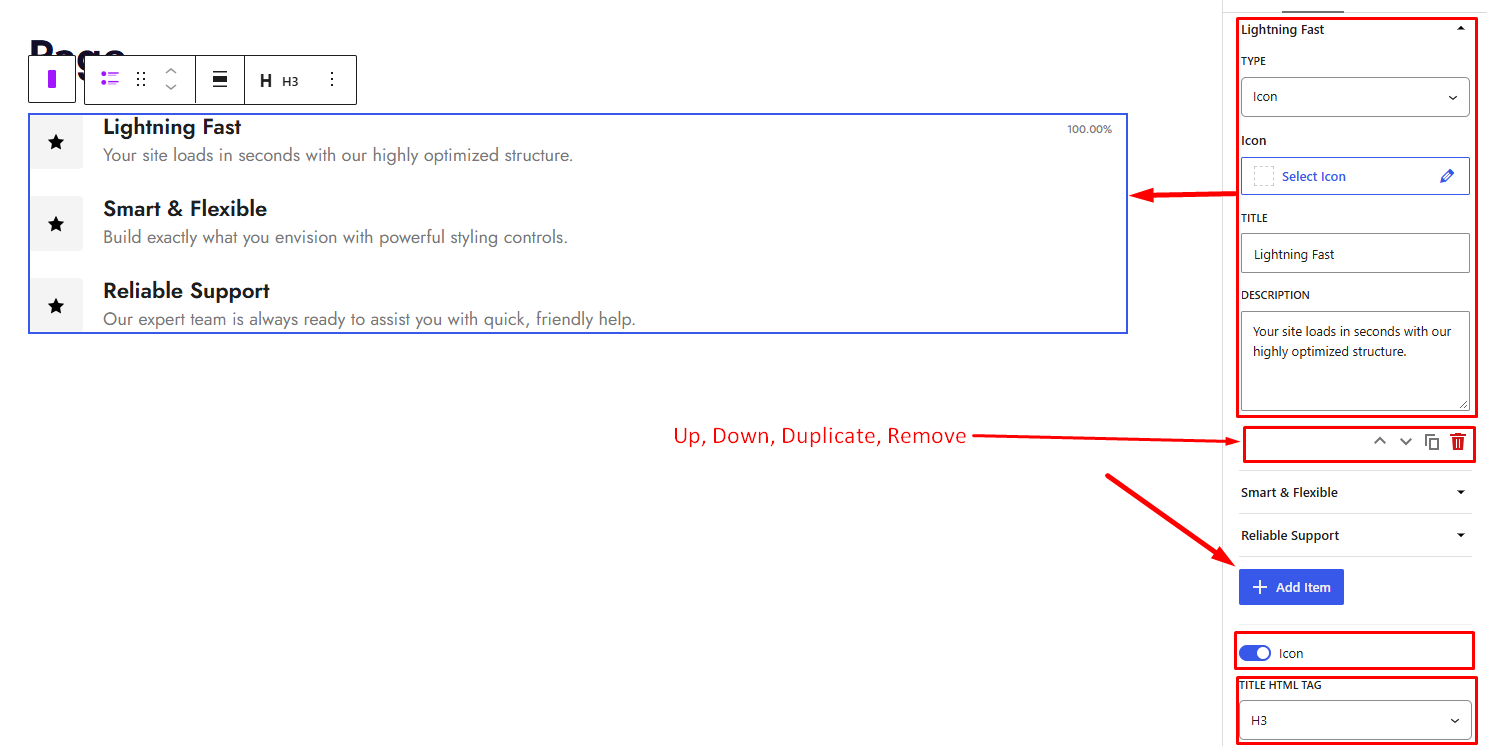
1. List Settings
Use this panel to add, edit, organize, and customize the content of your feature items.
- Feature Items: Each item has its own expandable settings. Click an item to open its options.
- Type: Choose the content displayed beside the feature title and description.
- Icon: Display an icon.
- Number: Display a number or step label.
- Image: Display an image selected from the Media Library.
- Icon: Choose an icon when the Type is set to Icon.
- Number: Enter the number or label when the Type is set to Number.
- Select Image: Choose an image when the Type is set to Image. Use Replace to change an existing image.
- Title: Enter the feature item’s heading.
- Description: Enter the text that explains the feature.
- Move Up / Move Down: Change the item’s position in the list.
- Duplicate: Create a copy of the selected item.
- Remove: Delete the selected item.
- Type: Choose the content displayed beside the feature title and description.
- Add Item: Add a new feature item to the list.
- Icon Show Hide: Enable this option to display an icon, number, or image for each item. Disable it to hide these visual elements.
- Title HTML Tag: Choose the HTML tag used for feature titles, such as H1, H2, H3, H4, H5, H6, P, DIV, or SPAN.
2. Connector
Use this panel to configure connector lines between feature items.
- Connector: Enable this option to display connector lines between the feature items. Additional connector settings become available when enabled.
- Left Connector: Enable this option to use the left-side connector layout. This option appears when Connector is enabled.

Layout Tab
The Layout tab controls the arrangement of feature items, icon alignment, and spacing between items.
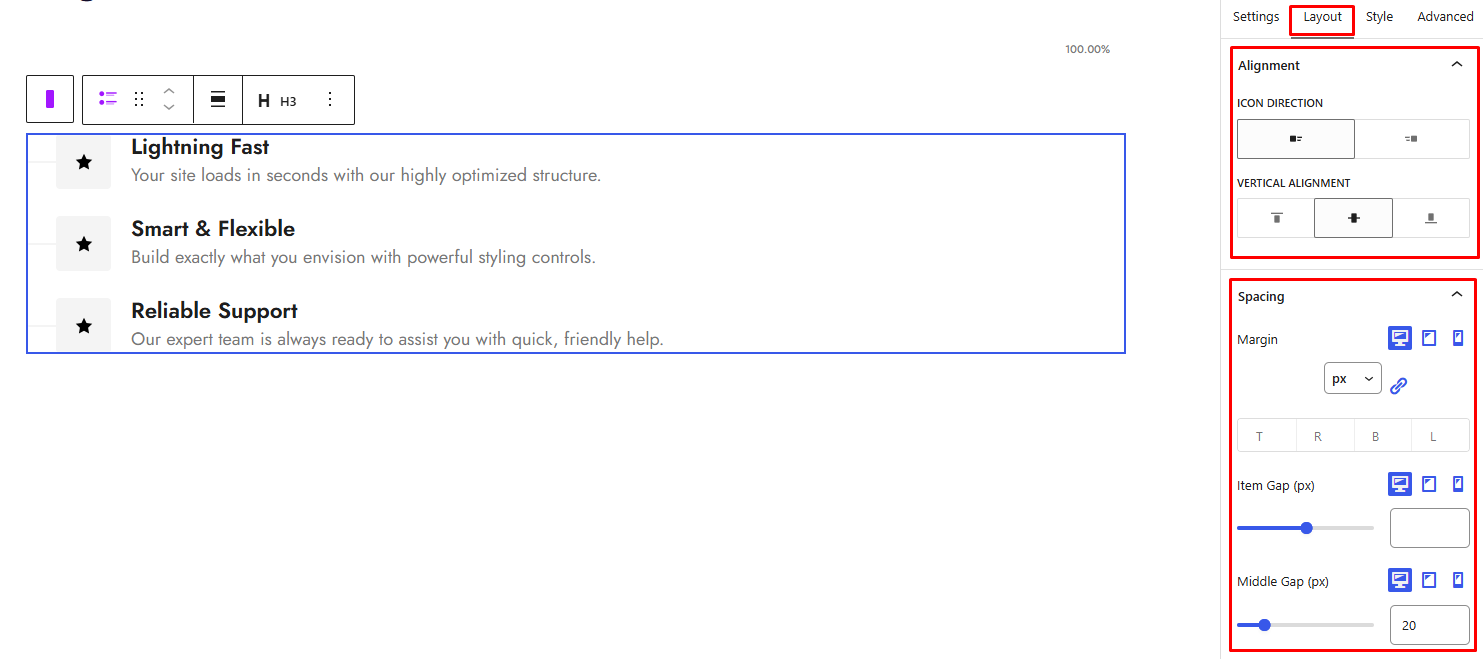
1. Alignment
This panel appears when the Icon option is enabled in the Settings tab.
- Icon Direction: Choose the position of the icon, number, or image relative to the text.
- Left: Display the visual element to the left of the title and description.
- Right: Display the visual element to the right of the title and description.
- Vertical Alignment: Choose how the visual element aligns vertically with the text.
- Top: Align the visual element to the top.
- Middle: Align the visual element to the middle.
- Bottom: Align the visual element to the bottom.
2. Spacing
Use this panel to control the space around and between feature items.
- Margin: Set the outer spacing around the feature items. Configure the top, right, bottom, and left values separately.
- Item Gap (px): Set the spacing between individual feature items.
- Middle Gap (px): Set the spacing between the icon, number, or image and the text content.
The responsive spacing controls allow you to configure values separately for desktop, tablet, and mobile devices.
Style Tab
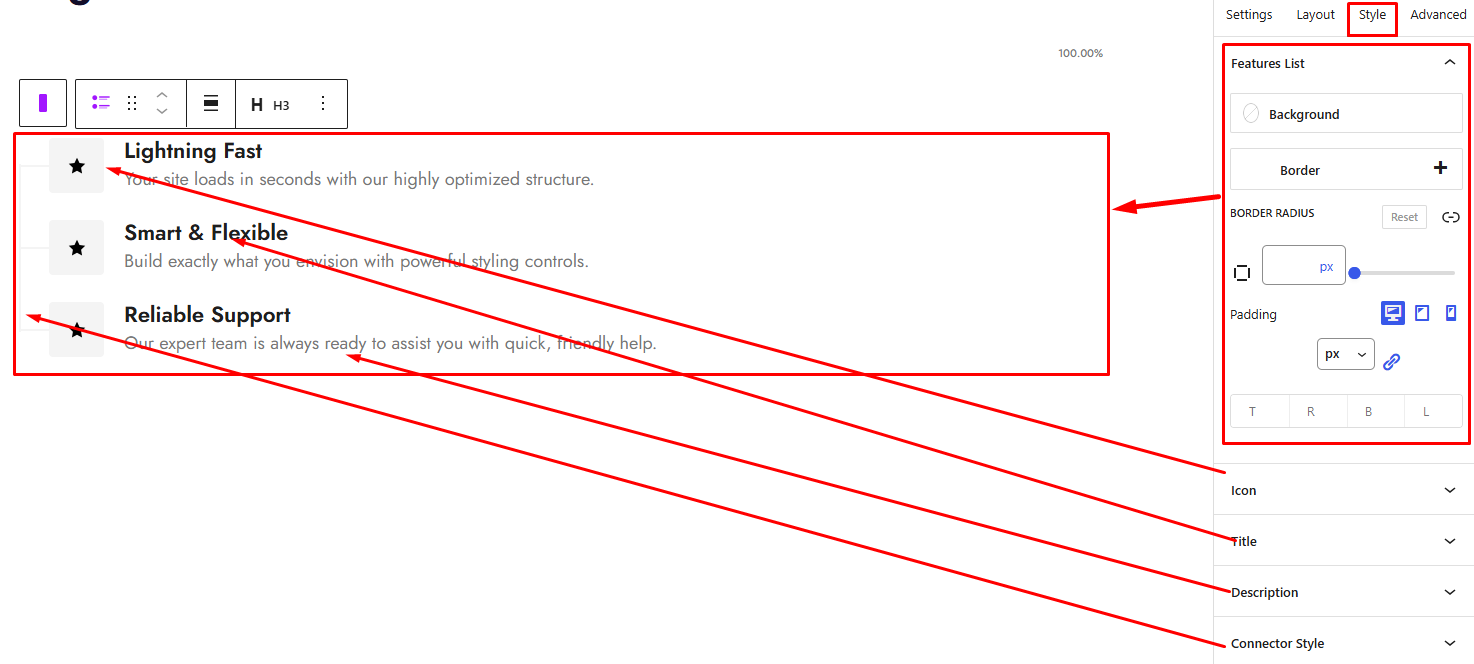
The Style tab contains the Features List, Icon, Title, Description, and Connector Style panels. The Icon panel appears when the Icon option is enabled in the Settings tab. The Connector Style panel appears when Connector is enabled.
1. Features List
Use this panel to customize the overall appearance of the feature list.
- Background: Set the background color or gradient for the feature list.
- Border: Customize the border width, color, and style.
- Border Radius: Adjust the rounding of the feature list’s corners. Configure each corner independently.
- Padding: Set the inner spacing around the feature list. Configure the values separately for desktop, tablet, and mobile devices.
2. Icon
This panel appears when the Icon option is enabled in the Settings tab. It controls the appearance of the icon, number, or image container.
- Icon View: Choose how the visual element is displayed.
- Default: Display the visual element without the additional frame or stacked styling.
- Frame: Display the visual element within a frame.
- Stacked: Display the visual element with a background behind it.
- Shape: Choose the shape of the icon container. This option appears when Frame or Stacked is selected.
- Rounded: Use rounded corners.
- Square: Use square corners.
- Circle: Use a circular shape.
- Square Rotate: Use a rotated square shape.
- Size (px): Set the size of the icon or visual element. You can configure it separately for desktop, tablet, and mobile devices.
- Box Size (px): Set the size of the container surrounding the visual element. Responsive values are available.
- Alignment: Choose the horizontal alignment of the visual element.
- Left: Align the visual element to the left.
- Center: Align the visual element to the center.
- Right: Align the visual element to the right.
- Color: Set the icon color.
- Background: Set a solid background color or gradient for the icon container.
- Box Shadow: Add and customize a shadow around the icon container.
- Border: Customize the icon container’s border width, color, and style.
- Border Radius: Adjust the rounding of the icon container’s corners. Configure each corner independently.
3. Title
Use this panel to customize the appearance of feature titles.
- Color: Set the title text color.
- Typography: Customize the title’s font family, font size, font weight, font style, text transformation, line height, and letter spacing. Responsive typography settings are available for desktop, tablet, and mobile devices.
- Padding: Set the inner spacing around the title. Configure the values separately for desktop, tablet, and mobile devices.
4. Description
Use this panel to customize the text displayed below each feature title.
- Color: Set the description text color.
- Typography: Customize the description’s font family, font size, font weight, font style, text transformation, line height, and letter spacing. Responsive typography settings are available for desktop, tablet, and mobile devices.
5. Connector Style
This panel appears when Connector is enabled in the Settings tab. Use it to customize the connector lines between feature items.
- Type: Choose the connector line style.
- Solid: Display a solid line.
- Dotted: Display a dotted line.
- Dashed: Display a dashed line.
- Double: Display a double line.
- Connector Width (px): Set the thickness of the connector line. Responsive values are available for desktop, tablet, and mobile devices.
- Position Horizontal (px): Adjust the horizontal position of the connector line. The available control depends on the selected Icon Direction.
- Color: Set the connector line color.
Advanced Tab
The Advanced tab provides additional spacing and background controls for the Features List Block. These settings apply to the entire block.
1. Spacing
- Padding: Set the inner spacing around the entire Features List Block. Configure the top, right, bottom, and left values separately.
- Margin: Set the outer spacing around the entire Features List Block. Configure the top, right, bottom, and left values separately.
Both controls support responsive settings for desktop, tablet, and mobile devices.
Note: These spacing controls apply to the entire block and are separate from the item spacing and padding options in the Layout and Style tabs.
2. Background
- Background: Customize the background of the entire Features List Block using a background color or gradient.
Note: This background applies to the entire block area, not just an individual feature item.


