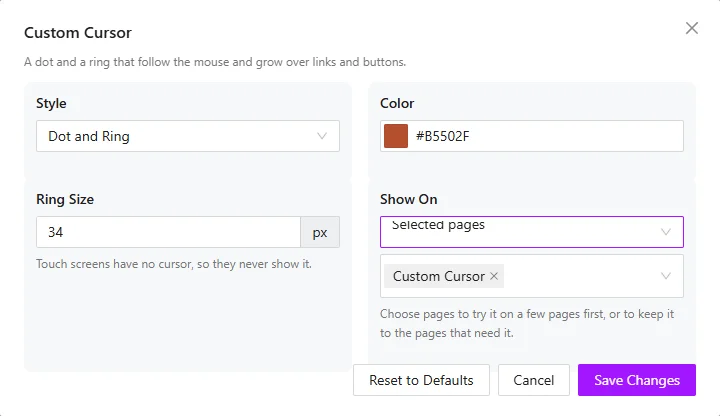
The Custom Cursor replaces the mouse pointer with a dot, a ring, or both. The cursor follows the mouse and grows over links and buttons.
Touch screens have no cursor, so phones and tablets never show it.
How to Turn On the Custom Cursor
- In your WordPress dashboard, go to ShapeBlock > Extensions.
- Find the Custom Cursor card and turn its switch on. The change is saved right away.
- Click the gear button on the card to open its settings.
- Change the settings and click Save Changes.

Custom Cursor Settings
- Style: Choose Dot and Ring, Dot, or Ring.
- Color: Set the cursor color. Pick a color that stands out on both your light and dark sections.
- Ring Size: Set the size of the ring in pixels.
Show On
Every site-wide extension has a Show On option at the end of its settings window.
- All pages: The extension runs on every page of the site. This is the default.
- Selected pages: A second field appears. Pick one or more pages from the list (type to search). The extension then runs only on those pages, and nowhere else. Use it to try a feature on a few pages first, or to keep it to the pages that need it.
Note: Selected pages works with pages only. Posts, archives, and search results are not in the list, so a feature limited to selected pages does not run on them.