
The Client Logo Block lets you display client, partner, or brand logos in a responsive grid. You can add multiple logos, link each logo to a website, choose a different image for hover effects, and customize the number of columns, logo size, spacing, grayscale effect, background, border, and shadow.
How to Add a Client Logo Block
Follow these steps to add and configure the Client Logo Block in the WordPress Gutenberg editor.
Step 1: Add the Client Logo Block
- Open the page or post where you want to display client logos.
- Click the + (Add Block) button in the Gutenberg editor.
- Search for Client Logo in the block inserter.
- Select the Client Logo block from the ShapeBlock category.
- The Client Logo block will be added to your page with logo placeholders.
- Select the block to configure its settings using the sidebar.

Step 2: Configure the Client Logo Block
Select the Client Logo Block to access its configuration options in the sidebar. The available options are organized into four tabs:
- Settings: Add, replace, duplicate, remove, and reorder logos. Configure logo links and the image hover swap effect.
- Layout: Set image width, the number of columns for desktop, tablet, and mobile, item width, item height, and spacing.
- Style: Customize grayscale effects, border radius, padding, transitions, backgrounds, borders, shadows, opacity, and image scaling.
- Advanced: Configure padding, margin, and background.
Settings Tab
The Settings tab contains the Logo Settings panel for managing logos and their links.
1. Logo Settings
- Logo: Each logo appears as a separate item in the list.
- Select Logo: Choose a logo image from the WordPress Media Library.
- Replace Logo: Replace the selected logo with another image.
- Move Up: Move the logo one position upward.
- Move Down: Move the logo one position downward.
- Duplicate: Create a copy of the logo item.
- Remove: Delete the logo item.
- Hover Image: When Image Hover Swap Effect is enabled, select a separate image to display on hover.
- Select Hover Image: Choose the alternate image from the Media Library.
- Replace Hover Image: Replace the selected hover image.
- Remove: Remove the hover image. When no hover image is selected, the original logo is used.
- Link: Enter the URL where visitors will be directed when they click the logo.
- Open in New Tab: Open the linked page in a new browser tab. This option appears when a link is entered.
- Add Nofollow: Add the
nofollowattribute to the logo link. This option appears when a link is entered. - Add Logo: Add another logo item to the list.
- Image Hover Swap Effect: Enable or disable the effect that slides the original logo away and displays a second image on hover.
Layout Tab
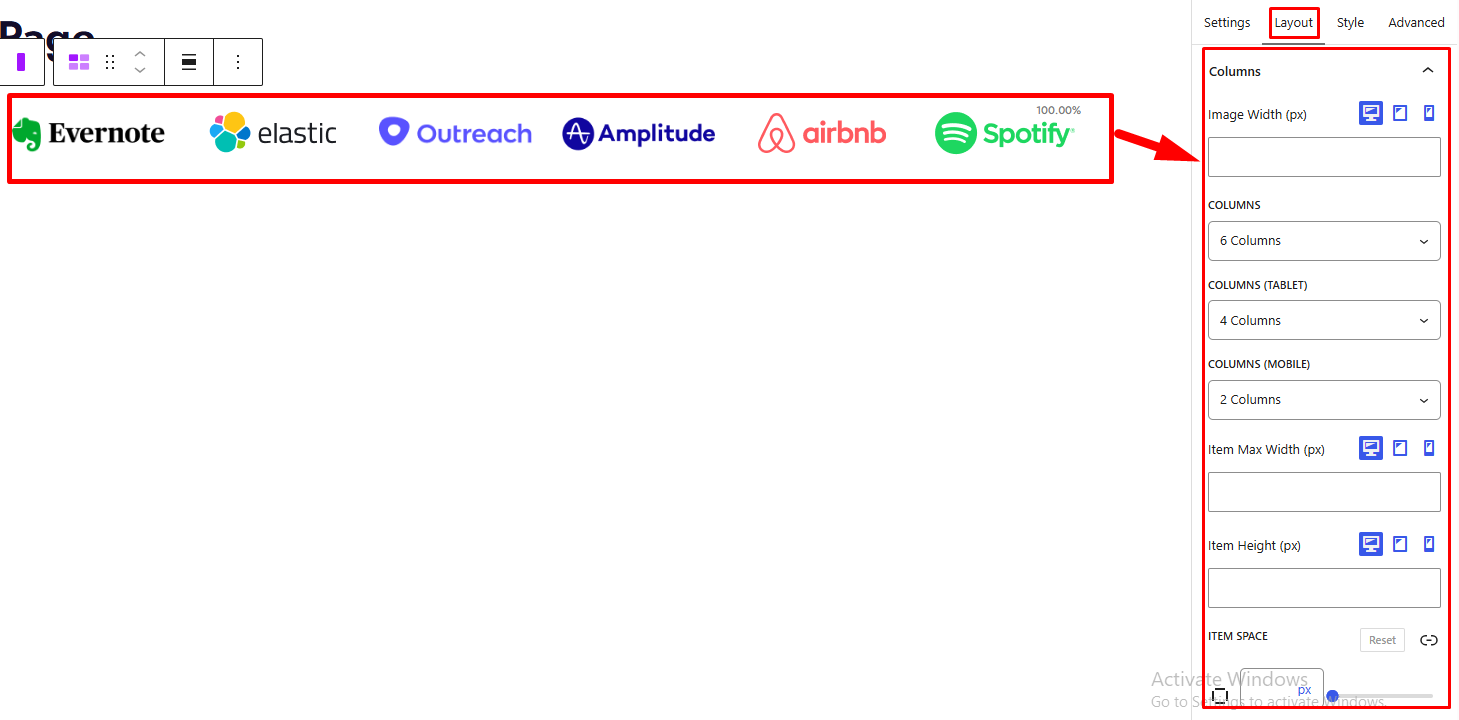
The Layout tab contains the Columns panel for controlling the logo grid and item dimensions.
1. Columns
- Image Width (px): Set the width of the logo images. Responsive settings are available for desktop, tablet, and mobile.
- Columns: Choose the number of columns displayed on desktop:
- 1 Column
- 2 Columns
- 3 Columns
- 4 Columns
- 5 Columns
- 6 Columns
- Columns (Tablet): Choose the number of columns displayed on tablet devices, from 1 to 6.
- Columns (Mobile): Choose the number of columns displayed on mobile devices, from 1 to 6.
- Item Max Width (px): Set the maximum width of each logo item. Responsive settings are available for desktop, tablet, and mobile.
- Item Height (px): Set the height of each logo item. Responsive settings are available for desktop, tablet, and mobile.
- Item Space: Adjust the spacing between logo items.
Style Tab
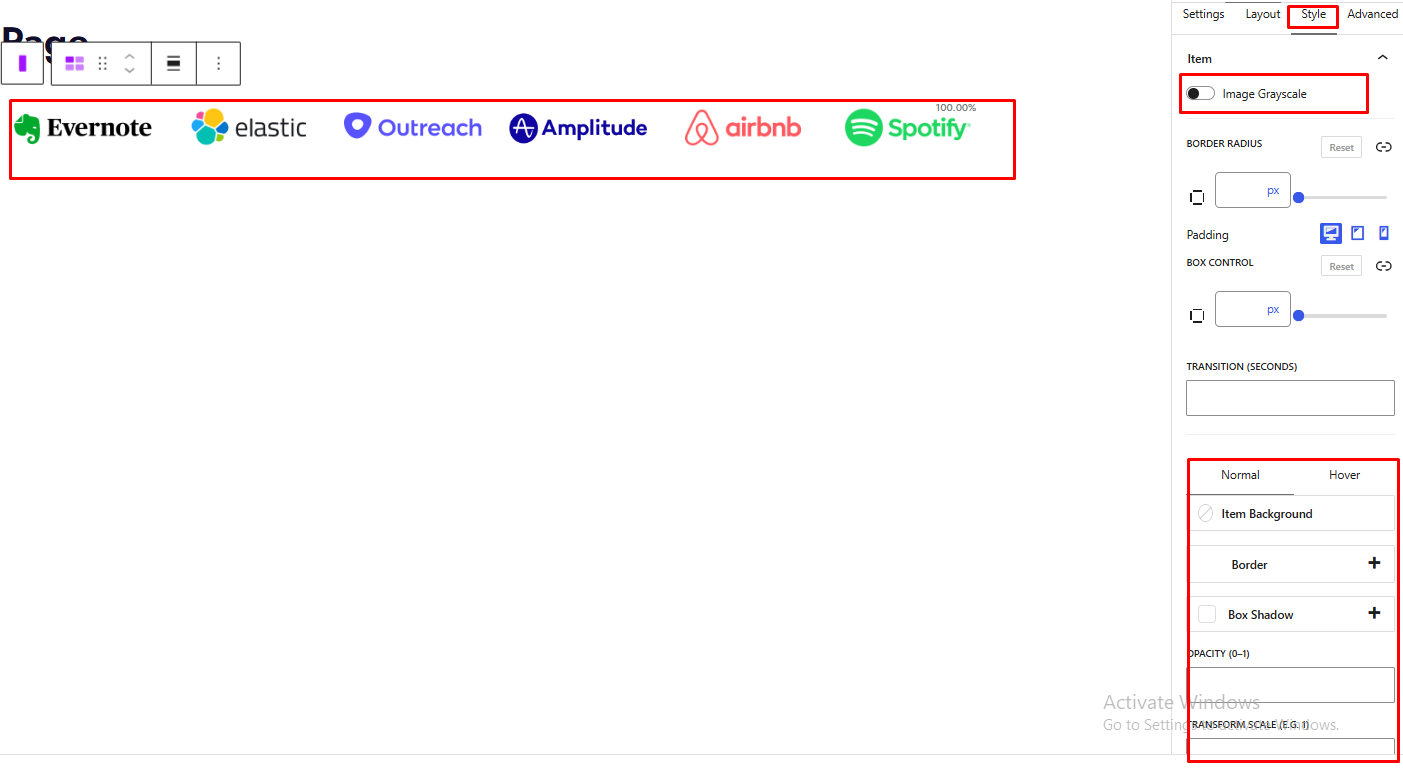
The Style tab contains the Item panel for customizing the appearance of individual logo items and their hover effects.
1. Item
- Image Grayscale: Enable or disable the grayscale effect for logo images.
- Grayscale: Choose how the grayscale effect behaves. This option appears when Image Grayscale is enabled.
- Default Grayscale: Display logos in grayscale by default.
- Hover Grayscale: Apply the grayscale effect on hover.
- Hover to Default Image: Display the default colored image on hover.
- Border Radius: Customize the rounding of the logo item’s corners.
- Padding: Set the inner spacing around each logo item. Responsive settings are available for desktop, tablet, and mobile.
- Transition (seconds): Set the duration of the transition effect.
The panel also contains Normal and Hover states for customizing the logo item’s appearance.
- Normal:
- Item Background: Set the default background color or gradient.
- Border: Customize the default border.
- Box Shadow: Add a shadow to the logo item.
- Opacity (0–1): Adjust the default opacity of the logo image.
- Transform Scale (e.g. 1): Set the default image scale. This option is available when Image Hover Swap Effect is disabled.
- Hover:
- Item Hover Background: Set the background color or gradient on hover.
- Border: Customize the border on hover.
- Box Shadow: Set the shadow on hover.
- Opacity (0–1): Adjust the image opacity on hover.
- Transform Scale (e.g. 1.1): Set the image scale on hover. This option is available when Image Hover Swap Effect is disabled.
Advanced Tab
The Advanced tab contains the Spacing and Background panels for controlling the spacing and background of the entire Client Logo Block.
1. Spacing
- Padding: Set the inner spacing around the entire Client Logo Block. Responsive settings are available for desktop, tablet, and mobile.
- Margin: Set the outer spacing around the entire Client Logo Block. Responsive settings are available for desktop, tablet, and mobile.
2. Background
- Background: Set a background color or gradient for the entire Client Logo Block.


