The Horizontal Scroll Block shows a row of items that moves sideways as the page scrolls down, and back on the way up. Each block you put in the row is one item: an image, a group, a card, or any other block.
On tablets and phones, visitors swipe the row instead. Use it for portfolios, project galleries, timelines, and product lines.
How to Add a Horizontal Scroll Block
Follow these steps to add and configure the Horizontal Scroll Block in the Gutenberg editor.
Step 1: Add the Horizontal Scroll Block
- Open a page or post in the WordPress Gutenberg editor.
- Click the + button to open the block inserter.
- Search for Horizontal Scroll under ShapeBlock.
- Insert the Horizontal Scroll Block into your page.
- Select the block to access its settings in the right-hand sidebar.
- Add images or other blocks inside the row. Each block is one item.

Step 2: Configure the Horizontal Scroll Block
Select the Horizontal Scroll Block and open its settings in the right-hand sidebar. The available tabs are:
- Settings: Set how items line up, the image shape, and the scroll length.
- Style: Set the item width, the space between items, and the space at the ends.
- Advanced: Configure the block padding, margin, and background.
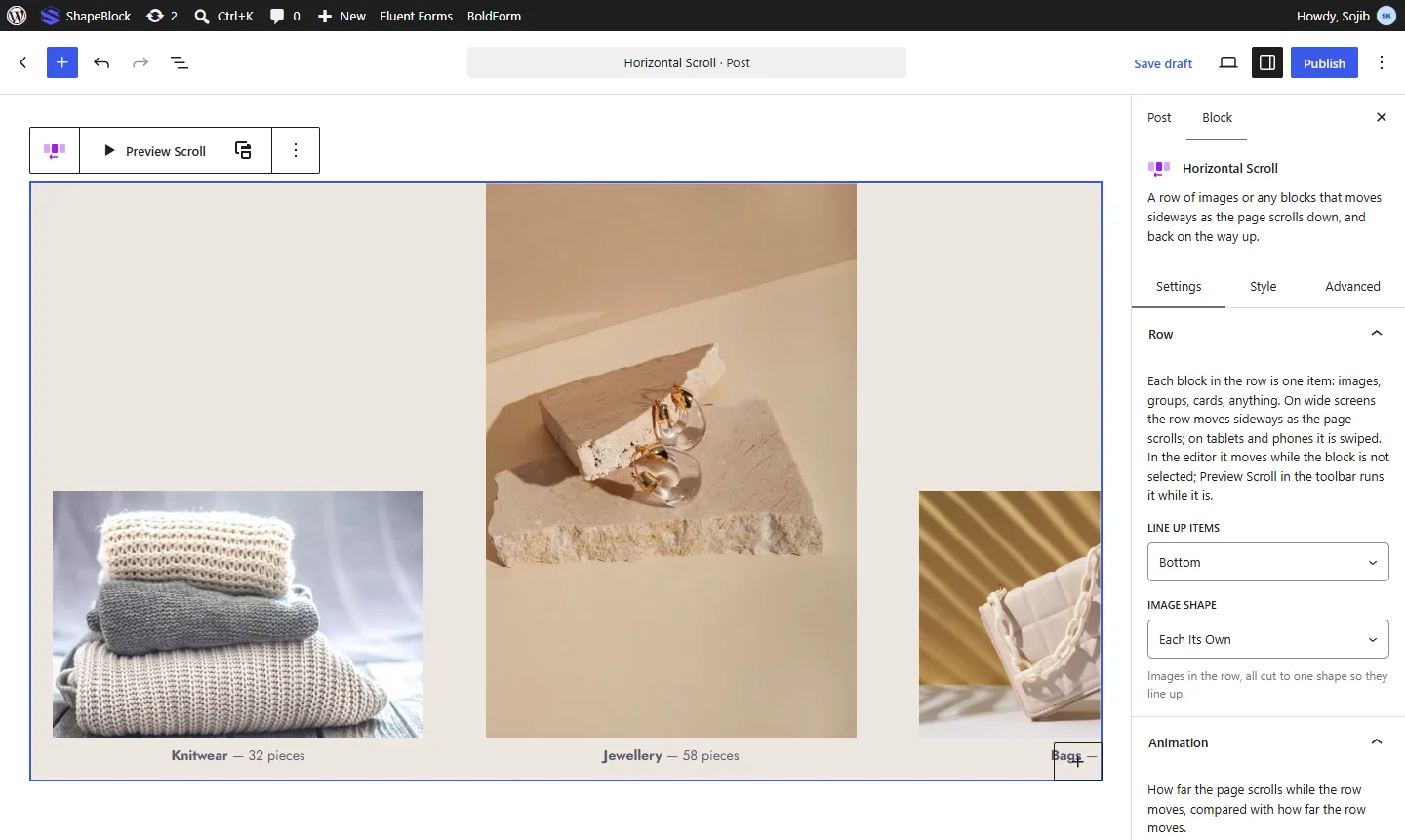
In the editor, the row moves while the block is not selected. Click Preview Scroll in the block toolbar to run it while the block is selected, and Stop Preview to stop it.
Settings Tab
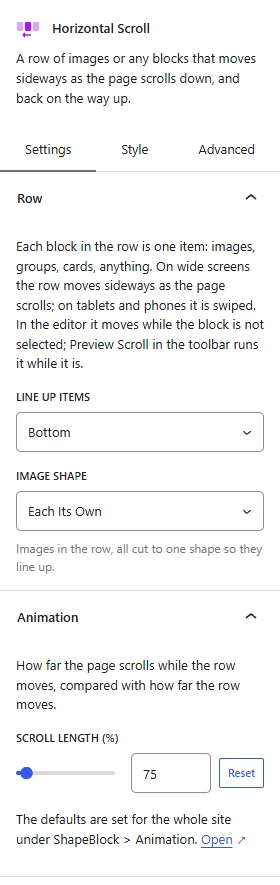
The Settings tab contains the Row and Animation panels.
1. Row
- Line Up Items: Choose how items of different heights line up: Middle, Top, Bottom, or Same Height.
- Image Shape: Cut all images in the row to one shape so they line up: Each Its Own, Square (1:1), 4:3, 3:2, Wide (16:9), or Tall (3:4).
2. Animation
- Scroll Length (%): Set how far the page scrolls while the row moves, compared with how far the row moves. A higher number makes the row move more slowly.
Note: Each Animation setting starts on Default, which uses the value set for the whole site under ShapeBlock > Animation. The current site value is shown in the control. Change a setting here to use a different value for this block only.
Style Tab
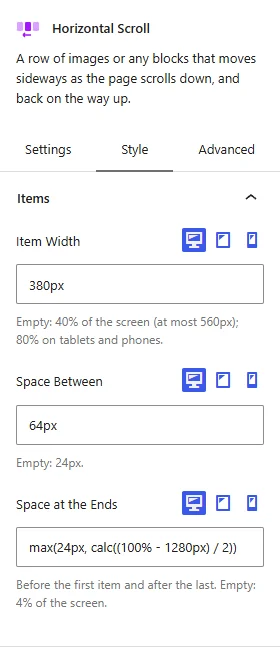
The Style tab contains the Items panel.
1. Items
- Item Width: Set the width of each item. When empty, an item is 40% of the screen (at most 560px), and 80% on tablets and phones.
- Space Between: Set the space between items. When empty, the space is 24px.
- Space at the Ends: Set the space before the first item and after the last one. When empty, it is 4% of the screen.
All three controls support responsive settings for desktop, tablet, and mobile devices.
Advanced Tab
The Advanced tab provides additional spacing and background controls for the Horizontal Scroll Block. These settings apply to the entire block.
1. Spacing
- Padding: Set the inner spacing around the entire Horizontal Scroll Block. Configure the top, right, bottom, and left values separately.
- Margin: Set the outer spacing around the entire Horizontal Scroll Block. Configure the top, right, bottom, and left values separately.
Both controls support responsive settings for desktop, tablet, and mobile devices.
2. Background
- Background: Customize the background of the entire Horizontal Scroll Block using a background color or gradient.
Note: The background applies to the whole block area.
Live demo: see the Horizontal Scroll Block in action on the Horizontal Scroll demo page.