
The Tabs Block lets you organize content into separate tabs, allowing visitors to switch between different content sections without leaving the page. You can customize tab titles, add icons or images, arrange tabs horizontally or vertically, and place any Gutenberg blocks inside each tab.
How to Add a Tabs Block
Step 1: Add the Tabs Block
- Open the page or post where you want to display tabbed content.
- Click the + button to open the Gutenberg Block Inserter.
- Search for Tabs under ShapeBlock.
- Select the Tabs Block.
- Add your tab titles and customize each tab’s content.

Step 2: Configure the Tabs Block
Select the Tabs Block to access its customization options. The available tabs are:
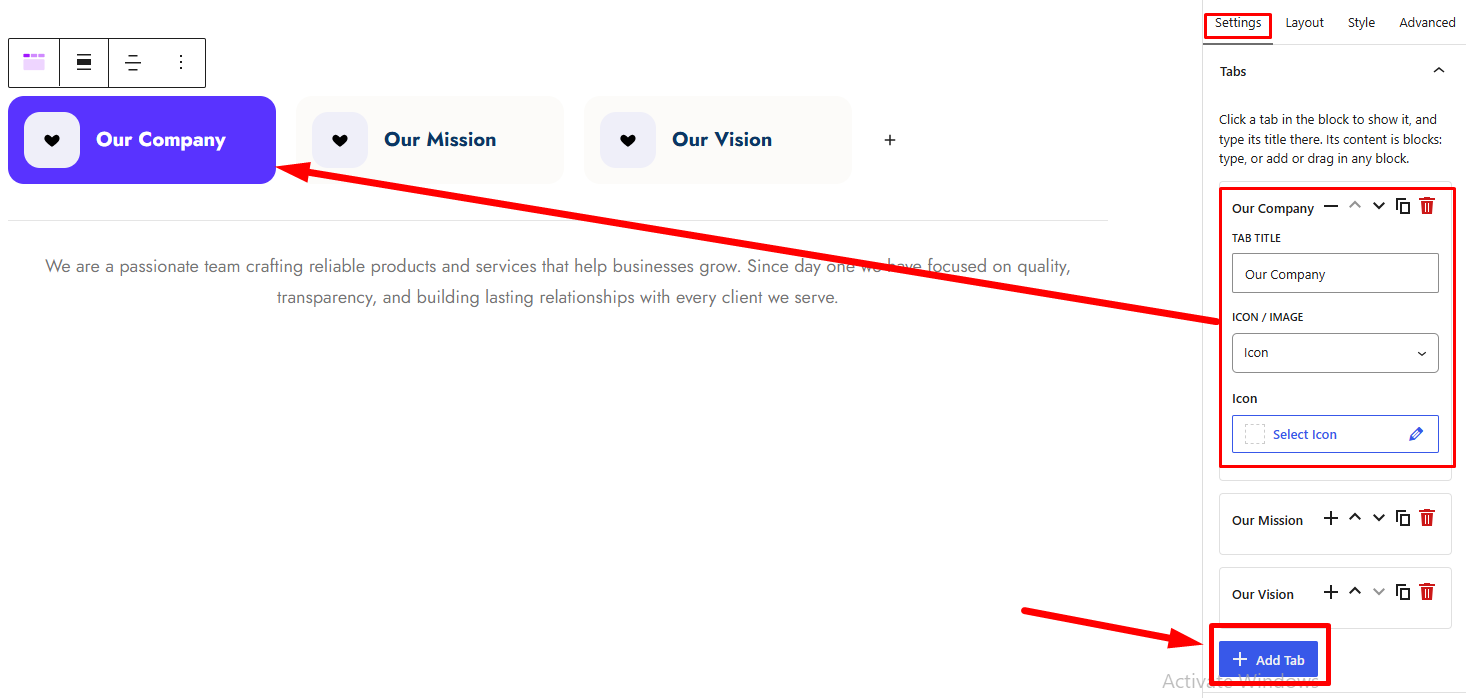
- Settings: Add, edit, reorder, duplicate, and remove tabs. Choose an icon or image for each tab.
- Layout: Configure the position of the tab bar, icon placement, tab width, and content alignment.
- Style: Customize the tab bar, tab buttons, icons, images, and tab content area.
- Advanced: Configure spacing, background, and responsive visibility for the entire Tabs Block.
Settings Tab
1. Tabs
- Tab Title: Enter the title displayed on each tab.
- Icon/Image: Choose what appears alongside the tab title.
- None: Display the tab title without an icon or image.
- Icon: Select an icon from the available icon picker.
- Image: Upload or select an image from the Media Library.
- Add Tab: Add a new tab to the block.
- Move Up: Move a tab before the previous tab.
- Move Down: Move a tab after the next tab.
- Duplicate: Create a copy of an existing tab.
- Remove: Delete a tab from the block.
- Expand/Collapse: Expand or collapse a tab’s editing panel.
2. Tab Content
- Content: Add and edit content inside each tab using Gutenberg blocks. You can insert supported blocks such as Paragraph, Heading, Image, List, Buttons, and other blocks.
- Edit Content: Select a tab and edit its content in the corresponding content area.
Layout Tab
1. Tabs Layout
- Icon Position: Choose where the icon or image appears relative to the tab title.
- Left: Display the icon or image to the left of the title.
- Top: Display the icon or image above the title.
- Right: Display the icon or image to the right of the title.
- Tabs Position: Choose where the tab bar appears relative to the content.
- Above: Display the tab bar above the content area.
- Beside: Display the tab bar beside the content area.
- Tabs Width (%): Set the width of the tab bar when the tabs are positioned beside the content.
- Content Alignment: Set the alignment of the content inside the tab content area.
- Left
- Center
- Right
- Justify

Style Tab
1. Tab Bar
- Tabs Alignment: Choose how the tabs are aligned within the tab bar.
- Fill the Row: Distribute the tabs across the available width.
- Left: Align tabs to the left.
- Center: Center the tabs.
- Right: Align tabs to the right.
- Space Between Tabs (px): Set the spacing between tabs.
- Background: Set the tab bar background color or gradient.
- Padding: Adjust the inner spacing of the tab bar.
- Border Radius: Set the corner radius of the tab bar.
- Border: Customize the tab bar border.
- Space Below the Tabs (px): Set the spacing between the tab bar and the content area.
2. Tab Buttons
Customize the appearance of individual tab buttons. The available styling states are:
- Normal: Set the default appearance of inactive tabs.
- Hover: Customize a tab when a visitor hovers over it.
- Active: Customize the currently selected tab.
Available controls include:
- Typography: Configure the tab title font, size, weight, and other available typography settings.
- Text Alignment: Set the alignment of the tab title.
- Text Color: Set the tab title color for the selected state.
- Background: Set the tab button background color or gradient.
- Border: Customize the tab button border.
- Shadow: Apply a shadow to the tab button.
- Icon Color: Set the icon color.
- Icon Background: Set the background color behind the icon.
- Border Color on Hover: Set the tab button border color when hovered.
- Border Radius: Adjust the tab button corner radius.
- Padding: Set the inner spacing of the tab button.
- Margin: Set the outer spacing around the tab button.
3. Icon & Image
- Icon Size: Adjust the size of tab icons.
- Icon Gap: Set the spacing between the icon or image and the tab title.
- Icon Box: Customize the box surrounding the icon when supported.
- Box Size: Set the dimensions of the icon box.
- Box Border Radius: Adjust the corner radius of the icon box.
4. Tab Content Area
- Background Color: Set the background color of the content area.
- Border: Customize the content area’s border.
- Border Radius: Adjust the corner radius of the content area.
- Padding: Set the inner spacing around the tab content.
- Margin: Set the outer spacing around the tab content area.
5. Description
- Typography: font, size, weight, and other available typography settings.
- Text Color: Set the description color.
- Margin: Set the description spacing.

Advanced Tab
1. Spacing
- Padding: Set the inner spacing for the entire Tabs Block.
- Margin: Set the outer spacing for the entire Tabs Block.
- Responsive Spacing: Configure spacing for desktop, tablet, and mobile when responsive controls are available.
2. Background
- Background Color: Set the background color of the entire Tabs Block.


