The Animation Title Block adds a heading with an animation. You can rotate a set of words, draw a line under or around a word, make a word wave, bring the whole heading in with one of fourteen entrance effects, or let it follow the scroll with one of five scroll effects.
Use it for hero headings and section titles that should catch the eye.
How to Add an Animation Title Block
Follow these steps to add and configure the Animation Title Block in the Gutenberg editor.
Step 1: Add the Animation Title Block
- Open a page or post in the WordPress Gutenberg editor.
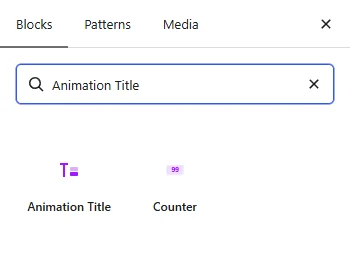
- Click the + button to open the block inserter.
- Search for Animation Title under ShapeBlock.
- Insert the Animation Title Block into your page.
- Select the block to access its settings in the right-hand sidebar.
- Type the text before and after the animated words directly on the heading.
Step 2: Configure the Animation Title Block
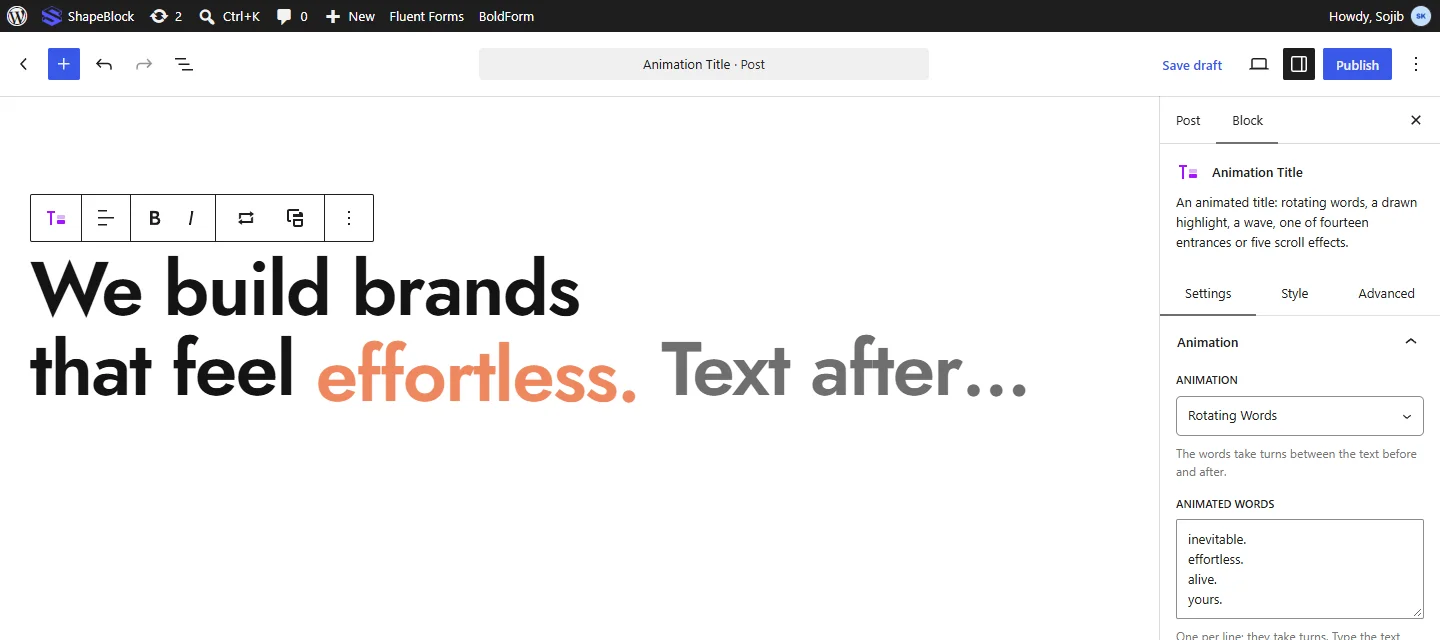
Select the Animation Title Block and open its settings in the right-hand sidebar. The available tabs are:
- Settings: Choose the animation and its words, and set the HTML tag.
- Style: Customize the heading, text shadow, and animated words.
- Advanced: Configure the block padding, margin, and background.
Click Replay the animation in the block toolbar to play it again in the editor.
Settings Tab
The Settings tab contains the Animation and Heading panels.
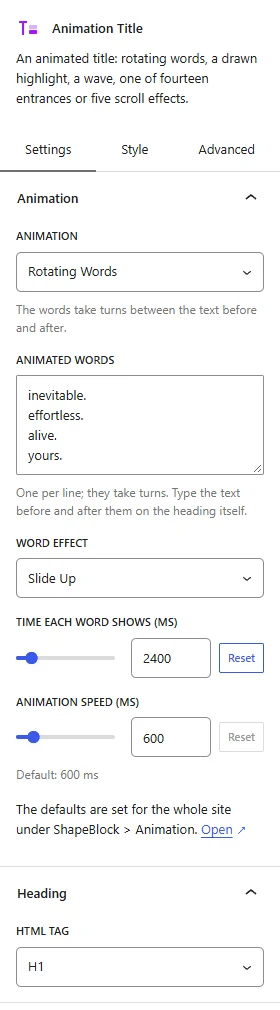
1. Animation
- Animation: Choose the animation. The list has three groups.
- Animated Words: Rotating Words (the words take turns), Highlighted Word (a line draws itself under or around the word), and Wave (the letters rise and fall).
- Comes In When Seen: The whole heading comes in as it scrolls into view. Choose from Characters (Slide In), Split Letters, Split Words (Up), Split Lines (From Below), Split Lines (3D From Below), Split Lines (From the Right), Split Letters (From the Right), Split Lines (From Above), Text Reveal (Letters Fade In), Text Word (Fall and Turn), Text Bounce, Typewriter, Words Slide Up, and Words Rotate In.
- Follows the Scroll: The whole heading follows the scroll as it moves up the screen. Choose from Text Reveal Scroll, Text Reveal Up, Text Fade Up, Text Zoom In, and Text 3D Effect.
- Animated Words: Rotating Words only. Enter the words, one per line. They take turns between the text before and after.
- Highlighted Word, Wave Word, Coloured Words: For the other animations, enter the word to animate. With entrance and scroll effects this is optional: the words get a style of their own in the Style tab.
- Line: Highlighted Word only. Choose Underline, Circle, Curly, Double Underline, or Strike Through. Set the Line Colour and Line Width.
- Time Between Pieces (ms): Entrance effects only. Set the delay between one letter, word, or line and the next.
- Turn In From: Text 3D Effect only. Choose Top, Bottom, Left, or Right.
- Word Effect: Rotating Words only. Choose how words change: Slide Up, Slide Down, Fade, Zoom, Flip, Blur, or Wipe.
- Time Each Word Shows (ms): Rotating Words only. Set how long each word stays.
- Animation Speed (ms): Set how long the animation takes.
Note: Word Effect, Time Each Word Shows, and Animation Speed start on Default, which uses the value set for the whole site under ShapeBlock > Animation.
2. Heading
- HTML Tag: Choose the tag used for the heading, such as H1 or H2.
Style Tab
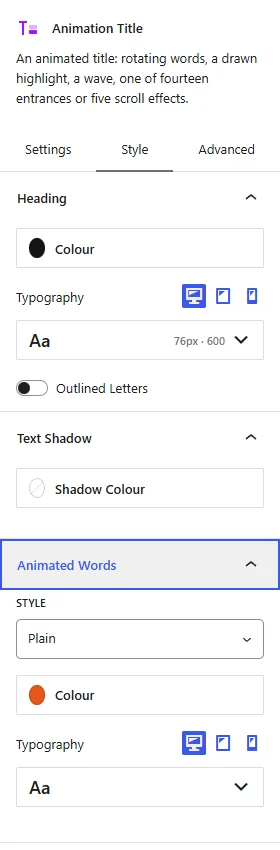
The Style tab contains the Heading, Text Shadow, and animated words panels. The last panel is named after the chosen animation, for example Animated Words or Highlighted Word.
1. Heading
- Colour: Set the heading color.
- Typography: Customize the font family, size, weight, style, text transform, line height, and letter spacing. Responsive settings are available for desktop, tablet, and mobile devices.
- Outlined Letters: Show the letters as outlines only. Set the Outline Colour and Outline Width (px).
2. Text Shadow
- Shadow Colour: Pick a color to add a shadow behind the text.
- Across (px), Down (px), Blur (px): Set the shadow offset and softness. These options appear when a shadow color is set.
3. Animated Words
- Style: Choose how the animated words look: Plain, Gradient, Highlight, Underline, or Outline.
- Colour: Set the word color, or the outline color with the Outline style.
- Gradient or Highlight Colour: Set the gradient or the highlight color. These options appear with the Gradient and Highlight styles.
- Line Colour: Set the underline color. This option appears with the Underline style.
- Typography: Customize the font family, size, weight, style, text transform, line height, and letter spacing. Responsive settings are available for desktop, tablet, and mobile devices.
Advanced Tab
The Advanced tab provides additional spacing and background controls for the Animation Title Block. These settings apply to the entire block.
1. Spacing
- Padding: Set the inner spacing around the entire Animation Title Block. Configure the top, right, bottom, and left values separately.
- Margin: Set the outer spacing around the entire Animation Title Block. Configure the top, right, bottom, and left values separately.
Both controls support responsive settings for desktop, tablet, and mobile devices.
2. Background
- Background: Customize the background of the entire Animation Title Block using a background color or gradient.
Note: The background applies to the whole block area.
Live demo: see the Animation Title Block in action on the Animation Title demo page.