Preloader
This page loads behind a thin bar first.
A loading screen that covers the page until it has finished loading, then fades away.
Video guide
See it built,
step by step.
The live demo first, then turning Preloader on and its settings.
Preloader, in short
Shows a loading screen until the page is ready, so visitors never see it half-built.
Set it up
1ShapeBlock › Extensions
Switch on the Preloader card.
2Click the gear on that card
The Preloader settings open.
3Pick a Style, set Show On, Save Changes
All pages, or Selected pages.
In the settings
Style 6 styles: Spinner, Dotted Circle Spinner, Dots, Bar, Pulse, Logo.
Logo, Logo Width for the Logo style: an image from the Media Library, 8 to 400 px.
Size 16 to 400 px.
Background a color or a gradient.
Color the spinner, dots, bar or pulse.
Show On All pages or Selected pages.
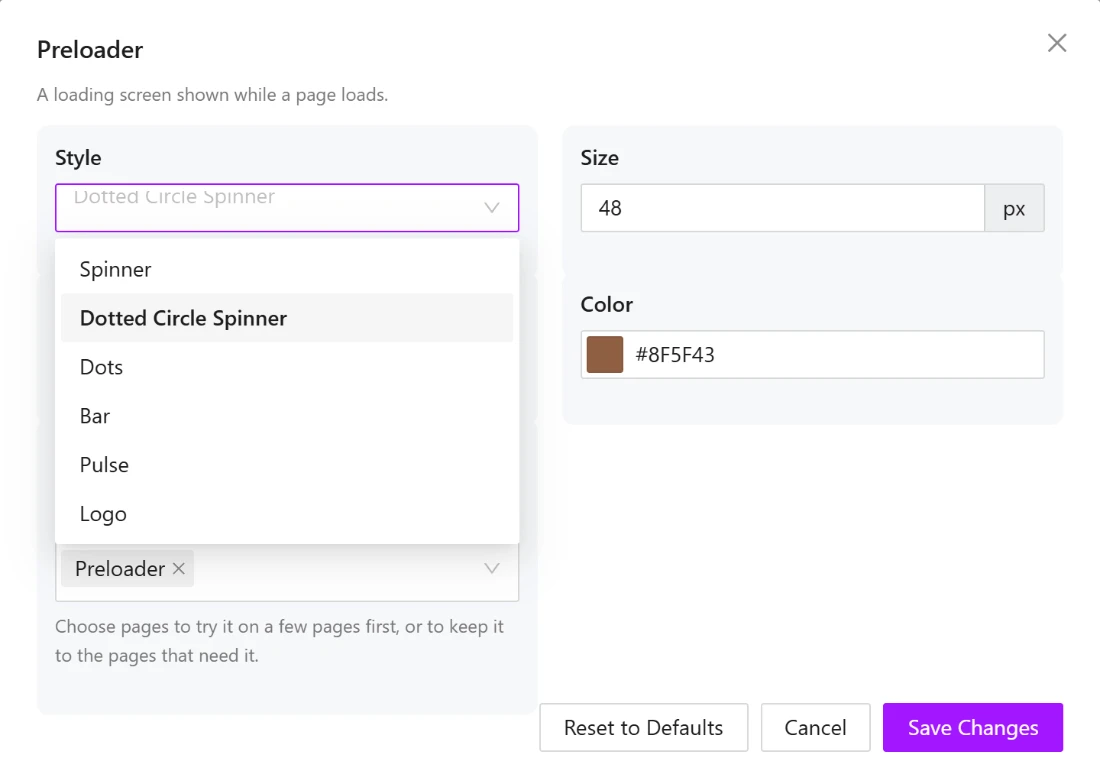
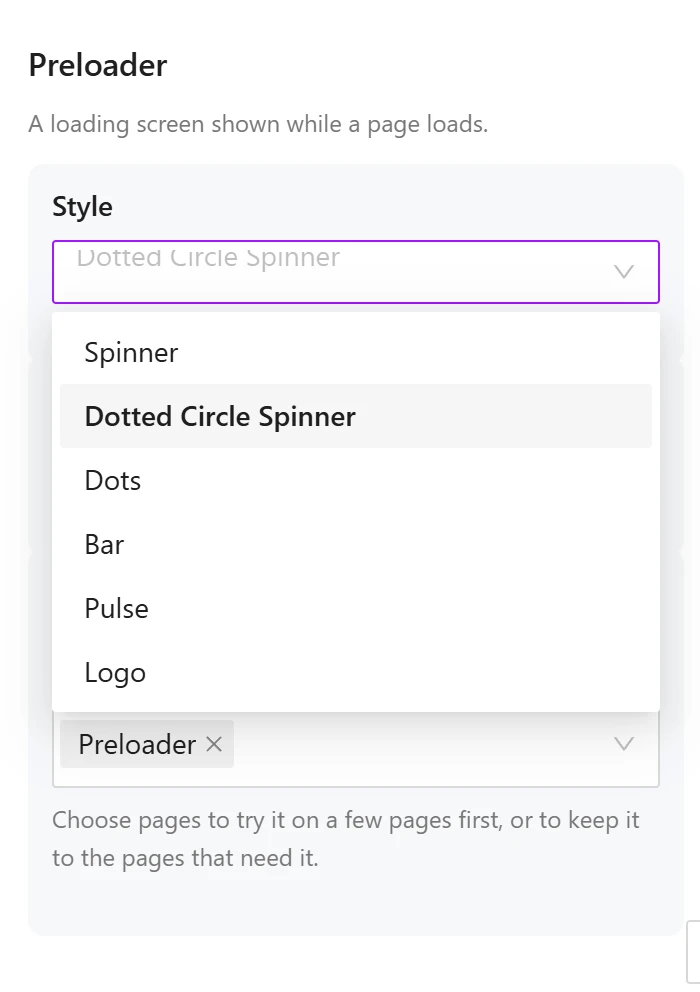
The Preloader settings in ShapeBlock › Extensions, with the Style list open.