The Icon Pack is the icon library built into ShapeBlock. It has 913 icons: ShapeBlock’s own set of 112 icons and 801 Bootstrap Icons (version 1.13.1, MIT licence) sorted into 13 categories. Every ShapeBlock block with an icon setting uses it, in the free plugin and in ShapeBlock Pro.
There is nothing to install or turn on. Pick an icon in the block settings, then style it with the block’s own color and size options.
How to Choose an Icon
Follow these steps to pick an icon for a block in the Gutenberg editor.
Step 1: Open the Icon Picker
- Open a page or post in the WordPress Gutenberg editor.
- Select a block that shows an icon, such as Icon, Icon Box, Icon List, Features List, Button, or Social Icon.
- Open the block settings in the right-hand sidebar. On the Icon block, the field is in the Settings tab, under Content › Icon.
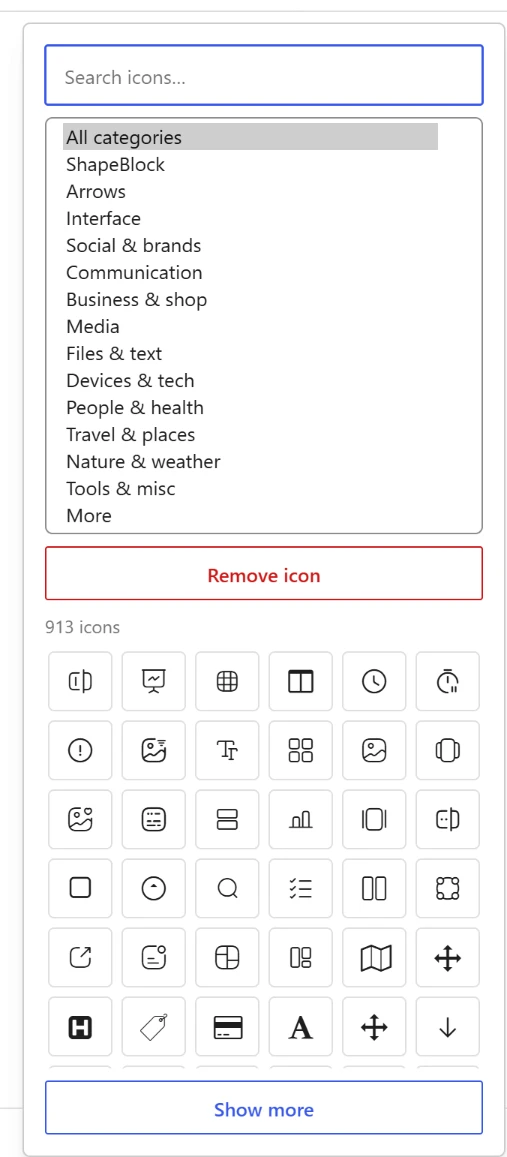
- Click the icon field. The icon picker opens beside the sidebar.

Step 2: Find and Pick an Icon
- Search icons…: Type a word to filter the icons. The search matches icon names and a few extra words, so “arrow” finds 62 icons, “cross” finds the x icons, and “arrow right” finds arrow-right.
- Category list: Choose All categories to see every icon, or one set to see only its icons. The search works inside the chosen set.
- Remove icon: Clear the icon from the block.
- Icon count: Shows how many icons match the search and the chosen set.
- Show more: The picker shows 120 icons at first. Click Show more to add 240 more.
Click an icon to use it. The picker closes and the block shows the new icon straight away.

Icon Sets
The category list in the picker has these sets. The numbers are the icon counts the picker shows.
- ShapeBlock: 112 icons, including ShapeBlock’s block icons and social logos.
- Arrows: 80 icons.
- Interface: 189 icons.
- Social & brands: 52 icons.
- Communication: 47 icons.
- Business & shop: 81 icons.
- Media: 57 icons.
- Files & text: 62 icons.
- Devices & tech: 47 icons.
- People & health: 44 icons.
- Travel & places: 39 icons.
- Nature & weather: 39 icons.
- Tools & misc: 45 icons.
- More: 19 icons.
All sets after ShapeBlock come from Bootstrap Icons: 801 icons in total.
Styling an Icon
Icons are drawn from an icon font, so they take the color and size you set and stay sharp at any size. Each block styles its icon with its own options. On the Icon block:
- Layout tab: Alignment and Size (px). Responsive settings are available for desktop, tablet, and mobile devices.
- Style tab: View (Default, Stacked, or Framed), Shape (Circle, Rounded, or Square, shown with Stacked and Framed), Padding, Color, Background, Rotation (deg), Border, Box Shadow, and Border Radius.
- Hover: Color (Hover), Background (Hover), Border (Hover), Rotation Hover (deg), and a hover animation, also in the Style tab.
Blocks such as Icon Box, Icon List, and Features List have their own icon color and size settings in their Style tab.

Blocks That Use the Icon Pack
- ShapeBlock (free): Accordion, Breadcrumb, Button, Counter, Features List, Filterable List, Hover Box, Icon, Icon Box, Icon List, Isotope Filter, Offcanvas, Post Grid, Scroll Top, Search, Simple Gallery, Social Icon, Social Share, Sticky Stack, Table, Tabs, Team Member, and Testimonial.
- ShapeBlock Pro: Advanced Accordion, Advanced Button, Flip Box, Image Hotspot, Rotating Text, and Video Player use the same picker and the same icons. Pro does not add extra icon sets.
How the Icons Load
- ShapeBlock set: Its font (about 16 KB) loads with ShapeBlock’s main stylesheet.
- Bootstrap Icons: The font (about 87 KB) and its stylesheet load only on pages where a ShapeBlock block shows one of these icons. Pages without them load nothing extra. The whole font loads as one file, which the browser then keeps in its cache.
- Editor: In the block editor the library is always loaded, so the picker and the block previews can show every icon.
Note: The Icon Pack works the same in the free plugin and in ShapeBlock Pro.
Live demo: see the icons in use on the Icon Pack demo page.