
The ShapeBlock Icon Block lets you display a single icon on your page. You can customize its alignment, size, color, background, border, shadow, rotation, and hover animation. You can also link the icon to another URL.
How to Add an Icon Block
Follow these steps to add and configure the Icon Block in the Gutenberg editor.
Step 1: Add the Icon Block
- Open the page or post where you want to add the Icon Block.
- Click the + (Add Block) button in the Gutenberg editor.
- Search for Icon in the block search field.
- Select the Icon block from the ShapeBlock category.
- The Icon Block will be added to your page.
- Select the block to configure its icon, layout, and styling.

Step 2: Configure the Icon Block
Select the Icon Block to access its settings in the block inspector. The available tabs are:
- Settings Tab: Choose an icon and configure its link.
- Layout Tab: Adjust the icon alignment and size.
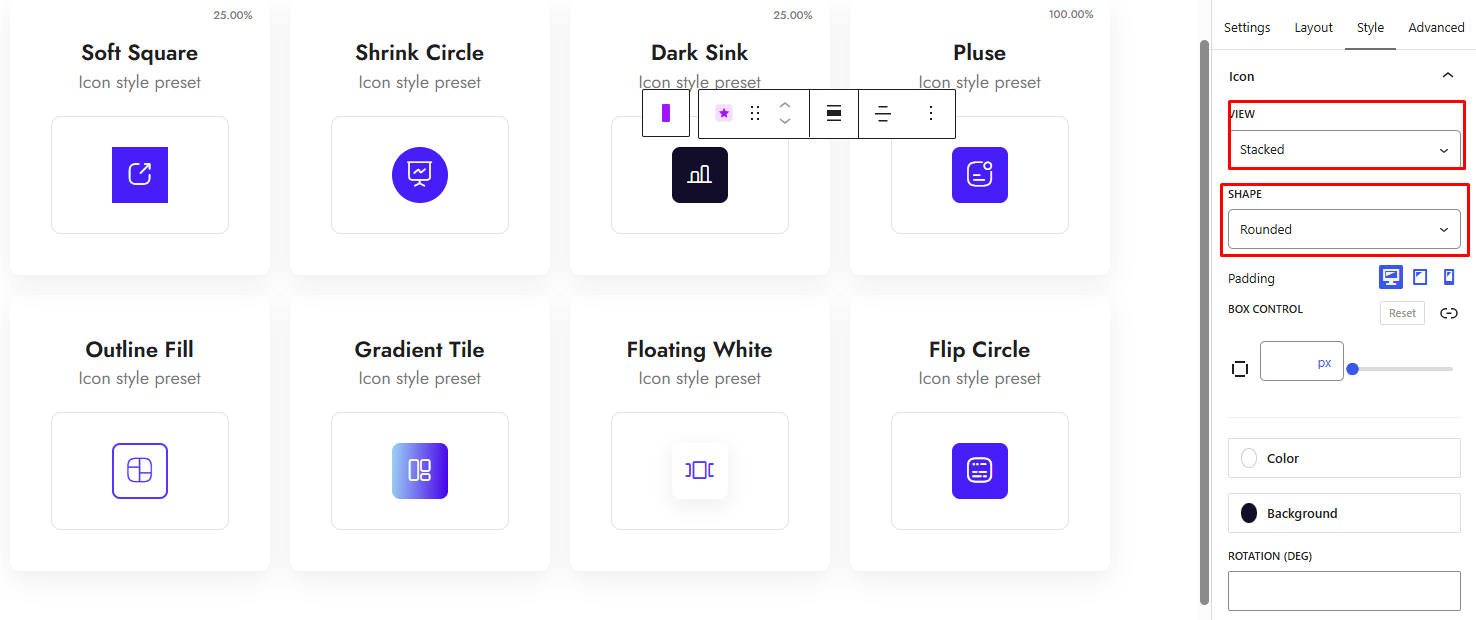
- Style Tab: Customize the icon view, shape, padding, colors, background, rotation, border, shadow, and hover animation.
- Advanced Tab: Configure the block’s padding, margin, and background.
Settings Tab
The Settings tab contains one panel: Content.
1. Content
Use this panel to select an icon and optionally add a link.
- Icon: Choose an icon using the icon picker.
- Link URL: Enter the URL where visitors should be directed when they click the icon.
- Open in new tab: Enable this option to open the linked URL in a new browser tab. This option appears when a URL is entered.
- Add nofollow: Enable this option to add the
nofollowrelationship to the link. This option appears when a URL is entered.
Layout Tab
The Layout tab contains one panel: Alignment & Size.
1. Alignment & Size
Use this panel to control the icon’s alignment and size.
- Alignment: Choose the horizontal alignment of the icon.
- Left
- Center
- Right
- Size (px): Set the icon size in pixels. Responsive values can be configured for desktop, tablet, and mobile.
Style Tab
The Style tab contains one panel: Icon.
1. Icon
Use this panel to customize the icon’s appearance and hover effects.
- View: Choose how the icon is displayed.
- Default
- Stacked
- Framed
- Shape: Choose the shape used with the Stacked or Framed view.
- Circle
- Rounded
- Square
- Padding: Adjust the space inside the icon container. Responsive values can be configured for desktop, tablet, and mobile.
- Color: Set the icon color.
- Background: Set the icon background color or gradient.
- Rotation (deg): Rotate the icon by a specified number of degrees.
- Border: Customize the icon container’s border, including its width, color, and style.
- Box Shadow: Customize the shadow around the icon container.
- Border Radius: Adjust the corner radius of the icon container.
- Color (Hover): Set the icon color when visitors hover over it.
- Background (Hover): Set the hover background color or gradient.
- Border (Hover): Customize the border when visitors hover over the icon.
- Rotation Hover (deg): Set the icon’s rotation on hover.
- Hover Animation: Choose the animation displayed when visitors hover over the icon.
- None
- Grow
- Shrink
- Float
- Sink
- Rotate
- Pulse
- Pop
- Bob
- Hang
- Wobble Horizontal
- Wobble Vertical
- Buzz
- Spin
- Animation Speed (ms): Set the hover animation speed in milliseconds. This option appears when a hover animation is selected.

Advanced Tab
The Advanced tab contains two panels for configuring the spacing and background of the entire block.
1. Spacing
Use this panel to adjust the space around and inside the Icon Block.
- Padding: Set the inner spacing on the top, right, bottom, and left. Responsive values can be configured for desktop, tablet, and mobile.
- Margin: Set the outer spacing on the top, right, bottom, and left. Responsive values can be configured for desktop, tablet, and mobile.
2. Background
Use this panel to customize the background behind the entire Icon Block.
- Background: Set the background color or gradient.


