
The Testimonials Block lets you display customer reviews and testimonials in a structured grid. You can add each customer’s picture, name, designation, review, star rating, and quote icon or company logo. Choose from three testimonial styles, configure responsive columns where supported, and customize the appearance of testimonial cards and their content.
How to Add a Testimonials Block
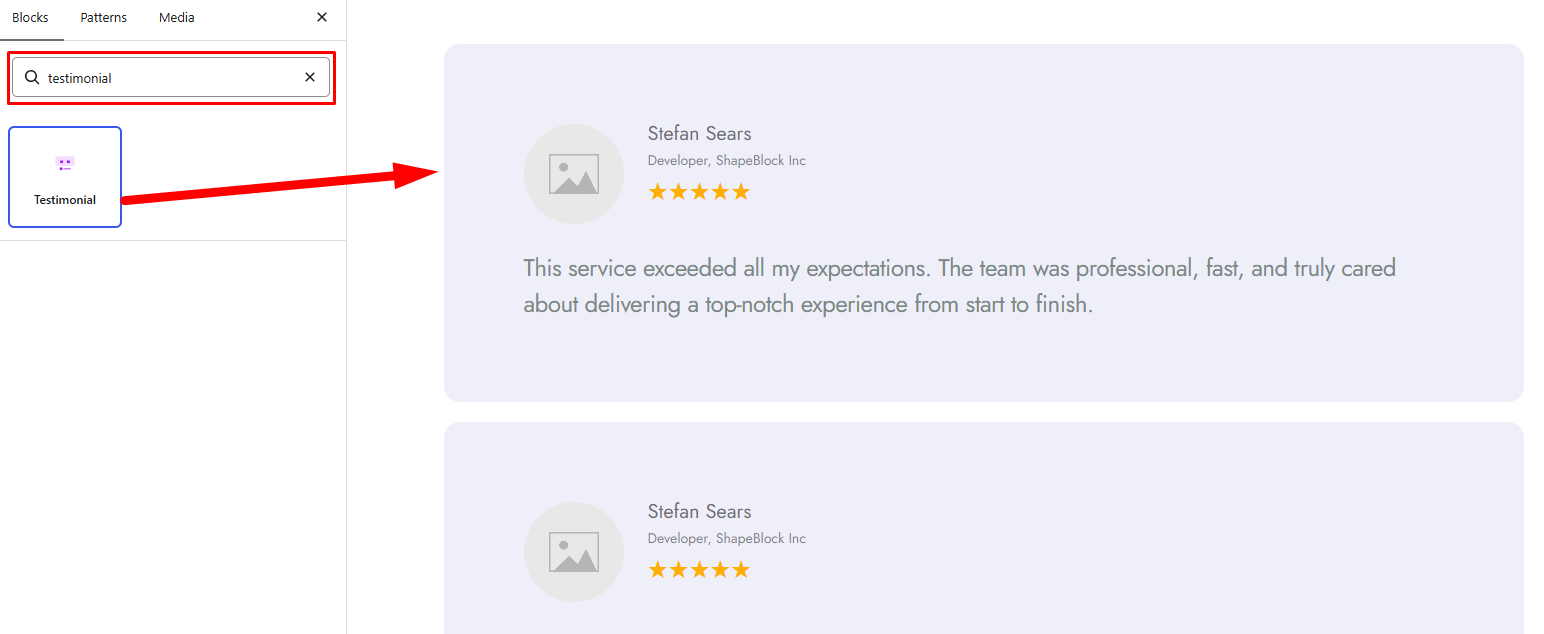
Step 1: Add the Testimonials Block
- Open the page or post where you want to display customer testimonials.
- Click the + (Add Block) button in the Gutenberg editor.
- Search for Testimonials.
- Select the Testimonials Block to insert it into your page.
Step 2: Configure the Testimonials Block
Select the Testimonials Block and open the block settings panel. The available tabs are:
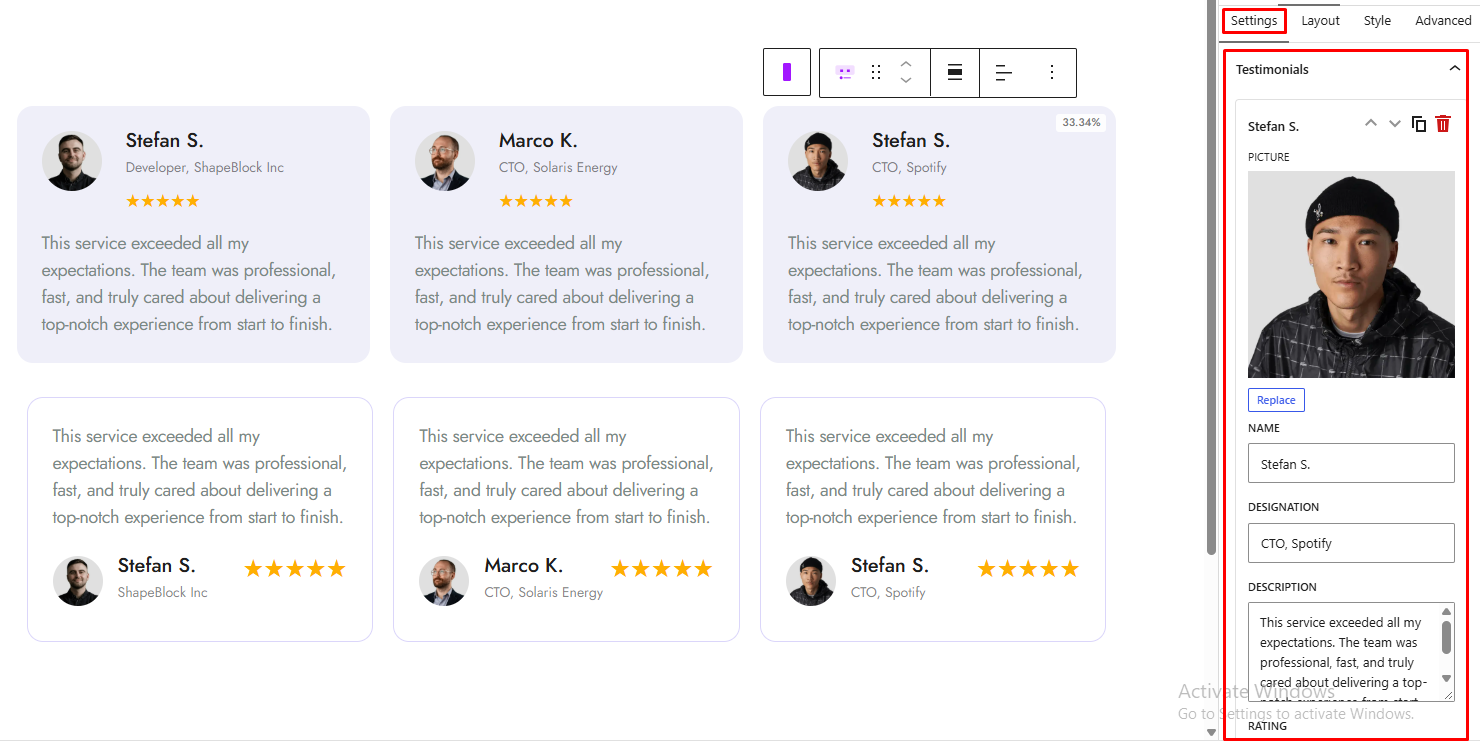
- Settings: Add and manage testimonials, including customer details, reviews, pictures, ratings, and logos.
- Layout: Choose a testimonial style, configure columns where available, and adjust alignment and spacing.
- Style: Customize testimonial cards, names, designations, descriptions, author images, ratings, logos, and quote icons.
- Advanced: Configure the block’s spacing and background using the available advanced controls.
Settings Tab
1. Testimonials
Add and manage the testimonials displayed in the block.
- Picture: Select or replace the customer’s image from the WordPress Media Library.
- Name: Enter the customer’s name.
- Designation: Enter the customer’s job title, role, or designation.
- Description: Enter the customer’s testimonial or review.
- Rating: Choose a star rating from 1 to 5.
- Quote Icon: Select the quote icon displayed with the testimonial. This option is available when Style 1 is selected in the Layout tab.
- Logo: Select or replace a company logo. This option is available when Style 2 or Style 3 is selected in the Layout tab.
- Move Up / Move Down: Change the order of a testimonial.
- Duplicate: Create a copy of a testimonial.
- Remove: Delete a testimonial.
- Add Testimonial: Add a new testimonial entry.
2. Display Options
Control whether customer images and star ratings appear in the testimonials.
- Show Image: Enable or disable customer images across the testimonials.
- Show Rating: Enable or disable star ratings across the testimonials.
Layout Tab
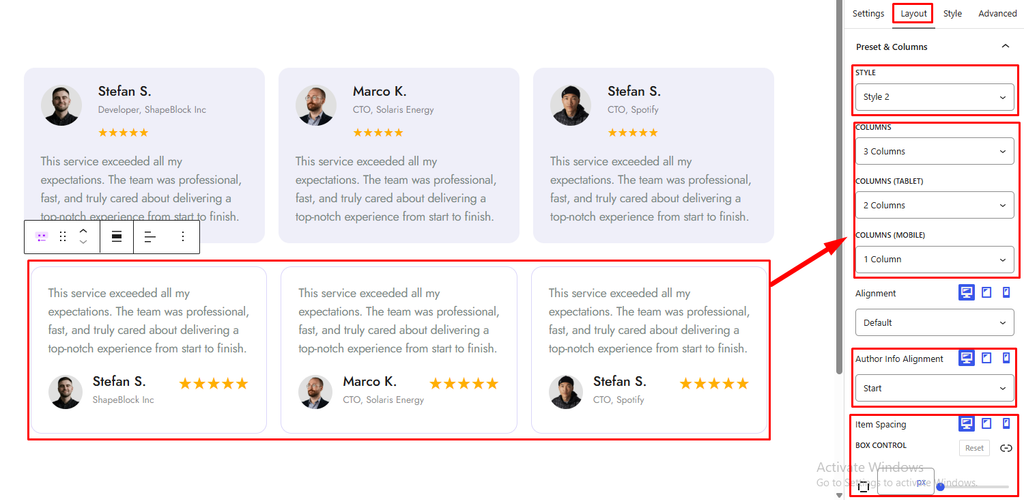
1. Preset & Columns
Choose the testimonial design and configure its grid layout.
- Style: Choose one of the three available testimonial styles.
- Style 1: Displays the author image, name, designation, rating, description, and quote icon.
- Style 2: Displays the company logo, description, author information, and rating.
- Style 3: Displays the company logo, rating, description, and author information.
- Columns: Set the number of columns for desktop devices. Available when Style 2 or Style 3 is selected.
- Columns (Tablet): Set the number of columns for tablet devices. Available when Style 2 or Style 3 is selected.
- Columns (Mobile): Set the number of columns for mobile devices. Available when Style 2 or Style 3 is selected.
- Alignment: Set the content alignment to Default, Left, Center, or Right. This control supports responsive settings.
- Author Info Alignment: Align the author information to Start, Center, or End. Available when Show Image is enabled and supports responsive settings.
- Item Spacing: Set the spacing around each testimonial item. This control supports responsive settings.
Style Tab
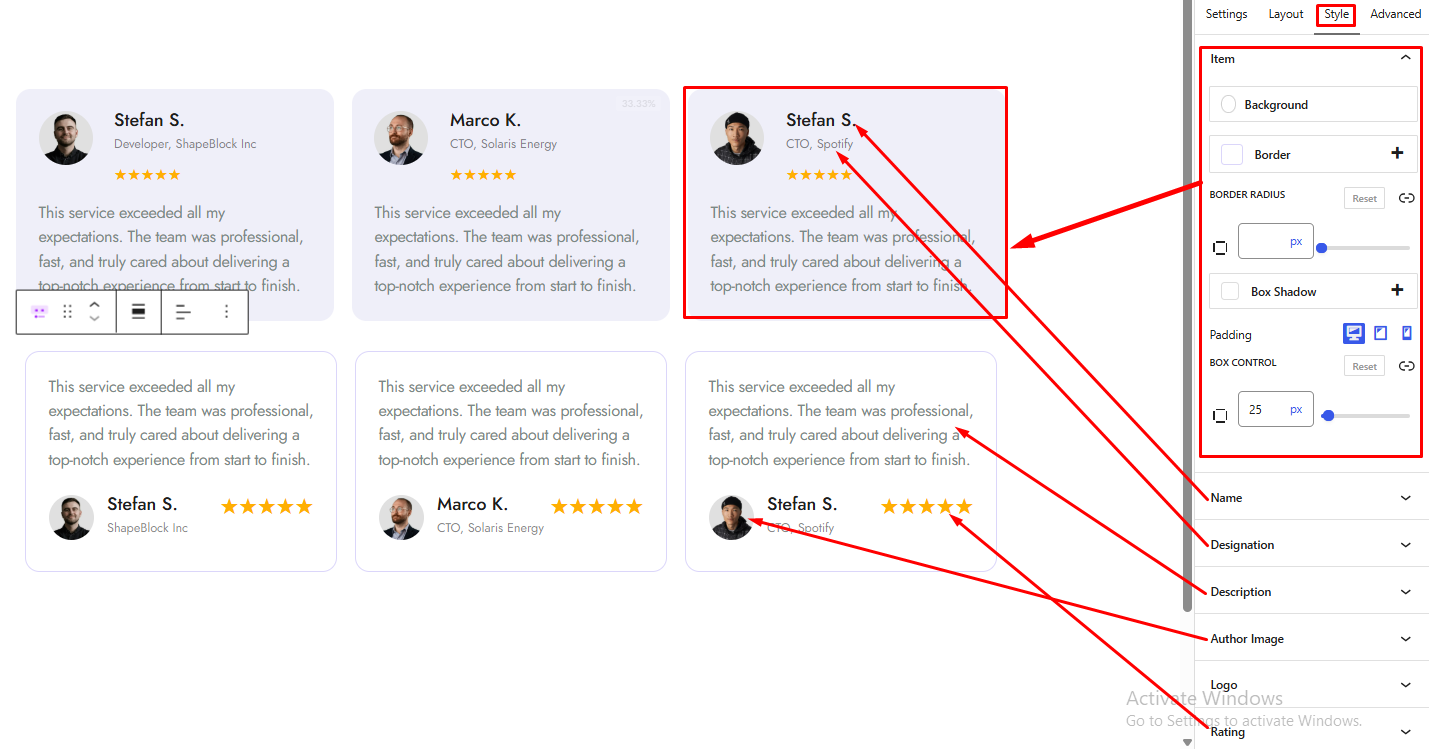
1. Item
Customize the appearance of the testimonial cards.
- Background: Set the card background color or gradient.
- Border: Customize the card border.
- Border Radius: Adjust the roundness of the card corners.
- Box Shadow: Add and customize a shadow around the testimonial card.
- Padding: Set the inner spacing of the card. This control supports responsive settings.
- Gap (px): Set the spacing between elements in the testimonial layout. Available when Style 1 is selected and supports responsive settings.
2. Name
Customize the appearance of the customer’s name.
- Color: Set the name text color.
- Typography: Customize the name typography, including font settings. This control supports responsive settings.
- Margin: Set the spacing around the name. This control supports responsive settings.
3. Designation
Customize the appearance of the customer’s designation.
- Color: Set the designation text color.
- Typography: Customize the designation typography, including font settings. This control supports responsive settings.
4. Description
Customize the appearance and dimensions of the testimonial text.
- Color: Set the description text color.
- Typography: Customize the description typography, including font settings. This control supports responsive settings.
- Margin: Set the spacing around the description. This control supports responsive settings.
- Min Height (px): Set the minimum height of the description area. This control supports responsive settings.
- Max Width (px): Set the maximum width of the description area. This control supports responsive settings.
5. Author Image
This panel appears when Show Image is enabled.
- Author Info Gap (margin): Adjust the spacing around the author image within the author information area. This control supports responsive settings.
- Image Size (px): Set the author image size in pixels.
- Image Border Radius: Adjust the roundness of the author image corners.
6. Logo
This panel appears when Style 2 or Style 3 is selected.
- Logo Height (px): Set the height of the company logo. This control supports responsive settings.
7. Rating
This panel appears when Show Rating is enabled.
- Color: Set the star rating color.
- Size (px): Set the size of the rating stars in pixels.
8. Quote Icon
This panel appears when Style 1 is selected.
- Color: Set the quote icon color.
- Size (px): Set the quote icon size in pixels.
Advanced Tab
1. Spacing
Control the spacing around the entire Testimonials Block.
- Padding: Set the inner spacing around the block. Use the available responsive controls to adjust spacing for different devices.
- Margin: Set the outer spacing around the block. Use the available responsive controls to adjust spacing for different devices.
2. Background
Customize the background of the entire Testimonials Block.
- Background: Set a background color or gradient for the block.


