Copy Style copies the look of one ShapeBlock block and pastes it on others. Only the style is copied: colors, typography, spacing, borders, layout, and skin choices, for each device. The content (text, images, links, list items, and icons) stays as it is.
Use it to make a set of buttons, headings, or cards match without setting each one by hand.
How to Copy and Paste a Style
Step 1: Make Sure the Feature Is On
- In your WordPress dashboard, go to ShapeBlock > Extensions.
- Find the Copy Style card and turn its switch on. The change is saved right away.

Step 2: Copy the Style
- Select the block whose look you want to copy.
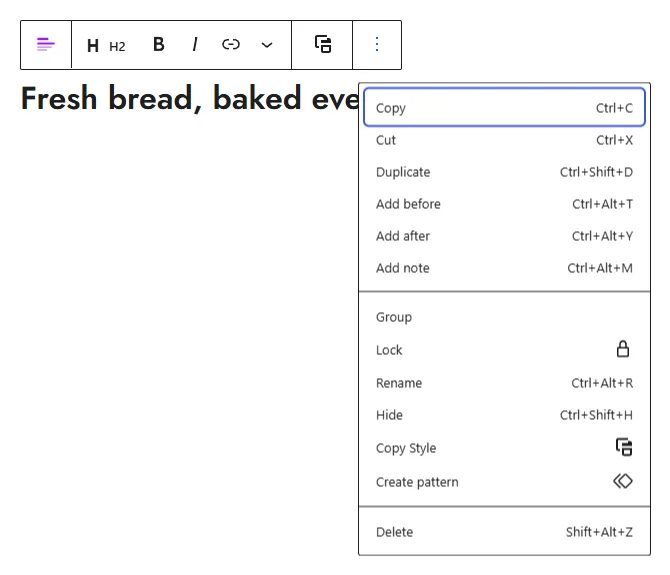
- Click Copy Style in the block toolbar, or open the block ⋮ menu and choose Copy Style. You can also right-click the block on the canvas to open the menu.
- A “Style copied.” message appears at the bottom of the editor.
Step 3: Paste the Style
- Select one block, or several blocks at once.
- Click Paste Style in the block toolbar or the ⋮ menu. The menu shows which block the style came from.
A style pastes onto blocks of the same kind, or onto another ShapeBlock block, which takes the settings it shares with the copied one. If the selected blocks have none of the copied settings, a message tells you so and nothing changes.
Note: The copied style is kept in your browser, so you can paste it on another page or post.