
The Pricing Table Block lets you display pricing plans with their prices, features, and call-to-action buttons. Choose from different pricing designs, create up to four plans, highlight a featured plan, and customize the appearance of titles, prices, feature lists, buttons, and other content.
How to Add a Pricing Table Block
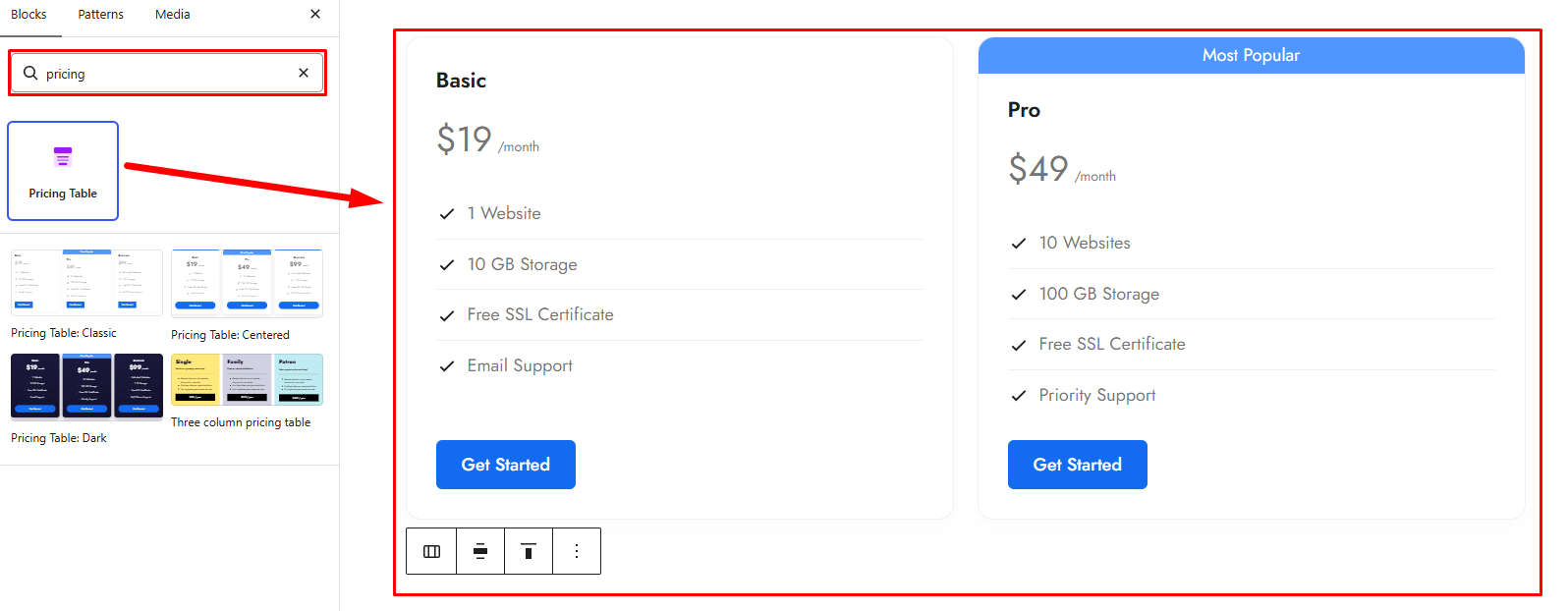
Step 1: Add the Pricing Table Block
- Open the page or post where you want to display your pricing plans.
- Click the + button to open the Gutenberg Block Inserter.
- Search for Pricing Table under ShapeBlock.
- Select the Pricing Table Block.
- Choose a pricing design and the number of plans you want to display.
- Create the plans and edit their content using the available Gutenberg blocks.
Step 2: Configure the Pricing Table Block
Select the Pricing Table Block to access its customization options. The available tabs are:
- Settings: Choose a pricing design and enable the Featured option for a plan.
- Layout: Configure the alignment of the plan header, features, button, and featured ribbon.
- Style: Customize the ribbon, title, description, price, currency, period, features, feature icons, button, and text below the button.
- Advanced: Configure spacing, background, and responsive visibility for the entire Pricing Table Block.
Settings Tab
1. Style
Choose the overall design for the pricing card.
- Classic: Apply the classic pricing table design.
- Centered: Apply the centered pricing table design.
- Dark: Apply the dark pricing table design.
When adding a new Pricing Table Block, choose a design and the number of plans to create. You can create between one and four plans. When creating multiple plans, the cards are arranged side by side using Gutenberg Columns.
After creating the plans, select the individual content inside a card to edit it. The pricing card is built with Gutenberg blocks, so you can edit its title, description, price, features, button, and other content using the corresponding block toolbar and settings.
2. Featured
Highlight a pricing plan by enabling the Featured option.
- Featured: Enable this option to display a featured ribbon on the pricing card.
- Featured Text: Edit the ribbon text directly inside the featured card.

Layout Tab
1. Positioning
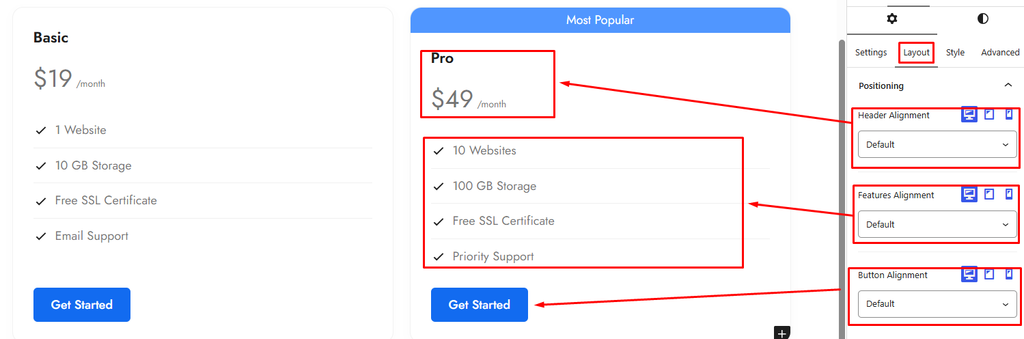
Configure the alignment of the different elements inside the pricing card. These controls support responsive alignment settings where available.
- Header Alignment: Align the pricing card’s header content.
- Features Alignment: Set the alignment of the feature list.
- Button Alignment: Set the alignment of the call-to-action button.
- Ribbon Alignment: Set the alignment of the featured ribbon. This control appears when the Featured option is enabled and Ribbon Style 2 is selected.
Available alignment options include the default alignment, Left, Center, and Right, depending on the control.
Style Tab
1. Ribbon
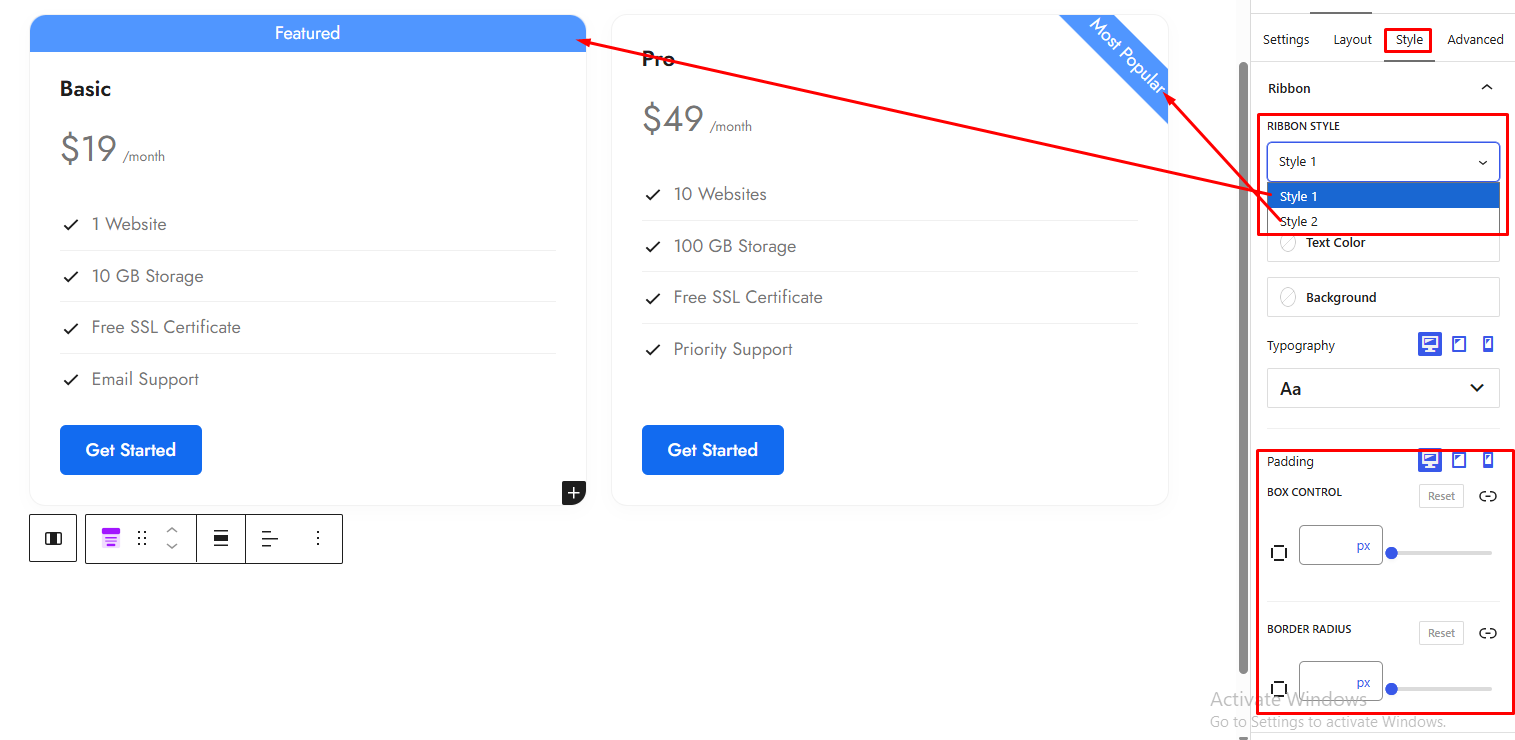
This panel appears when the Featured option is enabled.
- Ribbon Style: Choose the appearance of the featured ribbon.
- Style 1: Display the ribbon using the first ribbon design.
- Style 2: Display the ribbon using the second ribbon design.
- Text Color: Set the color of the ribbon text.
- Background: Set the ribbon background color or gradient.
- Typography: Customize the ribbon text typography.
- Padding: Adjust the inner spacing of the ribbon. This control is available for Style 1.
- Border Radius: Adjust the ribbon’s corner radius. This control is available for Style 1.
2. Title
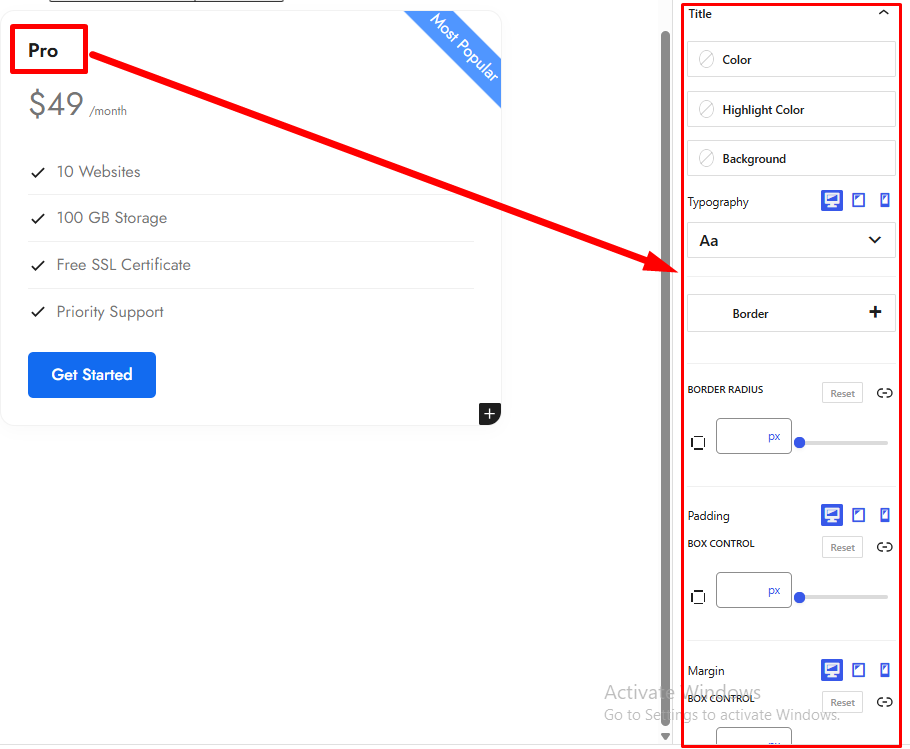
Customize the appearance of the pricing plan title.
- Color: Set the title text color.
- Highlight Color: Set the color used for highlighted title text.
- Background: Set the title background color or gradient.
- Typography: Customize the title font, size, weight, and other available typography settings.
- Border: Customize the title border.
- Border Radius: Adjust the title’s corner radius.
- Padding: Set the inner spacing around the title.
- Margin: Set the outer spacing around the title.
3. Description
Customize the description displayed in the pricing card.
- Color: Set the description text color.
- Typography: Customize the description typography.
- Border: Customize the description border.
- Padding: Set the inner spacing around the description.
- Margin: Set the outer spacing around the description.
4. Price
Customize the price and any sale or old price displayed in the pricing card.
- Price Color: Set the main price color.
- Price Typography: Customize the main price typography.
- Price Margin: Adjust the spacing around the main price.
- Sale Price Color: Set the color of the sale price.
- Sale Price Typography: Customize the sale price typography.
- Old Price Color: Set the color of the old price.
5. Period & Currency
Customize the currency symbol and billing period displayed alongside the price.
- Period Color: Set the billing period text color.
- Period Typography: Customize the billing period typography.
- Period Margin: Adjust the spacing around the billing period.
- Currency Color: Set the currency symbol color.
- Currency Typography: Customize the currency symbol typography.
- Currency Margin: Adjust the spacing around the currency symbol.
- Currency Vertical Position (px): Adjust the vertical position of the currency symbol.

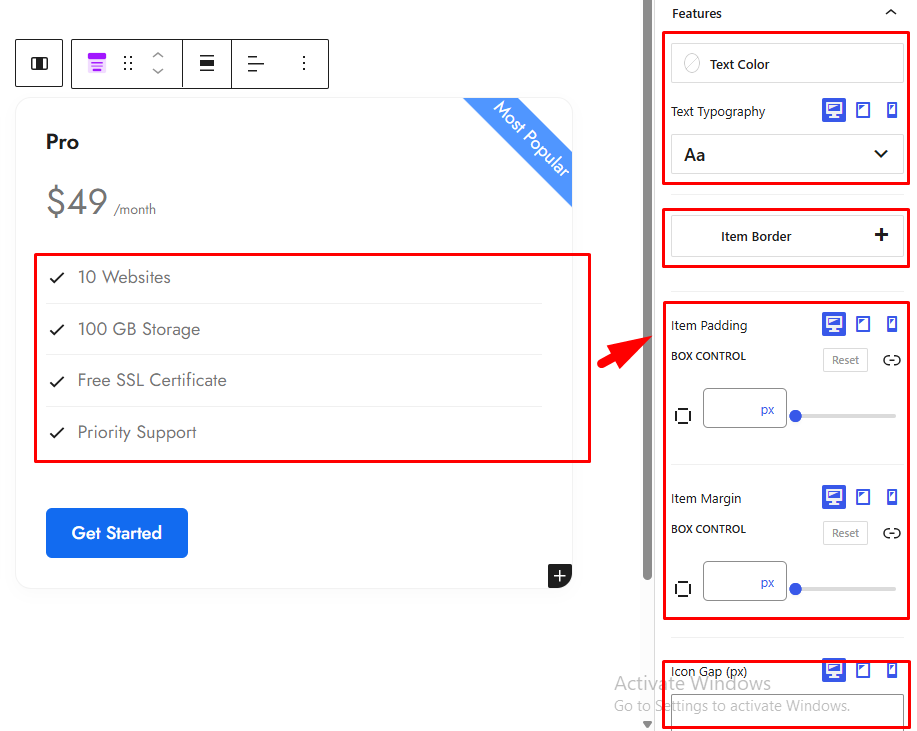
6. Features
Customize the appearance and spacing of the pricing plan’s feature list.
- Text Color: Set the feature text color.
- Text Typography: Customize the feature text typography.
- Item Border: Customize the border around feature items.
- Item Padding: Set the inner spacing of feature items.
- Item Margin: Adjust the outer spacing around feature items.
- Icon Gap (px): Set the spacing between a feature icon and its text.
7. Feature Icon
Customize the icons displayed beside pricing plan features.
- Icon: Choose the icon used for the feature list.
- Check
- Check in a Circle
- Star
- Arrow
- Dot
- None
- Icon Style: Choose how the feature icon is displayed. This control appears when an icon other than None is selected.
- Icon Only: Display the icon without a background or border.
- Icon with Background: Display the icon with a background.
- Icon with Border: Display the icon with a border.
- Icon Color: Set the feature icon color.
- Icon Size (px): Set the feature icon size.
- Background: Set the icon background color or gradient. This control appears when Icon with Background is selected.
- Border: Customize the icon border. This control appears when Icon with Border is selected.
- Icon Padding: Adjust the inner spacing around the icon when a background or border is applied.
- Icon Border Radius: Adjust the corner radius of the icon background or border.

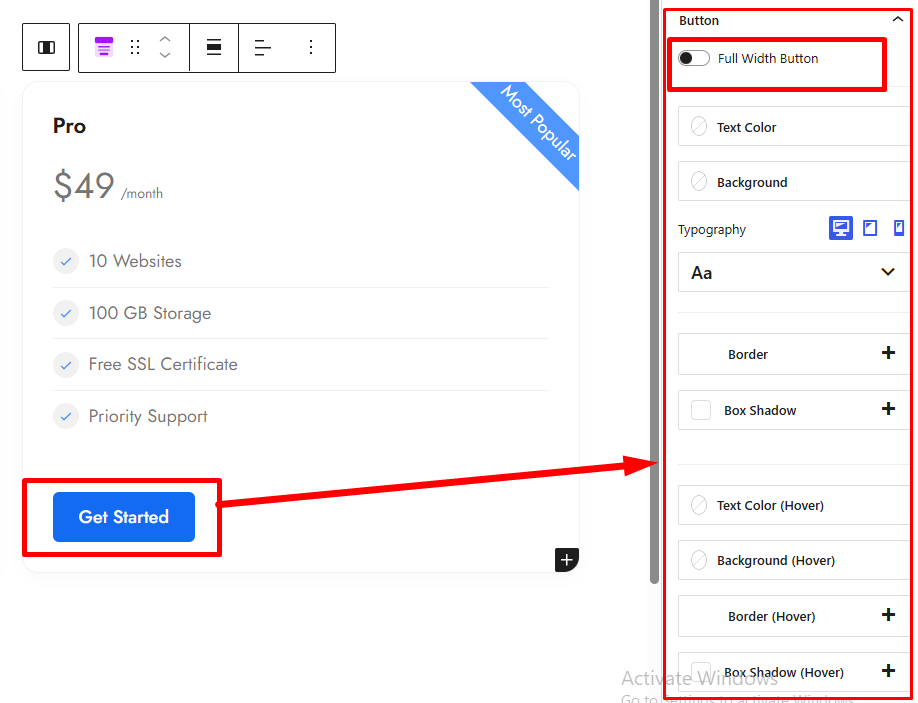
8. Button
Customize the call-to-action button in the pricing card.
- Full Width Button: Make the button stretch across the available width of the card.
- Text Color: Set the button text color.
- Background: Set the button background color or gradient.
- Typography: Customize the button text typography.
- Border: Customize the button border.
- Box Shadow: Apply a shadow to the button.
- Text Color (Hover): Set the button text color when a visitor hovers over it.
- Background (Hover): Set the button hover background color or gradient.
- Border (Hover): Customize the button border on hover.
- Box Shadow (Hover): Customize the button shadow on hover.
- Border Radius: Adjust the button’s corner radius.
- Padding: Set the inner spacing of the button.
- Margin: Set the outer spacing around the button.
The button’s text, URL, link target, and nofollow settings can be edited using the selected Button block’s own Gutenberg controls.
9. Text Under the Button
Customize the optional supporting text displayed below the call-to-action button.
- Color: Set the supporting text color.
- Typography: Customize the supporting text typography.
- Margin: Adjust the spacing around the supporting text.
Advanced Tab
1. Spacing
Configure the spacing for the entire Pricing Table Block.
- Padding: Set the inner spacing of the entire block.
- Margin: Set the outer spacing of the entire block.
- Responsive Spacing: Configure spacing for desktop, tablet, and mobile when responsive controls are available.
2. Background
Customize the background of the entire Pricing Table Block.
- Background Color: Set the block’s background color.


