
The Countdown Block displays a live countdown to a specified date and time, showing the remaining days, hours, minutes, and seconds. Customize the target date, unit labels, number and label typography, colors, separators, item backgrounds, borders, shadows, spacing, and responsive alignment to match your website design.
How to Add a Countdown Block
Step 1: Add the Countdown Block
- Open the page or post where you want to display the countdown.
- Click the + (Add Block) button in the Gutenberg editor.
- Search for Countdown.
- Select the Countdown Block to insert it into your page.
- Select the block to open its settings in the sidebar.
- Set the target date and time, customize the countdown labels, and adjust the layout and styling.

Step 2: Configure the Countdown Block
The available tabs are:
- Settings: Set the target date and time and customize the labels for days, hours, minutes, and seconds.
- Layout: Choose whether labels appear below the numbers and configure content alignment and spacing.
- Style: Customize the countdown items, separators, number typography, number colors, and label typography and colors.
- Advanced: Configure spacing and background settings for the entire Countdown Block.
Settings Tab
1. Content
- Target Date: Select the date and time when the countdown should end. If you leave this field empty, the countdown defaults to 24 hours from the current time.
- Days Label: Customize the label displayed for days. For example, enter
Days. - Hours Label: Customize the label displayed for hours. For example, enter
Hours. - Minutes Label: Customize the label displayed for minutes. For example, enter
Minutes. - Seconds Label: Customize the label displayed for seconds. For example, enter
Seconds.

Layout Tab
1. Layout
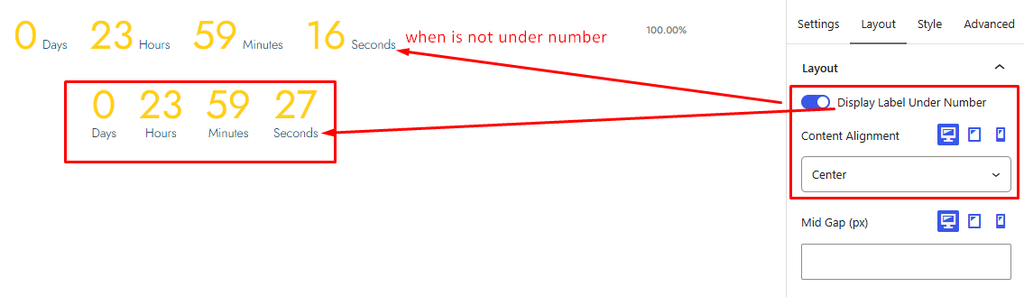
- Display Label Under Number: Enable this option to display each unit label below its countdown number. Disable it to display the labels inline with the numbers.
- Content Alignment: Choose how the countdown content is aligned when labels are displayed below the numbers.
- Left: Align the content to the left.
- Center: Align the content to the center.
- Right: Align the content to the right.
- Alignment can be configured separately for desktop, tablet, and mobile devices.
- Mid Gap (px): Set the spacing between the countdown units in pixels. The gap can be configured separately for desktop, tablet, and mobile devices.
Style Tab
1. Item
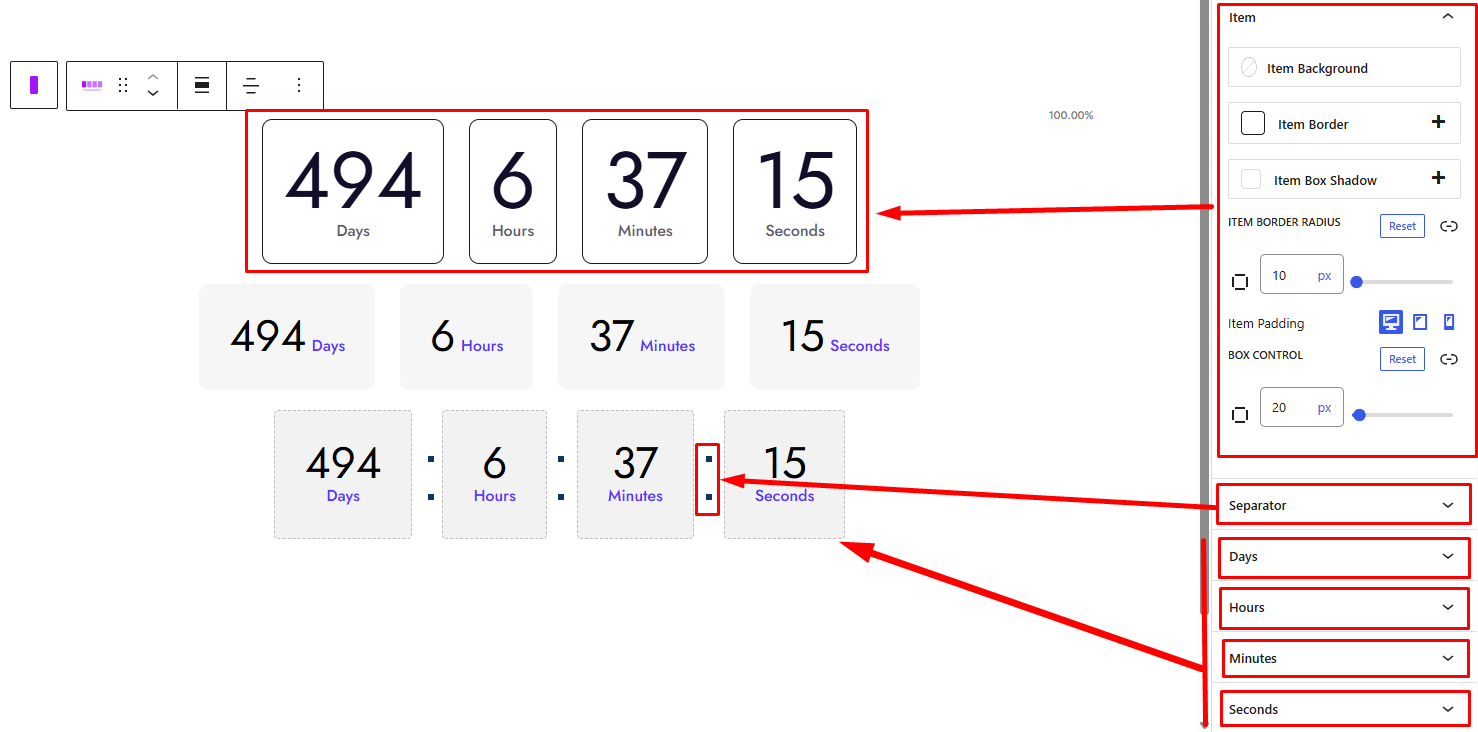
- Item Background: Set a solid background color or gradient for each countdown item.
- Item Border: Customize the border around each countdown item, including its width, style, and color.
- Item Box Shadow: Add and customize a shadow around each countdown item.
- Item Border Radius: Adjust the roundness of each countdown item’s corners.
- Item Padding: Adjust the inner spacing around the content of each countdown item. Padding can be configured separately for desktop, tablet, and mobile devices.
2. Separator
- Separator: Choose how the countdown units are separated.
- Space: Separate the units with space.
- Bullets: Display bullet separators.
- Dash: Display dash separators.
- Separator Color: Set a solid color or gradient for the separator. This option is available when Bullets or Dash is selected.
- Separator Position X (px): Adjust the horizontal position of the separator in pixels. This option is available when Bullets or Dash is selected.
3. Days
- Number Typography: Customize the typography of the days number. The settings can be configured separately for desktop, tablet, and mobile devices.
- Number Color: Set the color of the days number.
- Label Color: Set the color of the days label.
- Label Typography: Customize the typography of the days label. The settings can be configured separately for desktop, tablet, and mobile devices.
4. Hours
- Number Typography: Customize the typography of the hours number. The settings can be configured separately for desktop, tablet, and mobile devices.
- Number Color: Set the color of the hours number.
- Label Color: Set the color of the hours label.
- Label Typography: Customize the typography of the hours label. The settings can be configured separately for desktop, tablet, and mobile devices.
5. Minutes
- Number Typography: Customize the typography of the minutes number. The settings can be configured separately for desktop, tablet, and mobile devices.
- Number Color: Set the color of the minutes number.
- Label Color: Set the color of the minutes label.
- Label Typography: Customize the typography of the minutes label. The settings can be configured separately for desktop, tablet, and mobile devices.
6. Seconds
- Number Typography: Customize the typography of the seconds number. The settings can be configured separately for desktop, tablet, and mobile devices.
- Number Color: Set the color of the seconds number.
- Label Color: Set the color of the seconds label.
- Label Typography: Customize the typography of the seconds label. The settings can be configured separately for desktop, tablet, and mobile devices.
Advanced Tab
The Advanced tab controls spacing and background settings for the entire Countdown Block, not the individual countdown items.
1. Spacing
- Padding: Set the outer padding around the Countdown Block. Values can be configured separately for desktop, tablet, and mobile devices.
- Margin: Set the outer margin around the Countdown Block. Values can be configured separately for desktop, tablet, and mobile devices.
2. Background
- Background: Set a solid background color or gradient for the entire Countdown Block.


