
The Breadcrumb Block displays a navigation trail that helps visitors understand their current location within your website. You can customize the home icon and text, separator symbol, category path, current page title, alignment, typography, colors, borders, and spacing.
How to Add a Breadcrumb Block
Follow these steps to add the Breadcrumb Block to your page or post.
Step 1: Add the Breadcrumb Block
- Open the page or post where you want to add the Breadcrumb Block.
- Click the + (Add Block) button.
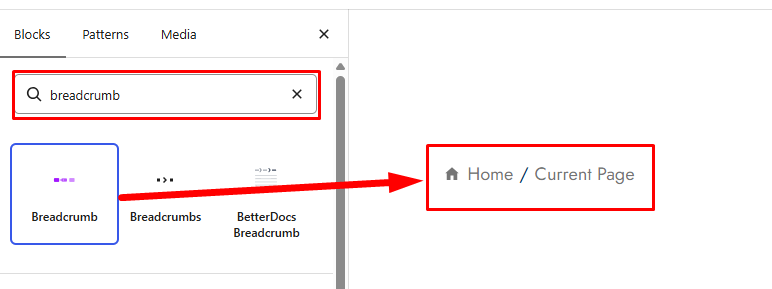
- Search for Breadcrumb in the block search field.
- Select the Breadcrumb block from the ShapeBlock category.
- The block will be added to your editor.
- Select the block to access its customization options in the sidebar.
Step 2: Configure the Breadcrumb Block
The Breadcrumb Block includes four tabs for customization:
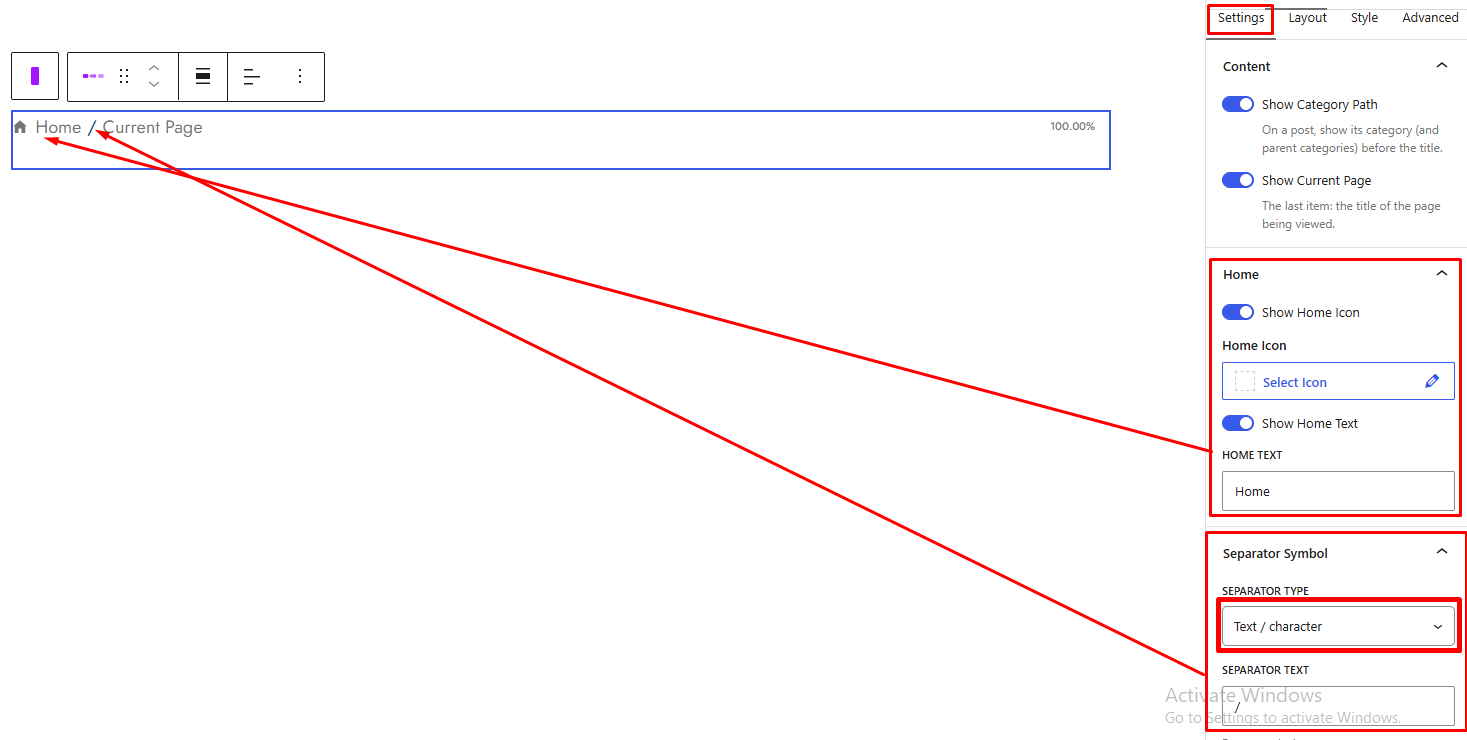
- Settings: Configure the category path, current page, home icon and text, and separator symbol.
- Layout: Set the breadcrumb alignment for desktop, tablet, and mobile devices.
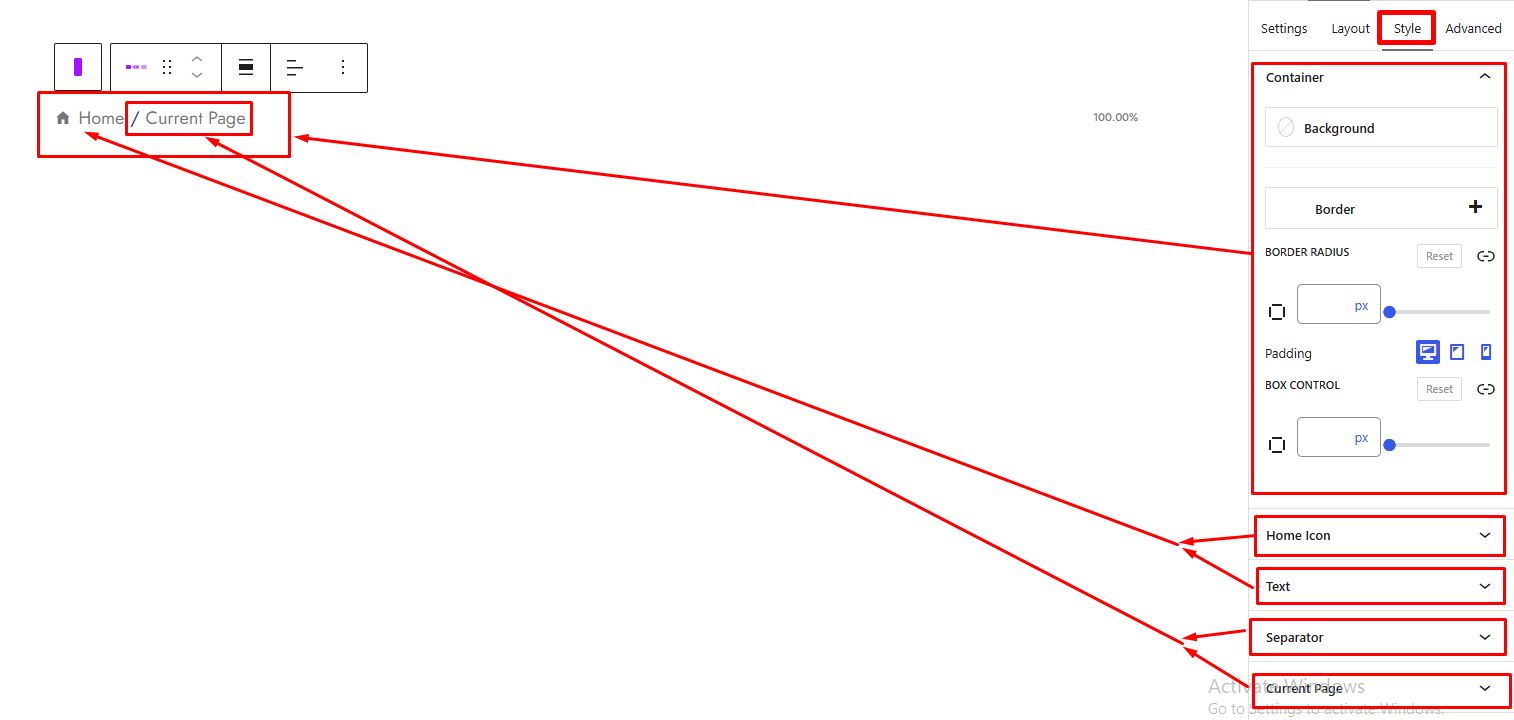
- Style: Customize the container, home icon, breadcrumb links, separator, and current page appearance.
- Advanced: Adjust the spacing and background of the entire block.
Settings Tab
The Settings tab contains the following panels.
1. Content
- Show Category Path: Display the post’s category and parent categories before the post title.
- Show Current Page: Display the title of the current page as the last breadcrumb item.
2. Home
- Show Home Icon: Enable or disable the home icon at the beginning of the breadcrumb trail.
- Home Icon: Choose the icon displayed for the home link. This option appears when Show Home Icon is enabled.
- Show Home Text: Enable or disable the home text beside the home icon.
- Home Text: Customize the text displayed for the home link. This option appears when Show Home Text is enabled.
3. Separator Symbol
- Separator Type: Choose how to display the separator between breadcrumb items.
- Text / character: Use a text character as the separator.
- Icon: Use an icon as the separator.
- Separator Text: Enter the separator character or symbol, such as
/,»,›, or-. This option appears when Text / character is selected. - Separator Icon: Choose the icon displayed between breadcrumb items. This option appears when Icon is selected.
Layout Tab
The Layout tab contains the following panel.
1. Alignment
- Alignment: Set the alignment of the breadcrumb trail separately for desktop, tablet, and mobile devices.
- Default: Use the default alignment.
- Left: Align the breadcrumb trail to the left.
- Center: Center the breadcrumb trail.
- Right: Align the breadcrumb trail to the right.
You can also adjust the alignment using the block toolbar in the editor.
Style Tab
The Style tab contains panels for customizing the breadcrumb container, home icon, links, separator, and current page. The Home Icon panel appears only when Show Home Icon is enabled in the Settings tab.
1. Container
- Background: Set a background color or gradient for the breadcrumb container.
- Border: Customize the container border.
- Border Radius: Adjust the corner radius of the container.
- Padding: Adjust the inner spacing of the container. Responsive settings are available for desktop, tablet, and mobile devices.
2. Home Icon
This panel appears when Show Home Icon is enabled in the Settings tab.
- Normal / Hover: Switch between normal and hover appearance settings.
- Icon Color: Customize the home icon color for the selected state.
- Background: Set the home icon background color or gradient in the normal state.
- Border Radius: Adjust the corner radius of the home icon background.
- Size (px): Set the home icon size.
- Space Between Icon and Text (px): Adjust the space between the home icon and its text.
- Padding: Adjust the inner spacing around the home icon. Responsive settings are available for desktop, tablet, and mobile devices.
- Vertical Offset (px): Adjust the vertical position of the home icon.
- Horizontal Offset (px): Adjust the horizontal position of the home icon.
3. Text
- Typography: Customize the typography of the breadcrumb text.
- Normal / Hover: Switch between normal and hover appearance settings.
- Link Color: Set the breadcrumb link text color for the selected state.
- Link Background: Set a background color or gradient for the breadcrumb links in the selected state.
- Link Border Radius: Adjust the corner radius of the breadcrumb links.
- Padding (Links): Adjust the inner spacing around the breadcrumb links. Responsive settings are available for desktop, tablet, and mobile devices.
4. Separator
- Separator / Icon Color: Customize the separator character or icon color.
- Background: Set a background color or gradient for the separator.
- Border Radius: Adjust the corner radius of the separator background.
- Size (px): Set the separator or icon size.
- Space Around (Margin): Adjust the space around the separator. Responsive settings are available for desktop, tablet, and mobile devices.
- Padding: Adjust the inner spacing around the separator. Responsive settings are available for desktop, tablet, and mobile devices.
- Vertical Offset (px): Adjust the vertical position of the separator.
- Horizontal Offset (px): Adjust the horizontal position of the separator.
5. Current Page
- Text Color: Customize the text color of the current page item.
- Background: Set a background color or gradient for the current page item.
- Border Radius: Adjust the corner radius of the current page item.
- Padding (Current Page): Adjust the inner spacing around the current page item. Responsive settings are available for desktop, tablet, and mobile devices.
Advanced Tab
The Advanced tab contains settings that apply to the entire Breadcrumb Block, not to individual breadcrumb items.
1. Spacing
- Padding: Adjust the inner spacing around the entire block. Responsive settings are available for desktop, tablet, and mobile devices.
- Margin: Adjust the outer spacing around the entire block. Responsive settings are available for desktop, tablet, and mobile devices.
2. Background
- Background: Set a background color or gradient for the entire block.


