
The Sticky Stack Block lets you create a series of cards that stick to the top of the screen and stack on top of one another while visitors scroll down the page. Each card can contain a number or label, icon, title, description, points, image, and button.
Use the Sticky Stack Block to present services, features, project steps, product benefits, or other content in a scroll-based layout. You can control the stacking behavior, card layout, spacing, and styling to match your design.
How to Add a Sticky Stack Block
Follow these steps to add and configure the Sticky Stack Block in the Gutenberg editor.
Step 1: Add the Sticky Stack Block
- Open a page or post in the WordPress Gutenberg editor.
- Click the + button to open the block inserter.
- Search for Sticky Stack under ShapeBlock.
- Insert the Sticky Stack Block into your page.
- Select the block to access its settings in the right-hand sidebar.
- Add or edit cards using the Cards panel.

Step 2: Configure the Sticky Stack Block
Select the Sticky Stack Block and open its settings in the right-hand sidebar. The available tabs are:
- Settings: Add and manage cards, configure stacking behavior, control the depth effect, and choose which card content to display.
- Layout: Configure image position, text width, alignment, card spacing, and image height.
- Style: Customize the appearance of cards, number badges, icons, titles, descriptions, points, buttons, and images.
- Advanced: Configure the shared advanced settings available for ShapeBlock blocks.
The block toolbar also provides content alignment and a Title HTML Tag selector.

Settings Tab
The Settings tab contains the Cards, Stacking, Depth Effect, and Content panels. Use these settings to manage card content and control how the cards behave while scrolling.
1. Cards
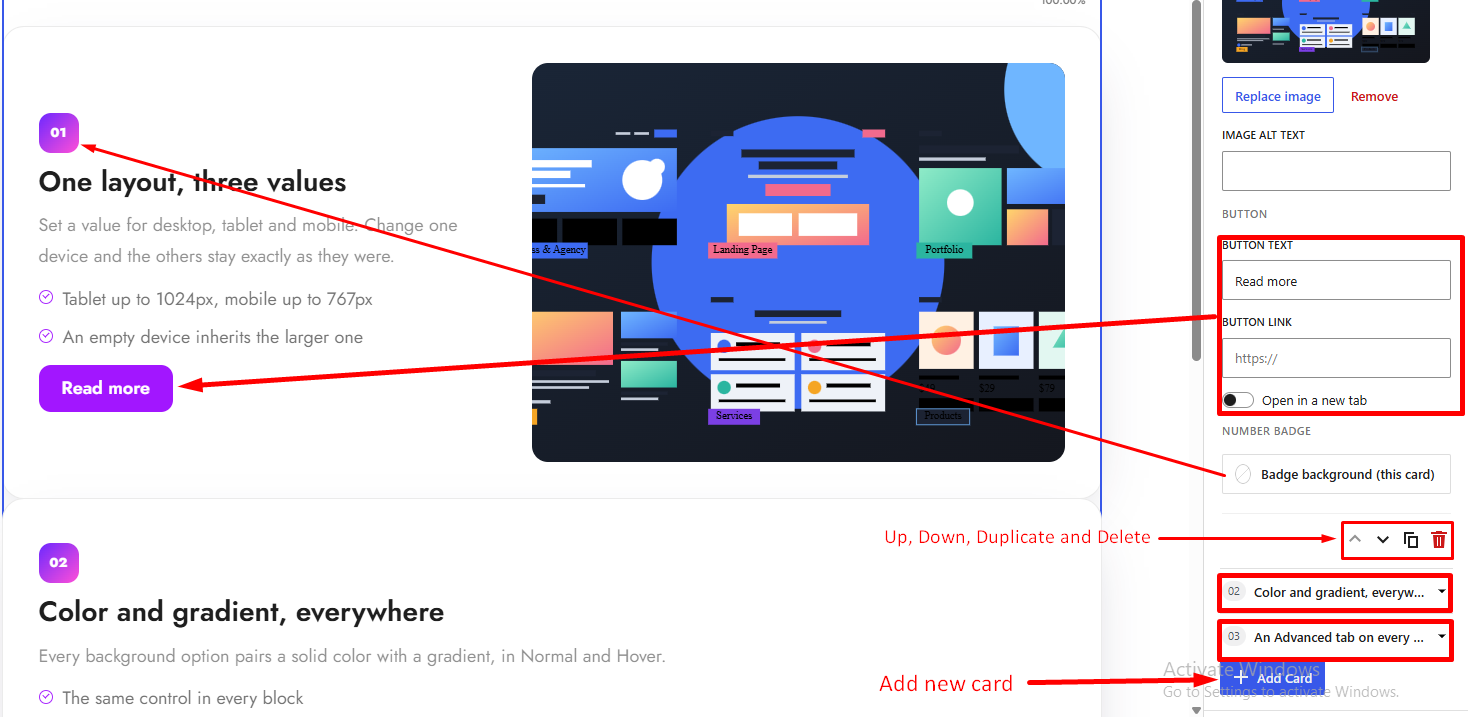
Use the Cards panel to create and manage the individual cards displayed in the Sticky Stack.
Click Add Card to add a new card. Expand a card to edit its content and options.
- Number / Label: Enter the number or label displayed on the card. For example, use 01, 02, or a short label to identify each step.
- Icon: Choose an icon to display on the card. Its visibility can be controlled from the Content panel.
- Title: Enter the card heading. Use a short, descriptive title to introduce the card’s content.
- Description: Add the main descriptive text for the card.
- Points: Enter supporting points, with one point per line. These points can be used to display a list of features, benefits, or key details.
- Image: Select an image from the WordPress Media Library. You can replace or remove the selected image.
- Image Alt Text: When an image is selected, the Image alt text field becomes available. Enter alternative text to describe the image for accessibility.
- Button Text: Enter the text displayed on the card’s button.
- Button Link: Enter the destination URL for the button.
- Open in a New Tab: Enable this option to open the button link in a new browser tab.
- Badge Background (This Card): Customize the background of the number badge for the selected card. You can use a background color or gradient.
- Card Management Actions: Each card provides the following actions:
- Move Up: Move the card one position up.
- Move Down: Move the card one position down.
- Duplicate: Create a copy of the card.
- Remove: Delete the card.
Use these actions to organize the cards in the order you want them to appear.

2. Stacking
The Stacking panel controls when the sticky stacking effect is enabled and how the cards are positioned during scrolling.
Stack On
Choose the devices on which the sticky stacking effect should work.
Available options:
- Desktop, tablet and mobile: Enable stacking on all three device types.
- Desktop and tablet: Enable stacking on desktop and tablet devices.
- Desktop only: Enable stacking on desktop devices.
On devices where stacking is disabled, the cards follow one another in the normal document flow.
Distance from Top (px)
Set the distance, in pixels, between the top of the viewport and the position where the cards stick.
Use this setting to leave space for a fixed header or other elements at the top of the screen.
Step Between Cards (px)
Set the vertical offset, in pixels, between stacked cards. Adjust this value to control how much of the cards underneath remains visible.
Important: Sticky stacking requires parent blocks to allow the sticky positioning behavior. If the cards do not stick while scrolling, check the overflow settings of the parent Row or Group blocks.
3. Depth Effect
Use the Depth Effect panel to create a layered appearance as cards stack during scrolling.
Shrink and Dim the Cards Underneath
Enable this option to reduce the size and brightness of the cards underneath the active card.
When enabled, the following settings become available:
- Shrink (%): Control how much the cards underneath shrink. A higher value creates a stronger size reduction.
- Dim (%): Control how much the cards underneath are dimmed. A higher value creates a stronger dimming effect.
Disable the option if you want the cards underneath to keep their normal size and brightness.

4. Content
Use the Content panel to choose which elements are displayed on the cards.
- Show Number: Enable or disable the number or label on each card.
- Show Icon: Enable or disable the card icons.
- Show Points: Enable or disable the list of points in each card.
- Show Image: Enable or disable the card images.
- Show Button: Enable or disable the card buttons.
Title HTML Tag
Choose the HTML element used for card titles.
Available options:
H1H2H3H4H5H6PDIVSPAN
Choose a tag that matches the heading structure of your page. For example, use H3 for a card heading beneath an H2 section heading.
Layout Tab
The Layout tab contains the Card Layout, Spacing, and Image Size panels. Use these settings to control the arrangement and dimensions of the card content.
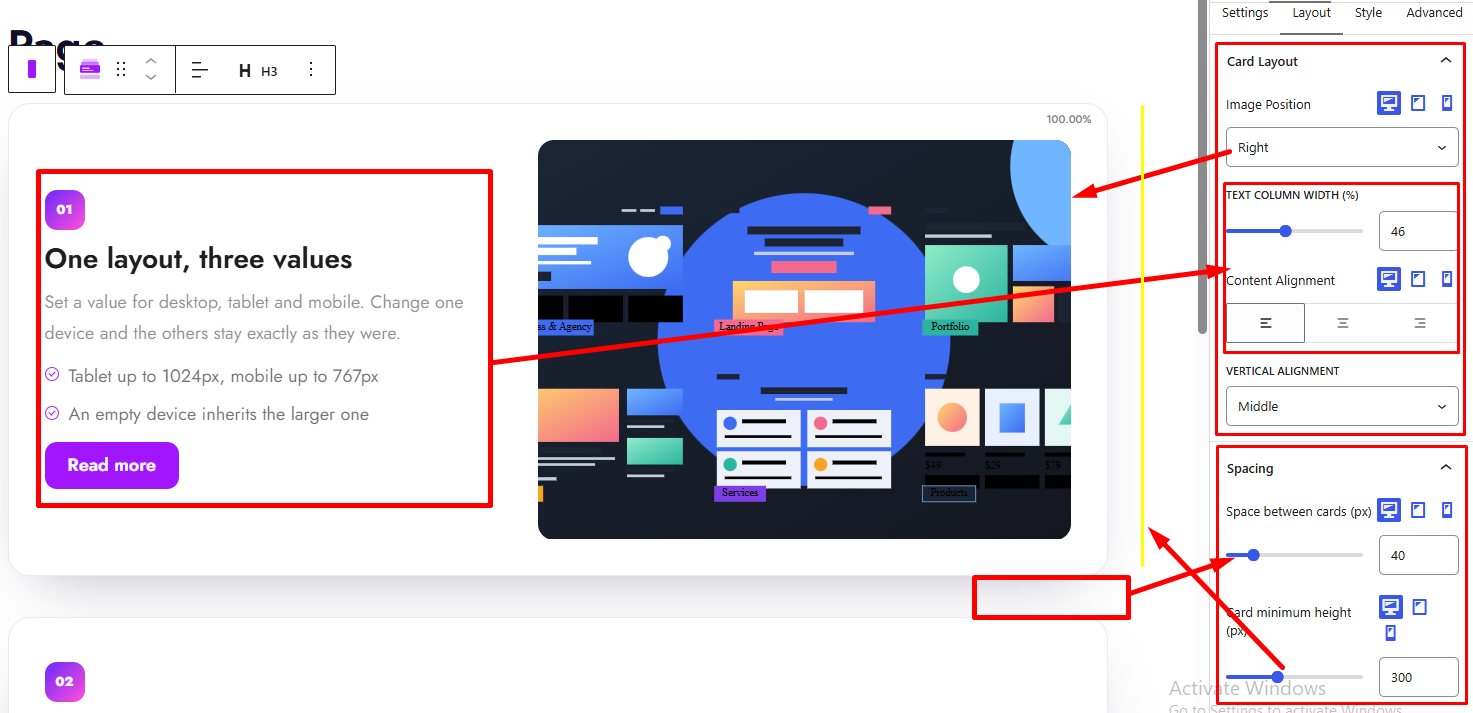
1. Card Layout
Use the Card Layout panel to control the position of the image and the alignment of the card content.
Image Position
Choose where the image appears in relation to the text.
Available options:
- Right: Display the image on the right side of the text.
- Left: Display the image on the left side of the text.
- Top: Display the image above the text.
- Bottom: Display the image below the text.
The image position can be configured separately for desktop, tablet, and mobile devices. On tablet and mobile, choose Default to inherit the configured fallback behavior rather than setting a separate position.
Text Column Width (%)
Set the width of the text column as a percentage. This helps control the space allocated to text when the image and text are displayed side by side.
The available range is 20% to 80%.
Content Alignment
Choose how the card’s text content is aligned horizontally.
Available options:
- Left: Align the content to the left.
- Center: Align the content to the center.
- Right: Align the content to the right.
Content alignment supports separate values for desktop, tablet, and mobile devices.
Vertical Alignment
Choose how the card content is aligned vertically within its layout.
Available options:
- Top: Align the content to the top.
- Middle: Align the content to the middle.
- Bottom: Align the content to the bottom.
Use vertical alignment to position text consistently when cards contain images or different amounts of content.
2. Spacing
Use the Spacing panel to control the distance between cards and between elements inside each card.
- Gap Inside the Text (px): Set the spacing between text elements inside the card. Use this setting to control the visual separation between the title, description, points, and other text content.
- Space Between Cards (px): Set the vertical spacing between cards. Adjust this value to create more or less separation between consecutive cards.
- Card Minimum Height (px): Set the minimum height of each card. This helps maintain a consistent card size when the content varies.
- Gap Between Text and Image (px): Set the distance between the text column and the image when they appear side by side.
3. Image Size
Use the Image Size panel to control the height of card images.
Image Height (px)
Set the image height in pixels. Adjust this value to create a consistent image area across the cards.
The image height supports separate values for desktop, tablet, and mobile devices.

Style Tab
The Style tab contains the Card, Number Badge, Icon, Title, Description, Points, Button, and Image panels. Use these controls to customize the appearance of each card element.
1. Card
Use the Card panel to customize the main card container.
- Background: Set a background color or gradient for the cards.
- Border: Customize the card border.
- Box Shadow: Add a shadow around the cards to create depth and separation from the page background.
- Border Radius: Adjust the rounding of the card corners.
- Card Padding: Control the inner spacing between the card edges and its content. Separate padding values can be configured for desktop, tablet, and mobile devices.
2. Number Badge
Use the Number Badge panel to customize the appearance of the number or label displayed on each card.
- Text Color: Choose the color of the number or label.
- Background: Set a background color or gradient for the number badge.
- Size (px): Set the size of the number badge in pixels.
- Border Radius: Adjust the rounding of the badge corners.
- Typography: Customize the typography of the number or label, including the available font settings.
3. Icon
Use the Icon panel to customize the appearance of the card icons.
- Color: Choose the icon color.
- Icon Size (px): Set the icon size in pixels.
4. Title
Use the Title panel to customize the card headings.
- Color: Choose the title text color.
- Typography: Customize the title typography, including the available font settings. Responsive typography values can be configured for desktop, tablet, and mobile devices.
5. Description
Use the Description panel to customize the descriptive text inside each card.
- Typography: Customize the description typography, including the available font settings. Responsive typography values can be configured for desktop, tablet, and mobile devices.
- Color: Choose the description text color.
6. Points
Use the Points panel to style the list of points displayed on each card.
- Text Color: Choose the color of the point text.
- Tick Color: Choose the color of the tick or bullet marker displayed beside each point.
- Space Between Points (px): Set the vertical spacing between individual points.
- Typography: Customize the point text typography, with responsive settings for desktop, tablet, and mobile devices.
7. Button
Use the Button panel to customize the card button’s typography, colors, background, border, padding, and corner radius.
- Typography: Customize button typography for desktop, tablet, and mobile devices.
- Normal and Hover States: Customize button styles for both normal and hover states.
- Normal: Set the default text color, background color or gradient, and border.
- Hover: Set the text color, background color or gradient, and border color when visitors hover over the button.
- Padding: Adjust the space inside the button around its text for desktop, tablet, and mobile devices.
- Border Radius: Adjust the rounding of the button corners.
8. Image
Use the Image panel to customize the appearance of the card images.
- Image Fit: Choose how the image fits inside its image area.
- Cover: Fill the image area while maintaining its aspect ratio. Some parts of the image may be cropped.
- Contain: Display the entire image inside the image area while maintaining its aspect ratio. Empty space may remain around the image.
- Border Radius: Adjust the rounding of the image corners.
- Box Shadow: Add a shadow around the image to create visual depth.

Advanced Tab
The Advanced tab provides additional spacing and background controls for the Sticky Stack Block. These settings apply to the entire block, not to individual cards.
1. Spacing
- Padding: Set the inner spacing around the content of the entire Sticky Stack Block. Configure the top, right, bottom, and left values separately.
- Margin: Set the outer spacing around the entire Sticky Stack Block. Configure the top, right, bottom, and left values separately.
Both controls support responsive settings for desktop, tablet, and mobile devices.
Note: These spacing controls apply to the entire block and are separate from the spacing settings available in the Style tab.
2. Background
- Background: Customize the background of the entire Sticky Stack Block using a background color or gradient.
Note: This background applies to the block container, not to individual cards. To customize individual card backgrounds, use the Style → Card panel.


