
The ShapeBlock Row Block helps you create flexible, multi-column layouts in the WordPress Gutenberg editor. You can add columns, choose from predefined column layouts, control content width, adjust spacing, customize backgrounds and borders, and manage responsive behavior for desktop, tablet, and mobile devices.
Use the Row Block to build website sections such as hero areas, feature sections, service layouts, content grids, and other multi-column designs.
How to Use the Row Block
Follow these steps to add and configure the Row Block in the Gutenberg editor.
Step 1: Add the Row Block
- Open a page or post in the WordPress Gutenberg editor.
- Click the + (Add Block) button.
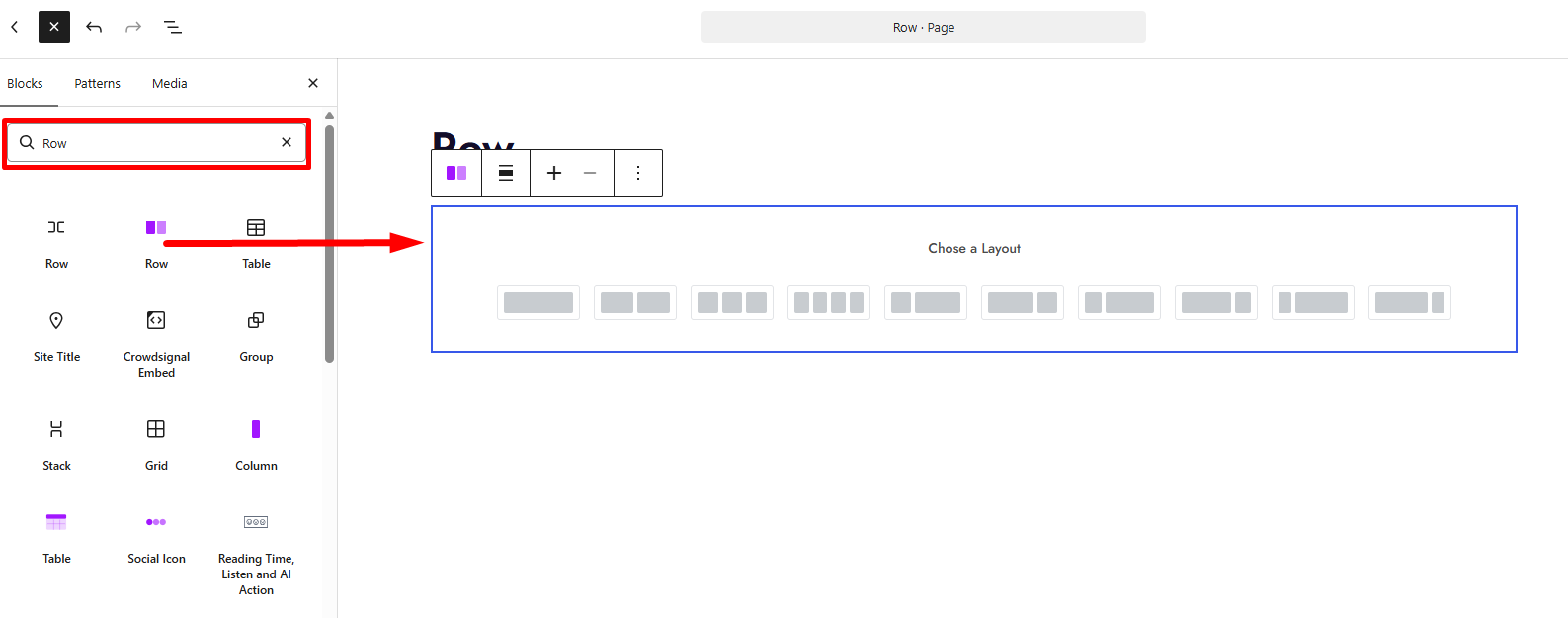
- Search for Row.
- Select the Row Block from ShapeBlock to insert it into your page.
- Choose a predefined column layout from the layout picker.
Step 2: Choose a Column Layout
When you add a new Row Block, the layout picker allows you to select a predefined column structure.
Available layouts include:
- 1 Column: A single full-width column.
- 50 / 50: Two equal-width columns.
- 33 / 33 / 33: Three equal-width columns.
- 25 / 25 / 25 / 25: Four equal-width columns.
- 30 / 70: Two columns with different widths.
- 70 / 30: Two columns with different widths.
- 25 / 75: A narrow column followed by a wider column.
- 75 / 25: A wider column followed by a narrow column.
- 20 / 80: A narrow first column and a wider second column.
- 80 / 20: A wider first column and a narrow second column.
Select the layout that best matches your design. You can also change the layout later from the Layout → Container settings.
Step 3: Add and Manage Columns
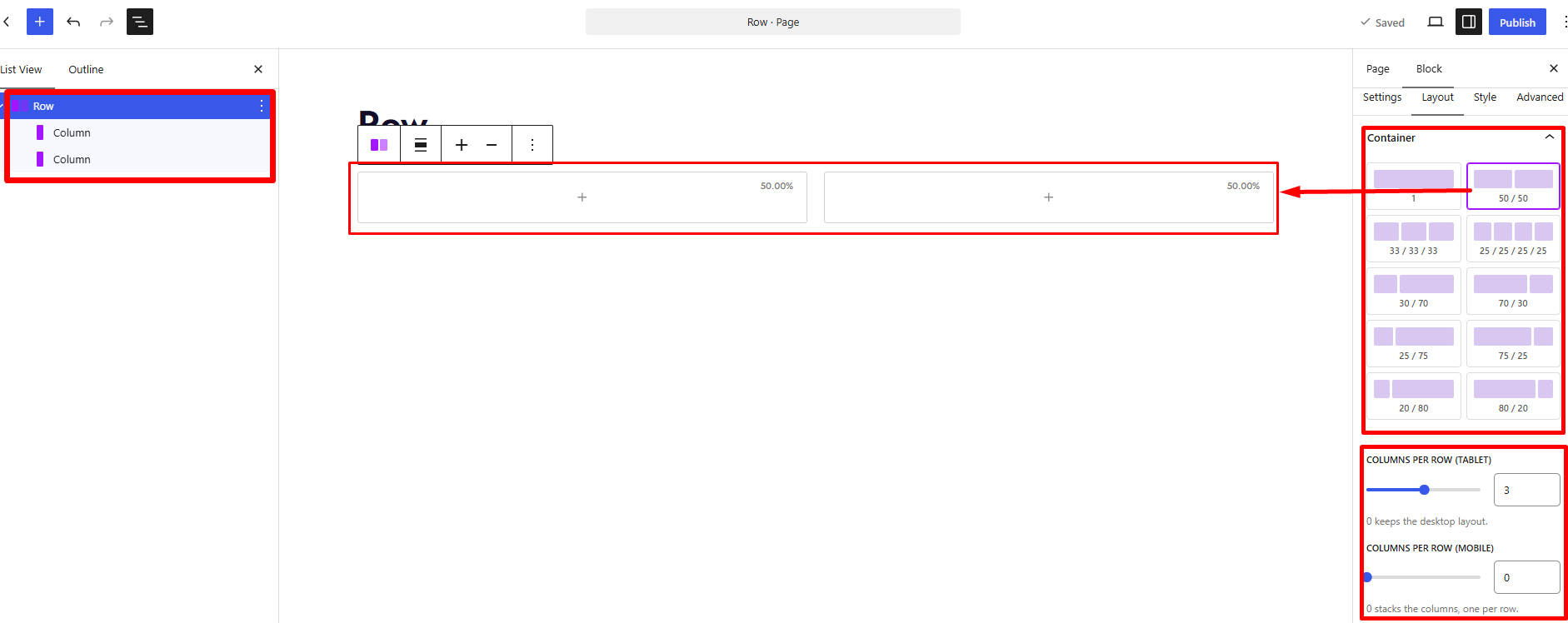
The Row Block includes toolbar controls for managing its columns.
- Add Column: Adds another column to the row.
- Remove Column: Removes the last column from the row. This control is disabled when only one column remains.
You can insert supported ShapeBlock Column blocks inside the Row Block and configure their content separately.
Step 4: Configure the Row Block
Select the Row Block and open its settings in the right-hand sidebar. The available tabs are:
- Settings: Configure the HTML tag, custom CSS class, sticky behavior, and responsive visibility.
- Layout: Configure column presets, content width, responsive columns, Flexbox alignment, positioning, and other layout options.
- Style: Customize spacing, background, border, border radius, and box shadow.
- Advanced: Configure additional spacing and background settings for the block.
Settings Tab
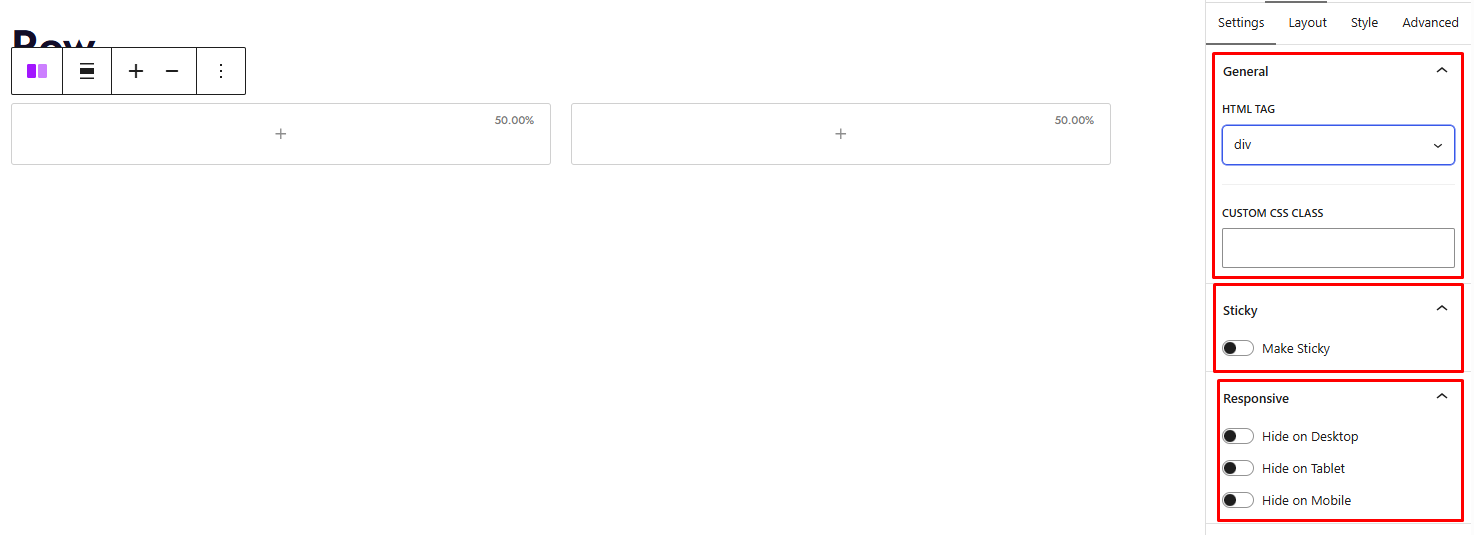
The Settings tab contains general HTML settings, sticky behavior, and responsive visibility options.
1. General
HTML Tag
Choose the HTML element used to render the Row Block.
Available options:
divsectionarticlemainheaderfooteraside
Choose a semantic HTML element when appropriate for your page structure.
Custom CSS Class
Add a custom CSS class to the Row Block. You can use this class to apply additional styling through your theme or custom CSS.
ARIA Label
Add a descriptive label for the Row section so screen readers can identify its purpose. For example, use “Our Services” for a row containing service information.
2. Sticky
Use the Sticky settings to keep the Row Block positioned at the top of the viewport while scrolling.
Make Sticky
Enable this option to activate sticky behavior for the row.
Sticky Top Offset
Set the distance between the top of the viewport and the sticky row.
This option appears when Make Sticky is enabled.
3. Responsive
Control the visibility of the Row Block on different device types.
- Hide on Desktop: Hides the row on desktop devices.
- Hide on Tablet: Hides the row on tablet devices.
- Hide on Mobile: Hides the row on mobile devices.
Enable the appropriate option to hide the row on the selected device type.
Layout Tab
The Layout tab provides controls for the row structure, content width, responsive columns, positioning, Flexbox alignment, and column behavior.
1. Container
Layout Presets
Choose a predefined column structure for the row. The available presets are:
| Layout | Column Structure |
|---|---|
| 1 | One full-width column |
| 50 / 50 | Two equal columns |
| 33 / 33 / 33 | Three equal columns |
| 25 / 25 / 25 / 25 | Four equal columns |
| 30 / 70 | 30% and 70% |
| 70 / 30 | 70% and 30% |
| 25 / 75 | 25% and 75% |
| 75 / 25 | 75% and 25% |
| 20 / 80 | 20% and 80% |
| 80 / 20 | 80% and 20% |
Select a preset to apply the corresponding column structure.
Columns per row
- Columns per row (Desktop): Set how many columns appear in each row on desktop screens.
- 0: Keep each column’s own width.
- 1: Stack columns at full width.
- 2 or more: Display an equal-column grid that wraps onto the next line.
- Columns per row (Tablet): Set the number of columns per row on tablet screens. Use
0to keep the desktop layout. - Columns per row (Mobile): Set the number of columns per row on mobile screens. Use
0to stack columns one per row.
Content Width
Choose how the row’s content and background are sized.
Boxed
The background can span the row while the content stays within a defined maximum width.
When selected, the Max Width control appears.
Full Width
The content fills the entire row width.
The Max Width control is not displayed in this mode.
Custom
Set a custom width for the entire row, including its background, and center it within the available layout area.
When selected, the responsive Width control appears.
Available width units:
px— Pixels%— Percentagevw— Viewport widthrem— Root em units
The row’s alignment and the surrounding theme layout can affect the final visible width.
Max Width
Set the maximum width of the row’s content when Content Width is set to Boxed.
The control supports responsive values for desktop, tablet, and mobile devices.
Min Height
Set the minimum height of the row. The row can grow beyond this value when its content requires more space.
The control supports responsive values for desktop, tablet, and mobile devices.
2. Position & Z-Index
Use these options to control the row’s positioning, overflow behavior, and stacking order.
Position
Choose the CSS positioning mode for the row.
Available options:
- Default: Uses the default positioning behavior.
- static: Places the element in the normal document flow.
- relative: Positions the element relative to its normal position.
- absolute: Positions the element relative to its positioning context.
- fixed: Positions the element relative to the viewport.
Overflow
Control how content extending beyond the row’s boundaries is handled.
Available options:
- Default: Uses the default overflow behavior.
- visible: Allows overflowing content to remain visible.
- hidden: Clips overflowing content.
- auto: Adds scrolling when necessary.
- scroll: Enables scrolling for overflowing content.
Z-Index
Set the row’s stacking order using a numeric value. This can help control which elements appear in front of or behind other elements when their positioning and stacking contexts allow it.
3. Flexbox
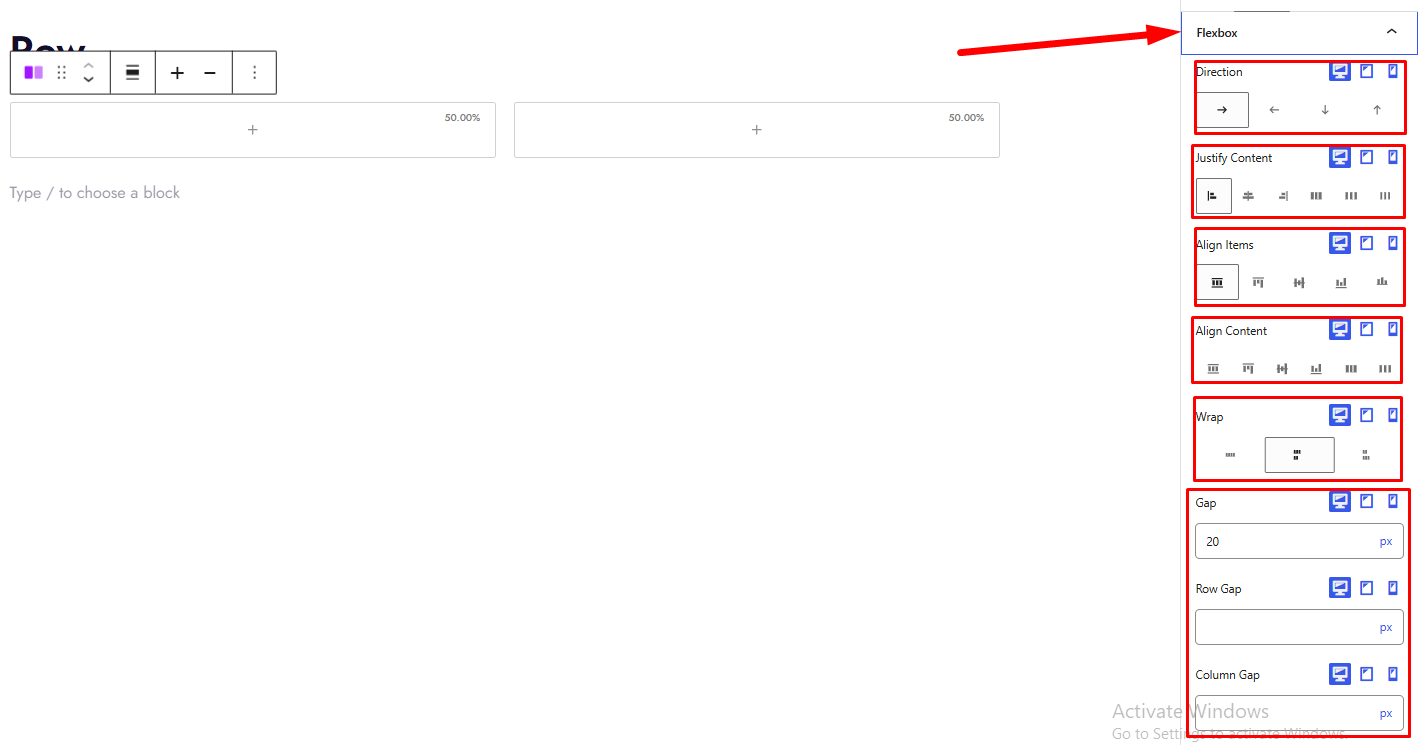
Use the Flexbox settings to control the direction, alignment, wrapping, and spacing of columns within the row.
These controls support responsive settings for desktop, tablet, and mobile devices.
Direction
Choose the direction in which the columns are arranged.
Available options:
- Row: Arranges columns horizontally from left to right.
- Row reverse: Reverses the horizontal direction.
- Column: Arranges columns vertically.
- Column reverse: Reverses the vertical direction.
Justify Content
Control how columns are distributed along the main axis.
Available options:
- Start: Aligns columns at the beginning.
- Center: Centers columns.
- End: Aligns columns at the end.
- Space between: Distributes space between columns.
- Space around: Adds space around columns.
- Space evenly: Distributes equal spacing between columns and at the edges.
Align Items
Control how columns align along the cross axis.
Available options:
- Stretch: Stretches columns along the cross axis.
- Top: Aligns columns to the top.
- Middle: Aligns columns to the center.
- Bottom: Aligns columns to the bottom.
- Baseline: Aligns columns along their text baselines.
Align Content
Control the distribution of multiple rows of content along the cross axis when the layout wraps.
Available options:
- Stretch
- Top
- Middle
- Bottom
- Space between
- Space around
Wrap
Choose how columns behave when they cannot fit on a single line.
Available options:
- No wrap: Keeps columns on one line.
- Wrap: Allows columns to move onto additional lines.
- Wrap reverse: Allows wrapping in the reverse cross-axis direction.
Gap
Set the general spacing between columns or items in the row.
Row Gap
Set the spacing between rows when content wraps onto multiple lines.
Column Gap
Set the spacing between columns.
The Gap, Row Gap, and Column Gap controls support responsive values.
4. Advanced Layout
Vertical Align
Choose the vertical alignment of the columns.
Available options:
- Default
- Top
- Middle
- Bottom
Equal Height Columns
Enable this option to make the columns equal in height.
Stretch Columns
Enable this option to stretch the columns within the available row space.
Style Tab
The Style tab contains the row’s spacing, background, and border customization options.
1. Spacing
Padding
Control the inner spacing of the row.
You can set separate values for:
- Top
- Right
- Bottom
- Left
Responsive controls are available for desktop, tablet, and mobile devices.
Margin
Control the outer spacing around the row.
You can set separate values for:
- Top
- Right
- Bottom
- Left
Responsive controls are available for desktop, tablet, and mobile devices.
2. Background
Customize the background of the Row Block.
Background
Choose a background color or gradient using the Background control.
Background Image URL
Enter the URL of the image you want to use as the row background.
After entering an image URL, additional background options become available.
Size
Choose how the background image fits within the row.
Available options:
- auto: Uses the image’s natural sizing behavior.
- cover: Scales the image to cover the background area.
- contain: Scales the image to fit within the background area.
Repeat
Choose whether the background image repeats.
Available options:
- no-repeat: Displays the image without repeating.
- repeat: Repeats the image horizontally and vertically.
- repeat-x: Repeats the image horizontally.
- repeat-y: Repeats the image vertically.
Position
Choose where the background image is positioned.
Available options:
- center center
- top left
- top center
- top right
- center left
- center right
- bottom left
- bottom center
- bottom right
Attachment
Choose how the background image behaves while scrolling.
Available options:
- scroll: The background image scrolls with the element.
- fixed: The background image uses fixed attachment behavior, subject to browser and device support.
3.Background Overlay
- Overlay: Choose an overlay color or gradient to display over the background.
- Overlay Opacity (%): Adjust the overlay opacity from 0% to 100%. This control appears when an overlay color or gradient is set.
4.Colors
- Text: Set the text color for content inside the Row.
- Link: Set the color of links inside the Row.
- Link Hover: Set the link color when a visitor hovers over a link.
- Heading: Set the heading color inside the Row.
5.Typography
- Typography: Configure typography for the Row’s content using the available responsive controls.
6. Border
Border:
Customize the row’s border using the Border control.
Border Radius:
Adjust the corner radius of the row. You can configure the top, right, bottom, and left corners separately.
Box Shadow:
Customize the shadow around the row using the Box Shadow control.

Advanced Tab
The Advanced tab provides additional spacing and background controls for the Row Block.
1. Spacing
Padding
Set the additional inner spacing applied through the Advanced tab.
You can configure the top, right, bottom, and left values separately.
Margin
Set the additional outer spacing applied through the Advanced tab.
You can configure the top, right, bottom, and left values separately.
Both controls support responsive settings for desktop, tablet, and mobile devices.
Note: The Advanced tab has its own spacing controls, separate from the Padding and Margin options in the Style tab.
2. Background
Background
Customize the additional background of the Row Block using the Background control.
The control supports background color and gradient settings.
Tips for Using the Row Block
- Choose a column preset that matches your intended layout before adding content.
- Use responsive column settings to adjust the layout for tablet and mobile screens.
- Use Flexbox controls to manage column direction, alignment, and spacing.
- Use Content Width to control how the row’s content fits within the page.
- Use the Style and Advanced tabs to manage their respective spacing and background settings.
- Use semantic HTML tags when appropriate for the structure of your page.
The ShapeBlock Row Block provides flexible controls for building responsive, multi-column layouts directly in the WordPress Gutenberg editor.


