


















Want to build a WordPress website using Gutenberg alone? A few years ago, that felt like a stretch. You’d start in Gutenberg, hit a wall on layout or styling, and end up installing a page builder anyway.
That’s not really true anymore. Between block themes, patterns, and the Site Editor, you can now build the whole thing — pages, blog, header, footer, global styling — without leaving the editor WordPress ships with. We build on it every day, and this is the workflow we’d actually recommend to someone starting from scratch.
No code required. If you’ve used Elementor before, the idea will feel familiar: you’re still stacking visual blocks. The difference is that these blocks are native to WordPress, so they usually load lighter and survive core updates without drama.
What Is Gutenberg, Exactly?
Gutenberg is the block editor that replaced the old classic editor back in WordPress 5.0. Every piece of a page is its own block — a heading, a paragraph, an image, a button, a set of columns — and you move them around like pieces of a layout rather than typing into one big text box.
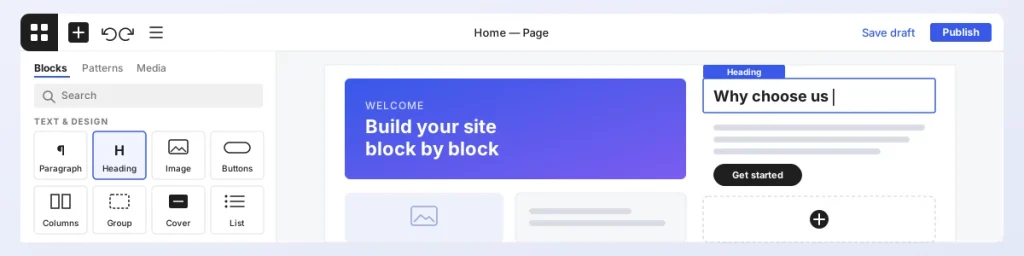
What turned it from “an editor” into “a site builder” is three additions:
- Full Site Editing. Block themes let you edit headers, footers, and page templates with the same blocks you use for content.
- Patterns. Pre-made groups of blocks — a hero, a pricing table, a testimonial row — that you drop in and adjust.
- Global Styles. One panel for your colors, fonts, and spacing, applied across the whole site.
Honestly, core Gutenberg still has gaps. Per-device controls are limited, and the default block set is fairly basic once you need things like accordions, icon boxes, or pricing tables. That’s exactly where a block plugin earns its place — more on that in Step 3.
Step 1: Get WordPress Running
This part is quick, but two settings here save you a headache later.
- Pick a host. Any host with one-click WordPress install is fine for a new site. You can move to managed hosting when traffic justifies it.
- Install WordPress. Usually two clicks in your hosting panel.
- Fix your permalinks first. Go to Settings → Permalinks and choose “Post name.” Changing this after you’ve published content means broken links and redirects, so do it on day one.
- Turn on SSL. Most hosts give you a free Let’s Encrypt certificate. Run the site on HTTPS from the start.
Step 2: Choose a Block Theme
This is the decision that matters most. If you want to edit your header, footer, and templates visually, you need a block theme (built on theme.json). A classic theme will still let you write pages in Gutenberg, but the Site Editor won’t be there.
The quick check: under Appearance, a block theme shows Editor. A classic theme shows Customize.
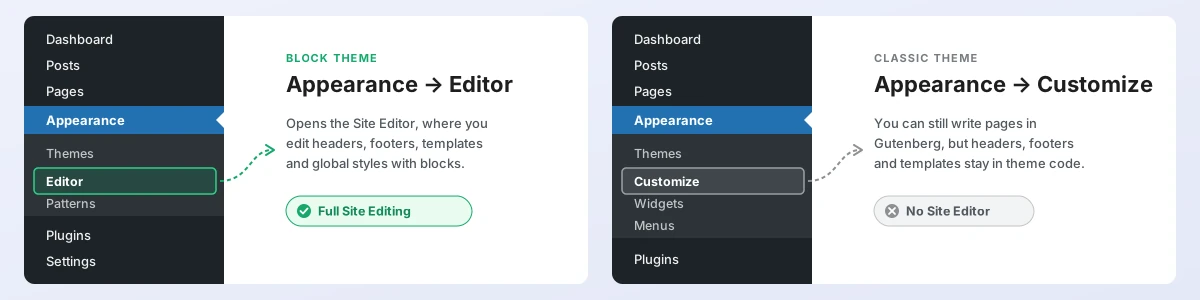
Before you commit to one, look at:
- Its patterns. A good block theme ships with headers, heroes, and footers you can use straight away.
- Its weight. Avoid themes that quietly load a page builder’s scripts on top of Gutenberg. You lose the main speed benefit.
- Its update history. Gutenberg moves fast. A theme that hasn’t been updated in a year will start showing cracks.
Step 3: Build Your Pages With Blocks
Go to Pages → Add New and you’re in the editor. For a typical page, a handful of core blocks do most of the work:
| Block | What we use it for |
|---|---|
| Group, Row, Stack | Wrapping sections. Row puts things side by side, Stack puts them on top of each other. |
| Columns | Feature grids, text next to an image. |
| Cover | Hero sections with text over an image or color. |
| Heading, Paragraph, List | Your actual content. |
| Image, Gallery, Media & Text | Visuals. Media & Text gives you image-plus-copy in one block. |
| Buttons | Calls to action. |
One habit worth building early: open List View (the stacked-lines icon in the top toolbar). Once a page has more than three or four sections, selecting and moving blocks from the tree is far easier than clicking around the canvas.
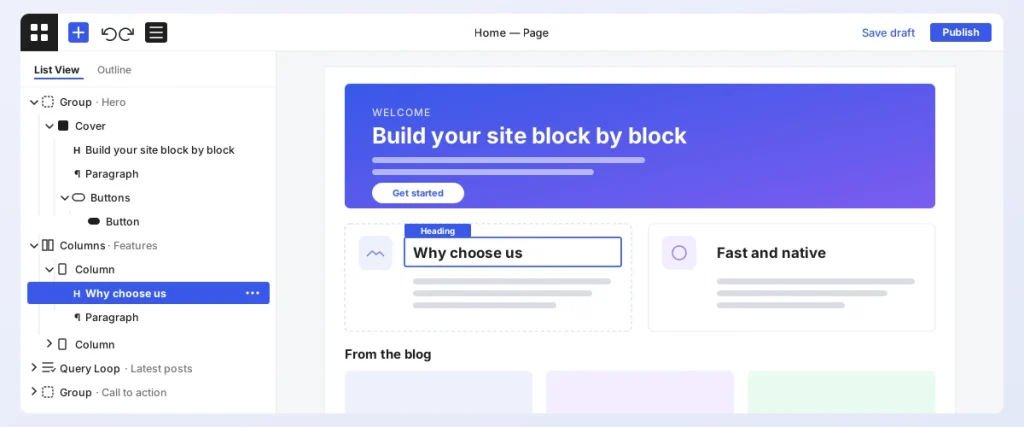
Filling the gaps with ShapeBlock
This is where most people hit the limits of core blocks. You want an accordion for FAQs, an icon box for services, a pricing table, or a hero with a bit more personality — and core simply doesn’t have them. Responsive control is the other sore spot: core gives you very little say over how a block behaves on tablet versus mobile.
We built ShapeBlock for exactly that. It adds the blocks a real business site needs — Shape Hero, Accordion, Icon Box, Pricing and more — straight into the regular block inserter, under their own ShapeBlock category. There’s no separate builder screen to learn. You use them exactly like core blocks.
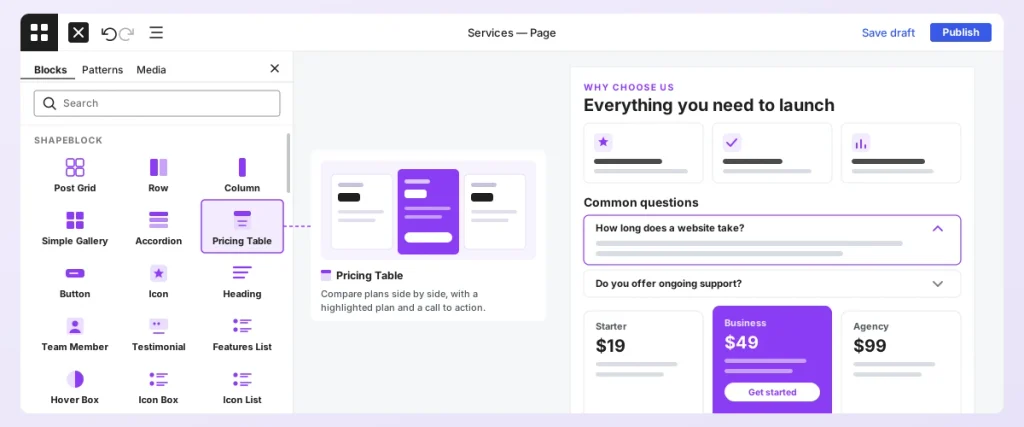
What that gets you in practice:
- Proper design controls for typography, color, spacing, and backgrounds, right in the block sidebar.
- Per-device settings, so you can set different padding or layout for desktop, tablet, and mobile instead of hoping the defaults work.
- A block manager to switch off the blocks you don’t use, so you’re not loading anything you don’t need.
Our honest advice: start with core blocks, and reach for ShapeBlock the moment you catch yourself faking a layout with five nested Groups. That’s usually the sign you need a purpose-built block.
Step 4: Stop Rebuilding Sections — Use Patterns
If you’re building the same hero or call-to-action twice, you’re doing it the slow way. Click the + inserter, open the Patterns tab, and drop in a ready-made layout from your theme or the WordPress.org pattern directory. Then just swap the text and images.
For anything that must look identical everywhere — a newsletter box, a contact banner — save it as a synced pattern (the old name was “reusable block”). Edit it once and every copy across the site updates. For layouts you’ll tweak per page, keep them unsynced.
A tip from our own workflow: once you’ve styled a section with ShapeBlock the way you like it, save it as a pattern. Next time it’s one click instead of ten minutes.
Step 5: Edit Your Header, Footer and Site Styles
On a block theme, go to Appearance → Editor. This is the part that used to need a page builder.
- Templates set the layout for each type of page — single post, page, archive, 404.
- Template parts are shared pieces like the header and footer. Change them once, and they change everywhere.
- Styles holds your colors, fonts, and spacing for the whole site. You can even save combinations as style variations and switch between looks.
One warning: edits to a template part go live on every page immediately. There’s no draft step like there is for a normal page, so be careful on a live site.
Step 6: Set Up the Blog With the Query Loop Block
The Query Loop block is what shows a list of posts. Think of it as the visual version of the old WP_Query code. With it you can:
- Choose which posts to show — latest, one category, or a custom post type.
- Pick a grid or list, plus the number of columns and posts per page.
- Arrange each post card using Featured Image, Title, Excerpt, and Date blocks.
- Add Pagination underneath.
Most block themes already have one in the blog template, so you’ll usually be restyling it rather than starting from zero.
Mistakes We See All the Time
- Installing three block plugins. Each one adds its own CSS and settings panels, and the editor gets slower with every one. Pick one block library and stick with it.
- Nesting Groups inside Groups inside Rows. It’s easy to do and hard to notice. Check List View now and then and flatten anything that’s just wrapping another wrapper.
- Trusting the mobile preview. It’s close, not perfect. Always check the real thing on your phone before you publish.
- Skipping SEO setup. Gutenberg doesn’t handle meta titles, descriptions, or sitemaps. Add Yoast SEO or Rank Math before you start publishing.
- Blaming the editor for a slow site. Nine times out of ten it’s oversized images or too many plugins, not Gutenberg.
FAQ
Do I still need a page builder with Gutenberg? For most sites, no. A good block theme plus one solid block plugin like ShapeBlock covers what people used to install Elementor for. A page builder still makes sense for very unusual layouts, but you pay for it in page weight.
Can I switch from a classic theme to a block theme later? Yes. Your posts and pages stay intact because the content is already blocks. You’ll need to rebuild the header, footer, and any theme-specific sections, though.
Is Gutenberg good enough for a business website? For business sites, service pages, portfolios, landing pages, and blogs — yes. Membership sites, course platforms, or complex stores will still need dedicated plugins on top.
Will ShapeBlock work with my theme? ShapeBlock blocks sit in the standard block editor, so they work the same way core blocks do. That said, test on a staging copy first if your theme does a lot of custom styling.
Final Thoughts
You don’t need a page builder to build a proper WordPress site anymore. Pick a solid block theme, use patterns instead of rebuilding sections, and let the Site Editor handle anything that should look the same across pages.
And when core blocks run out — which they will, usually around the FAQ or pricing section — give ShapeBlock a try. It’s the block plugin we wished existed when we started building with Gutenberg: native, lightweight, and focused on the blocks real websites actually use.