
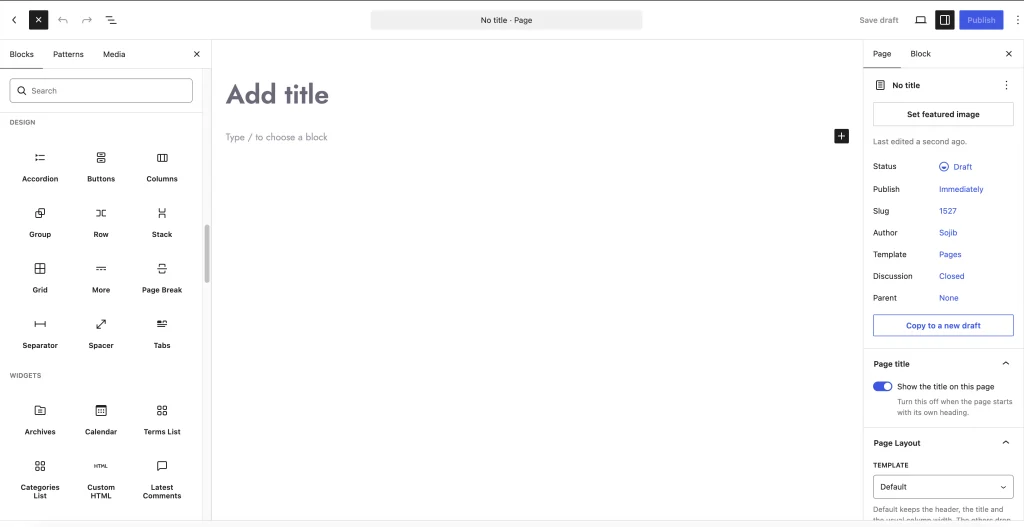
If you’ve opened a WordPress post or page in the last few years, you’ve already used the Block Editor. It’s the editor that breaks your content into separate pieces (a heading, a paragraph, an image, a button) instead of one big text box.
Most people still call it Gutenberg, after the project that built it. Same thing.
When it first shipped, a lot of WordPress users hated it. We were skeptical too. But it has improved a lot since then, and for most sites today it’s the most sensible place to start building. This guide covers how it works, where it’s genuinely good, where it still falls short, and how to get more out of it without piling on plugins.
What Is the WordPress Block Editor?
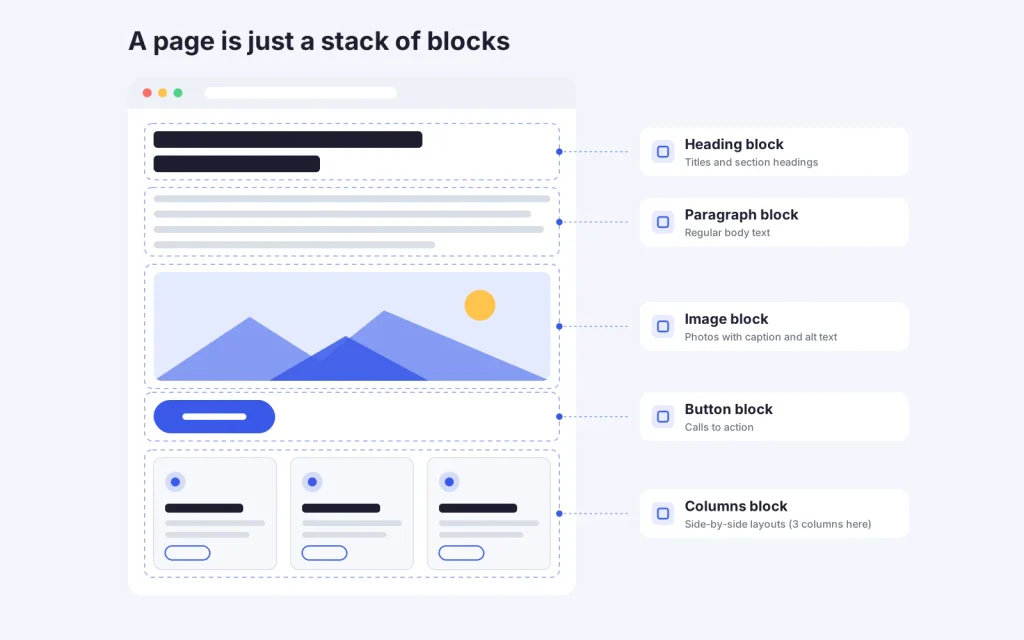
The Block Editor is the default editor for posts and pages in WordPress. Every piece of content on the page is its own block, and each block can be moved, styled, duplicated, or deleted without touching anything around it.
A typical blog post might be a Heading block, a few Paragraph blocks, an Image, a Quote, and a Button at the end. A landing page might use Columns and Group blocks to lay sections out side by side.
You can picture a page like this:
Page
├── Heading Block
├── Paragraph Block
├── Image Block
├── Columns Block
│   ├── Icon
│   ├── Text
│   └── Button
└── Gallery Block
The practical upside is simple. You can rearrange a page without rewriting it, and you can build fairly real layouts without knowing any HTML or CSS.
Why Is It Called Gutenberg?
Gutenberg was the codename for the project that created the Block Editor, and the name stuck. “Gutenberg editor”, “Block Editor” and “Gutenberg blocks” all point to the same system.
One small wrinkle: Gutenberg is also still the name of the ongoing development project, which now covers more than the post editor. Things like site-wide editing and global styles come out of the same project.
When Was the Block Editor Introduced?
It became the default editor in WordPress 5.0, released in December 2018.
Before that, everyone used what’s now called the Classic Editor: one text area, a toolbar, and a lot of shortcodes or hand-written HTML if you wanted anything beyond plain text. A simple section looked like this:
<h2>Our Services</h2>
<p>We provide web design services...</p>
<a href="#">Learn More</a>
In the Block Editor, that’s a Heading block, a Paragraph block, and a Button block, each with its own settings you can change visually.
How Does the Block Editor Work?
There are two ways to add a block.
The first is the + button, which opens the Block Inserter. You can browse by category (Text, Media, Design, Widgets, Theme, Embeds) or just search. Any block plugin you install adds its blocks here too.
The second is faster once you get used to it. Start a new line and type a slash followed by the block name:
/image
/button
/columns
Hit Enter and the block drops in. Most regular users end up working almost entirely this way.
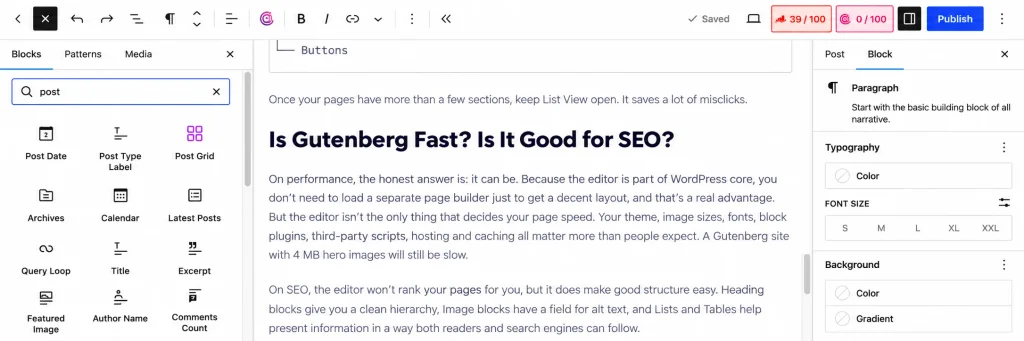
When you select a block, its settings appear in the sidebar on the right. What you see there depends on the block and your theme, but it’s usually some mix of colors, typography, spacing, alignment, borders, width, and an Advanced tab where you can add a custom CSS class.
The Blocks You’ll Use Most
WordPress ships with a lot of blocks. In practice, a handful do most of the work:
| Block | What it’s for |
|---|---|
| Paragraph | Regular body text |
| Heading | H2, H3, H4 and so on |
| Image | A single image with caption and alt text |
| List | Bulleted or numbered lists |
| Button | Calls to action |
| Columns | Side-by-side layouts |
| Group | Wrapping several blocks into one styled section |
| Cover | Sections with a background image or color |
| Gallery | Several images in a grid |
| Quote | Pull quotes and testimonials |
| Spacer | Extra vertical space (use sparingly, more on that below) |
| Video | Uploaded or embedded video |
If you learn just Group, Columns and Cover well, you can build most standard page layouts with core blocks alone.
Block Patterns and Synced Patterns
Patterns are ready-made groups of blocks: a hero section, a pricing table, a testimonial row, a contact section. You insert one, swap in your own text and images, and you’re done. If you’re rebuilding the same kind of section from scratch every time, you’re doing more work than you need to. <!– IMAGE: Add a “before vs after” visual showing individual blocks vs a complete pattern. –> <!– INTERNAL LINK: Link “Block patterns” to a future ShapeKode article: “What Are WordPress Block Patterns?” –>
Synced patterns are the newer name for what WordPress used to call Reusable Blocks. The difference from a normal pattern is that a synced pattern stays connected. Edit it once and the change shows up everywhere it’s used. That makes them a good fit for things like a newsletter signup box, a promo banner, or contact details that appear on several pages.
Block Editor vs Classic Editor
| Block Editor | Classic Editor | |
|---|---|---|
| Content structure | Separate blocks | One text area |
| Layouts and columns | Built in | Needs code or a plugin |
| Buttons | Built in | Manual HTML or shortcodes |
| Reordering content | Drag and drop | Cut and paste |
| Design controls | Growing every release | Basic |
| Status in WordPress | The default, actively developed | Legacy, available via plugin |
The Classic Editor still has fans, and for some text-only workflows it’s perfectly fine. But new WordPress features are built for blocks, so the gap keeps getting wider.
Block Editor vs Site Editor
These two get mixed up a lot, so it’s worth separating them.
The Block Editor is where you edit content: a post, a page, a product description.
The Site Editor is where you edit the site around that content: the header, footer, page templates, navigation, and global styles. You’ll find it under Appearance → Editor, but only if you’re using a block theme. With a classic theme, that menu item won’t be there.
A quick way to remember it: you’d build your Services page in the Block Editor, and change the header that sits on top of every page in the Site Editor.
What Is Full Site Editing?
Full Site Editing (FSE) is the umbrella term for building the whole site with blocks: headers, footers, blog and archive templates, single post layouts, search results, even the 404 page. For a lot of everyday design changes, it means you no longer have to open a PHP template file.
Walkthrough: Building a Simple Landing Page
Here’s a quick example to make this concrete.
Go to Pages → Add New and give the page a title. Then:
- Add a Heading block, something like “Build Better Websites With WordPress”.
- Add a Paragraph under it with a sentence or two of supporting text.
- Add a Button block.
- Select all three, then choose Group from the toolbar. Now you have one hero section you can give a background and padding.
- Below that, add a Columns block with three columns, and put a heading, short text and an icon or image in each one for your service cards.
You’ll end up with this structure:
Hero Section (Group)
├── Heading
├── Paragraph
└── Button

Services Section (Columns)
├── Column 1
├── Column 2
└── Column 3
That’s a basic landing page, built entirely with core blocks.
Moving, Duplicating and Selecting Blocks
A few things that make this much faster:
- Moving: drag a block by its handle, or use the up and down arrows in its toolbar.
- Duplicating: open the block’s options menu (the three dots) and choose Duplicate. Handy for feature cards, team members, pricing columns, and FAQ items.
- List View: this is the one people discover too late. It shows your whole page as a tree, so you can click straight to a block buried three levels deep instead of trying to hit it on the canvas.
Group
├── Heading
├── Paragraph
├── Columns
│   ├── Column
│   ├── Column
│   └── Column
└── Buttons
Once your pages have more than a few sections, keep List View open. It saves a lot of misclicks.
Is Gutenberg Fast? Is It Good for SEO?
On performance, the honest answer is: it can be. Because the editor is part of WordPress core, you don’t need to load a separate page builder just to get a decent layout, and that’s a real advantage. But the editor isn’t the only thing that decides your page speed. Your theme, image sizes, fonts, block plugins, third-party scripts, hosting and caching all matter more than people expect. A Gutenberg site with 4 MB hero images will still be slow.
On SEO, the editor won’t rank your pages for you, but it does make good structure easy. Heading blocks give you a clean hierarchy, Image blocks have a field for alt text, and Lists and Tables help present information in a way both readers and search engines can follow. What you write still matters far more than which editor you wrote it in.
Responsive Design in Gutenberg
This is still one of the weaker areas of the core editor. You can preview desktop, tablet and mobile, and many core blocks handle stacking reasonably well on their own. But per-device control, like different spacing, font sizes or hiding a block on mobile, isn’t consistently available across core blocks. What you get depends on your WordPress version, your theme, and the specific block.
That’s one of the main reasons people add a block plugin. Good ones let you set spacing, typography, alignment and visibility separately for each screen size.
Gutenberg vs Elementor (and Other Page Builders)
Gutenberg is part of WordPress. Elementor is a separate plugin. Both can build good-looking pages, but they come at it differently.
| Gutenberg | Elementor | |
|---|---|---|
| Built into WordPress | Yes | No, separate plugin |
| Building pieces | Blocks | Widgets |
| Performance | Usually lighter out of the box | Depends heavily on setup |
| Visual design controls | Improving quickly | Very extensive |
| Theme integration | Native | Through the plugin |
| Site-wide editing | With block themes | With Elementor’s theme builder |
Gutenberg makes more sense if you care about staying close to core WordPress, keeping things light, and not being locked into one builder’s way of doing things long term.
A page builder can make more sense if you need very fine visual control, lots of animation, or a huge widget library and you don’t want to touch any code.
For a lot of business sites, blogs and landing pages, Gutenberg with one solid block plugin covers what you need. For heavily designed, animation-rich sites, a page builder may still be the easier path. It depends on the project, not on which tool is “better”.
Where the Block Editor Falls Short
Gutenberg is good, but it isn’t finished, and pretending otherwise doesn’t help anyone. The common frustrations:
- Core blocks don’t cover a lot of everyday components: tabs, accordions with more styling, icon boxes, team grids, timelines, pricing tables.
- Responsive controls are uneven from block to block.
- Complex layouts get deeply nested and fiddly to edit.
- How much design control you get depends a lot on your theme.
- If you’re coming from a visual page builder, it can feel less hands-on at first.
What Is a Gutenberg Block Plugin?
A block plugin adds new blocks and extra design controls to the editor you already have. You keep the native WordPress workflow and just get more to work with.
Typical additions include advanced accordions and tabs, icon boxes, team and testimonial blocks, image hover effects, pricing tables, timelines, sticky sections, and more flexible containers.
The bigger benefit is consolidation. Instead of one plugin for tabs, another for buttons, another for team sections and another for sticky content, you have one library that’s designed to work together. Fewer plugins, fewer conflicts, and a less cluttered inserter.
Where ShapeBlock Fits In
We built ShapeBlock for exactly the gaps listed above. It adds modern, flexible blocks and design controls to the native Block Editor, so you can build business sites, landing pages, portfolios, agency sites and product pages without switching to a separate page builder.
The idea is simple: keep working in Gutenberg, just with more to build with.
Habits That Keep Gutenberg Pages Clean
A few things we’ve learned from building a lot of block-based pages:
Use headings for structure, not size. If you want big text, change the font size. Keep the actual heading levels in order:
H1
  H2
    H3
  H2
Wrap sections in Groups. It’s much easier to style, move and maintain a page when each section is one Group.
Don’t stack Spacer blocks. It’s tempting, but a page full of spacers is painful to adjust later, especially on mobile. Use padding and margin on the Group instead.
Keep nesting shallow. A Group inside Columns inside a Group inside a Cover works, but nobody wants to edit it six months later.
Pick one block library. Installing three block plugins usually means three versions of the same accordion and an inserter you can’t navigate.
Save your repeated sections as patterns. If you build it twice, save it.
Check mobile before you publish. Every time. Columns that look great on desktop can turn into a very long scroll on a phone.
Compress your images. Still the most common reason a page is slow, whatever editor you use.
Can You Build a Whole Website With Gutenberg?
Yes. A homepage, about page, services, portfolio, blog and contact page are all well within reach. With a block theme, you can handle the header, footer and templates through the Site Editor too. And when you need something core blocks don’t offer, a block plugin or a custom block usually fills the gap.
Beginners can get a long way with just the default blocks. Developers and agencies can go further with custom blocks, patterns, block themes, theme.json and custom CSS.
Frequently Asked Questions
Is Gutenberg the same as the WordPress Block Editor?
For everyday purposes, yes. Gutenberg was the project name, and people use both terms interchangeably.
Is Gutenberg free?
Yes. It’s part of WordPress. Some block plugins have premium versions, but the editor itself costs nothing.
Do I need a Gutenberg plugin?
No, the editor is already built in. You only need a plugin if you want blocks or design options that core doesn’t have.
Can Gutenberg replace Elementor?
For many sites, yes, especially blogs, business sites, portfolios and landing pages. Highly custom or animation-heavy designs may still be easier in a page builder, or need a block plugin or custom development.
Does Gutenberg work with every theme?
Most modern themes support it, but how good your pages look in it varies a lot. A theme built with blocks in mind makes a big difference.
Can I create my own custom blocks?
Yes. Developers can build custom blocks for specific designs or functionality, and many agencies do this for client sites.
Wrapping Up
The Block Editor took some getting used to, but it’s now the foundation of how WordPress works, and it keeps getting better with each release.
If you’re new to it, don’t try to learn everything at once. Get comfortable with Group, Columns and List View, start using patterns, and only add extra blocks when you hit something core can’t do. That’s usually the point where a block plugin is actually worth installing.
Get More Out of the Block Editor
Hit the limits of the core blocks? ShapeBlock adds the blocks and design controls Gutenberg is missing, so you can build richer pages without leaving the native WordPress editor.