
















Today we are introducing ShapeBlock, a modern Gutenberg blocks plugin built on a simple idea: add the layout and design controls the core editor leaves out, without turning your site into something only that plugin can open. Most block plugins stop at a grid of attractive blocks. Far fewer let you build the header, the footer, the archive template and the popup from the same editor you already write posts in.
That gap is why we built it. ShapeBlock is free on WordPress.org, with a Pro add-on for the heavier work, and this post is the proper introduction: what it does, how it is put together, where it fits next to a page builder, and the parts we would not oversell. If the block editor itself is still new to you, start with our guide to the WordPress block editor and come back.
What a Gutenberg blocks plugin actually has to do
After building client sites on WordPress for years, the shortlist of what matters in a Gutenberg blocks plugin is shorter than the feature tables suggest:
- Real responsive control. Not a mobile toggle, but separate values for desktop, tablet and mobile on the settings that matter.
- Output you can leave behind. If you deactivate the plugin, the page should degrade into plain content, not a wall of broken shortcodes.
- Weight that scales with use. Twelve blocks on a page should not cost you the CSS and JavaScript of eighty.
- Site structure, not just page content. Headers, footers, archives and 404s are where most block plugins hand you back to the theme.
ShapeBlock is built against that list. It is a Gutenberg blocks plugin, not a page builder: there is no separate canvas, no shortcode layer, and nothing to learn beyond the editor you already use.
Who this Gutenberg blocks plugin suits
Three kinds of people get real value from a Gutenberg blocks plugin like this one, and it is worth checking which one you are before you install anything.
- Freelancers building client sites. You want one toolkit you can reuse across projects, export and import between installs, and hand over without a licence the client cannot afford to renew.
- Site owners who outgrew core blocks. You can write a post fine, but the moment you need a pricing table, a testimonial slider or a sticky header you are stuck installing a plugin per feature.
- Teams moving off a page builder. You have decided the builder layer is costing more in page weight and lock-in than it returns, and you want a Gutenberg blocks plugin that covers the same ground natively.
If none of those describe you, core blocks plus a good theme may genuinely be enough. We would rather say that here than after you have spent an afternoon on setup.
75+ blocks, and a switch for the ones you will never touch

The free plugin ships 37 blocks. The Pro add-on brings the total past 75, including WooCommerce and Theme Builder blocks. The free set covers most of what a brochure site needs: Accordion, Tabs, Post Grid, Pricing Table, Slider, Image Carousel, Counter, Countdown, Team Member, Testimonial, Google Map, Menu, Offcanvas, Breadcrumb and Sticky Stack, among others.
Pro is where the heavier layout work lives: Hero Slider, Flip Box, Timeline, Marquee, Image Hotspot, Horizontal Scroll, Mega Menu, Table of Contents, Comparison Table, Advanced Data Table, plus the animation set (Typewriter Effect, Rotating Text, Animation Title) and the Theme Builder blocks that pull in post title, excerpt, meta, featured image and comments.
The part worth more than the block count is the Blocks screen. Any Gutenberg blocks plugin that registers eighty blocks whether you use them or not is taxing every page load. ShapeBlock lets you switch blocks off, and a disabled block is never registered at all.

Every block has the same four tabs
Consistency matters more than novelty in a Gutenberg blocks plugin. Each block opens with Settings, Layout, Style and Advanced, so once you have styled one block you know where to find spacing on all of them. The canvas previews changes live rather than making you save and refresh.
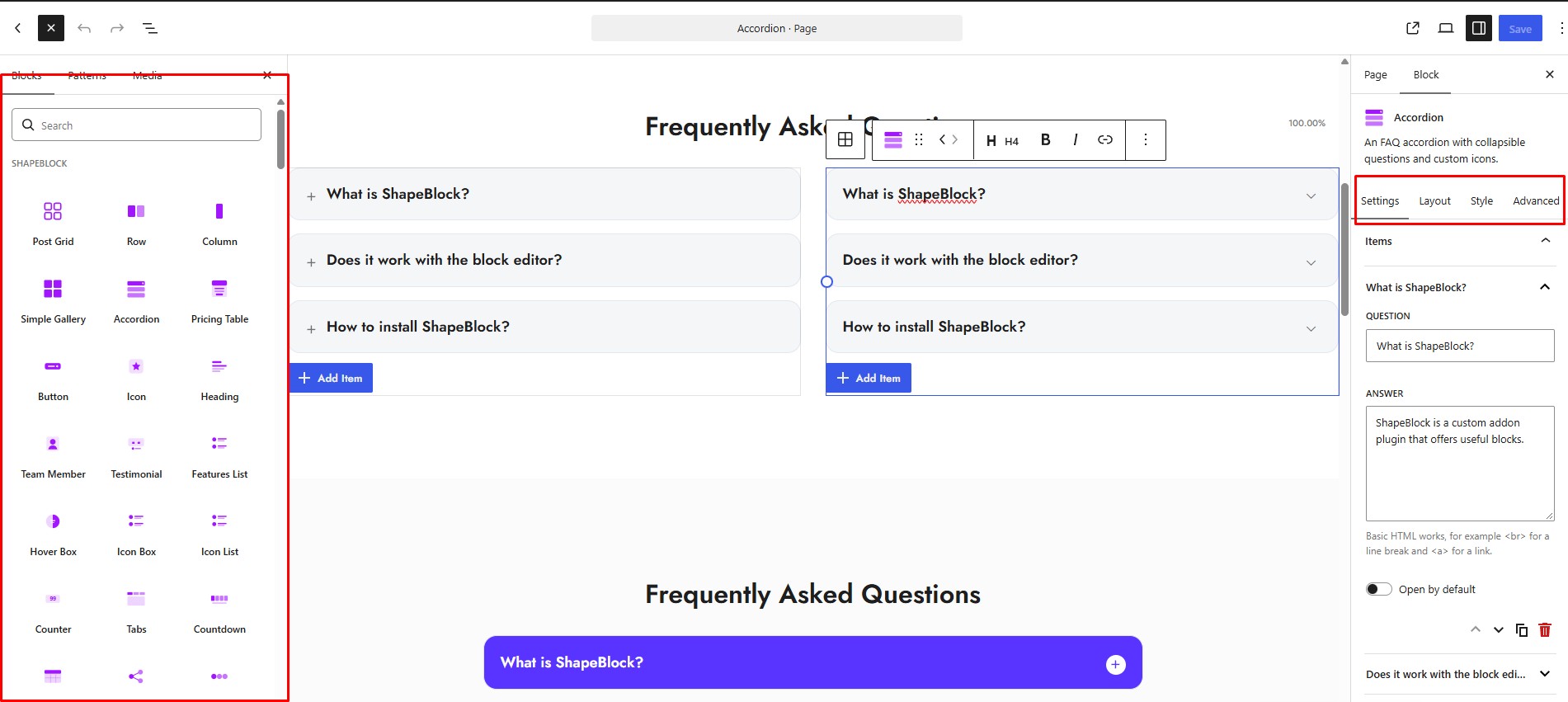
Small details carry a lot of the value. The Accordion block outputs FAQ schema, which is the sort of thing you would otherwise add with a second plugin. The Column block can be hidden per device. Design controls cover typography, gradients, borders, shadows, spacing and icons without dropping into custom CSS.
The blocks we reach for most
Feature lists flatten everything to the same weight. In day-to-day building, a handful of blocks do most of the work, and they are a fairer test of a Gutenberg blocks plugin than the total count:
- Post Grid. The block that decides whether your blog archive looks designed or defaulted. Filter and load-more are available as a Pro module.
- Sticky Stack. Cards that stack over one another as you scroll. It carries a long landing page better than another row of icon boxes.
- Accordion. FAQ schema out of the box, which saves a separate schema plugin on nearly every client site.
- Icon Box and Feature List. Unglamorous, used constantly, and the first place inconsistent spacing controls show up.
- Image Comparison. Before and after sliders that would otherwise mean a single-purpose plugin.
None of these are exotic. That is the point. A Gutenberg blocks plugin earns its place on the blocks you use weekly, not the one you demo once.
Headers, footers and templates, without a page builder
This is the line most block plugins do not cross, and the main reason we built another Gutenberg blocks plugin at all. ShapeBlock includes a Theme Builder for single post, archive, search and 404 templates, a Header and Footer builder with include and exclude display conditions, a Mega Menu builder, and a Popup builder with triggers for load, scroll, click, inactivity and exit intent.
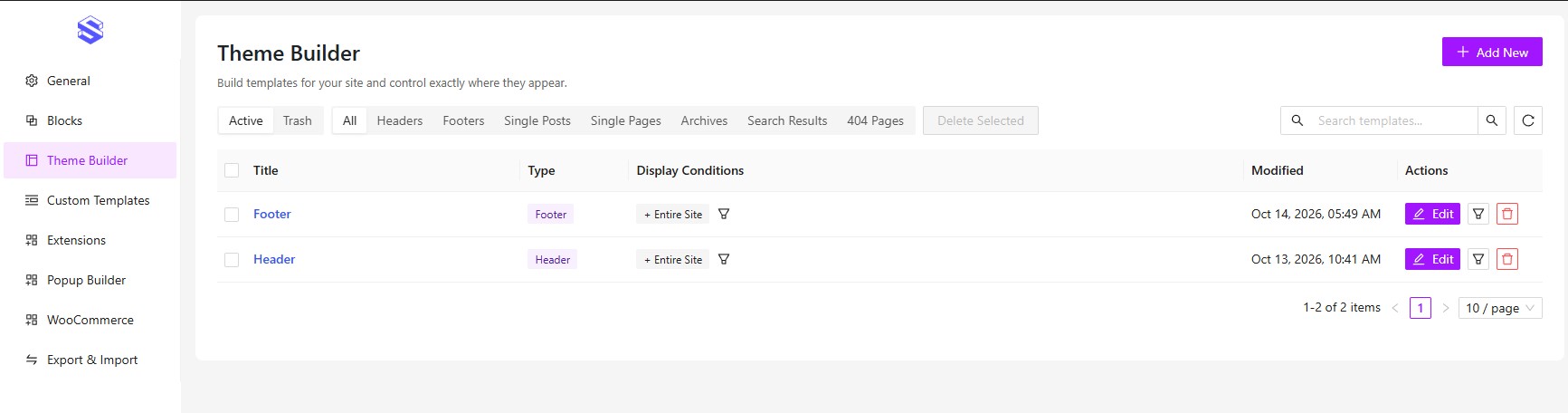
The display conditions are the useful bit in practice. You can run a different header on the shop than on the blog, and anything outside the conditions quietly falls back to the theme. That makes it safe to roll out gradually on a live site instead of committing everything at once.
It works with block themes and classic themes alike. We have tested against Twenty Twenty-Five, Twenty Twenty-Four, Astra, Kadence, GeneratePress, OceanWP, Blocksy, Neve, Hello Elementor, Ollie and Spectra One.
Responsive settings that are actually per device
Tablet is treated as up to 1024px and mobile as up to 767px, with separate values rather than inherited ones. Sizing, spacing and column counts each hold their own number per breakpoint, and columns can be hidden on a specific device instead of being shrunk until they stop making sense.
If you have ever rebuilt a three-column feature row twice because the tablet view was an afterthought, this is the part that saves the afternoon.
Keeping a blocks plugin light
Three decisions do most of the work in keeping a Gutenberg blocks plugin light. Assets load only on pages where a block is actually used. There is no jQuery on the front end. Disabled blocks are never registered. Taken together that means a page with four ShapeBlock blocks is not paying for the other seventy.
This matters for Lighthouse scores and for Core Web Vitals, but mostly it matters because it is the default failure mode of this category. A Gutenberg blocks plugin that enqueues its whole library sitewide undoes whatever you gained by leaving a page builder behind.
It plays nicely with the usual caching stack as well: WP Super Cache, W3 Total Cache, LiteSpeed Cache, WP Fastest Cache, WP-Optimize, Autoptimize and Cache Enabler.
Starter templates if you would rather not begin from nothing
A Gutenberg blocks plugin is only as quick as its starting point. There are 38 full-site templates, 7 of them free, spanning consulting, agency, IT, construction, restaurant, fitness, insurance, portfolio and several news and magazine layouts. Import a whole site or a single page, then edit it as ordinary blocks. Nothing is locked.
You can also export and import your settings, custom templates and Theme Builder templates, which is the realistic way to reuse a build across client sites. If you are documenting a workflow for a team, our walkthrough on building a WordPress website using Gutenberg pairs well with this.
Privacy: nothing leaves your site by default
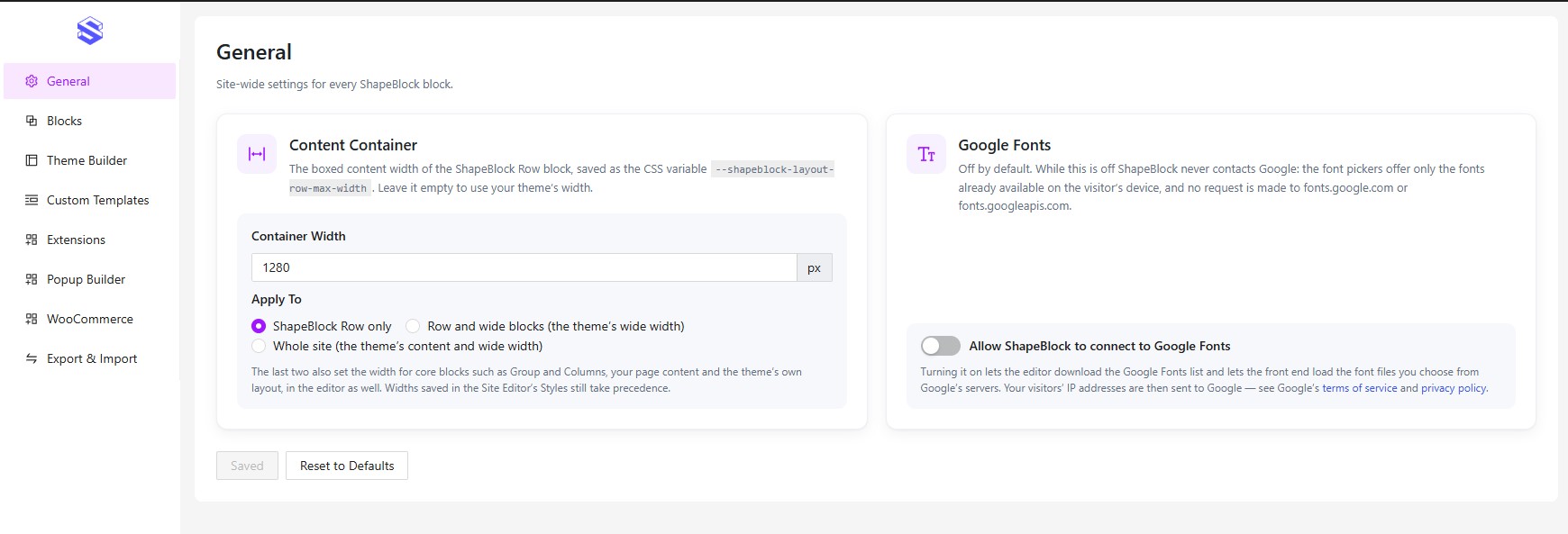
Privacy is where a Gutenberg blocks plugin can quietly create work for you. Google Fonts is off unless you turn it on, so no font request leaves the visitor browser without your say-so. The video blocks only contact YouTube or Vimeo once you add a link. There is no CDN and no tracking unless you opt in. For anyone working under GDPR this removes a conversation you would otherwise have to have with a client.
Gutenberg blocks plugin or page builder?
Honest answer: if your team is fluent in Elementor and your sites are already built in it, a blocks plugin is not an upgrade, it is a migration. The case for moving is that the block editor is where WordPress development is going, and the output is lighter because there is no builder layer wrapping your markup.
The case against is maturity. Page builders have had a decade of plugins, add-ons and Stack Overflow answers built around them. We go into the trade-offs properly in Gutenberg vs Elementor, including when staying put is the right call.
What a Gutenberg blocks plugin buys you is reversibility. Deactivate it and your content is still content. That is not true of every builder.
Installing ShapeBlock
- From your dashboard, go to Plugins, then Add New, and search for ShapeBlock. Or download it from the official WordPress.org plugin page.
- Activate it. The blocks appear in the editor inserter under their own category straight away.
- Open ShapeBlock, then Blocks, and switch off anything you know you will not use.
- If you want a header or footer, open Theme Builder, add a new template and set its display conditions.
It needs WordPress 6.6 or newer and PHP 7.4 or newer. The WooCommerce blocks need WooCommerce; everything else runs on its own. You can read the Block Editor Handbook if you want the background on how custom blocks are registered.
What we would not claim
ShapeBlock is a new Gutenberg blocks plugin. The WordPress.org listing is at version 1.0.9 with a small install base and no reviews yet, and we would rather say that than pretend otherwise. If you need a plugin with five years of forum history behind it, this is not yet that plugin.
What we can say is that it is actively worked on, the roadmap and changelog are public on the ShapeBlock product page, Pro carries a 30-day money-back guarantee, and support goes through our support portal rather than a forum queue. Try the free version first. That is what it is there for.
A short checklist before you switch
Evaluating any Gutenberg blocks plugin on a live site goes better with a plan. This is the one we give clients:
- Install on staging first, or on a single low-traffic page, before touching templates.
- Record your current Lighthouse and page-weight numbers so you have a baseline to compare against.
- Turn off every block you do not plan to use before you start building.
- Build one real page end to end rather than sampling ten blocks. Problems show up in combinations.
- Test the tablet breakpoint deliberately. It is where most layouts quietly break.
- Only then move the header and footer across, using display conditions so you can roll back one page at a time.
If a Gutenberg blocks plugin survives that process without surprising you, it will survive your next client build too.
Frequently asked questions
Does a Gutenberg blocks plugin slow down WordPress?
It can, and many do, by loading their whole asset library on every page. That is the single biggest risk when you add a Gutenberg blocks plugin. ShapeBlock loads a block stylesheet only on pages that use that block, ships no front-end jQuery, and never registers blocks you have disabled.
Do I need a page builder as well?
No. ShapeBlock is not an add-on for Elementor or Divi, and it does not require one. It works inside the native block editor on its own.
Will it work with my theme?
Yes, with any well-coded block or classic theme. Blocks inherit your theme typography by default and can be restyled per block. The header and footer builder replaces the theme output only where your display conditions match.
What happens to my content if I remove the plugin?
Plugin options and cached data are cleaned up on deletion. Your custom templates, Theme Builder items and block content remain in the database, so nothing is destroyed if you deactivate while you evaluate.
Can I use it on a multilingual site?
Yes. It works with Polylang, TranslatePress and our own ShapeTranslate. If you are weighing that up, we wrote about why multilingual sites matter for WordPress businesses.
Where to start
Install the free Gutenberg blocks plugin, build one page with it, and watch what it adds to your page weight. That is a more useful test than any feature table, this one included. If it earns a place in your stack, Pro unlocks the Theme Builder, WooCommerce builder, popups and the animation blocks.
You can see the full feature list and pricing on the ShapeBlock page, browse the rest of our WordPress products, or check current deals before you buy. Our roundup of Black Friday WordPress deals is worth a look if you are reading this in November.