ShapeTranslate turns one WordPress site into a multilingual site. Each post, page or term gets a language, its translations are linked together, and visitors switch languages with one click.
Video tutorial
Watch the full walkthrough first, then use the pages in this guide as a reference.
Default language. The language your existing content is written in. Content without a language uses it.
Translation group. An original and its translations are linked as one group. The switcher uses this group to find the same page in another language.
A translation is its own post. It has its own title, slug and content, so you can edit it freely.
How to read this guide
Screens in this guide carry numbered red circles 1. The list under each screen explains every number, so you can follow along in your own dashboard.
System Requirements
Check these before you install ShapeTranslate.
Server & WordPress
WordPress6.4 or later. Tested up to 7.1.
PHP7.4 or later. Tested up to PHP 8.4.
PermalinksAny pretty permalink structure for directory URLs. Plain permalinks work with the query argument format.
BrowserAny current Chrome, Firefox, Safari or Edge for the admin screens.
For subdomains or separate domains
Every language host must point to the same WordPress installation.
Every host needs its own SSL certificate.
Installation
Install and activate ShapeTranslate in under a minute.
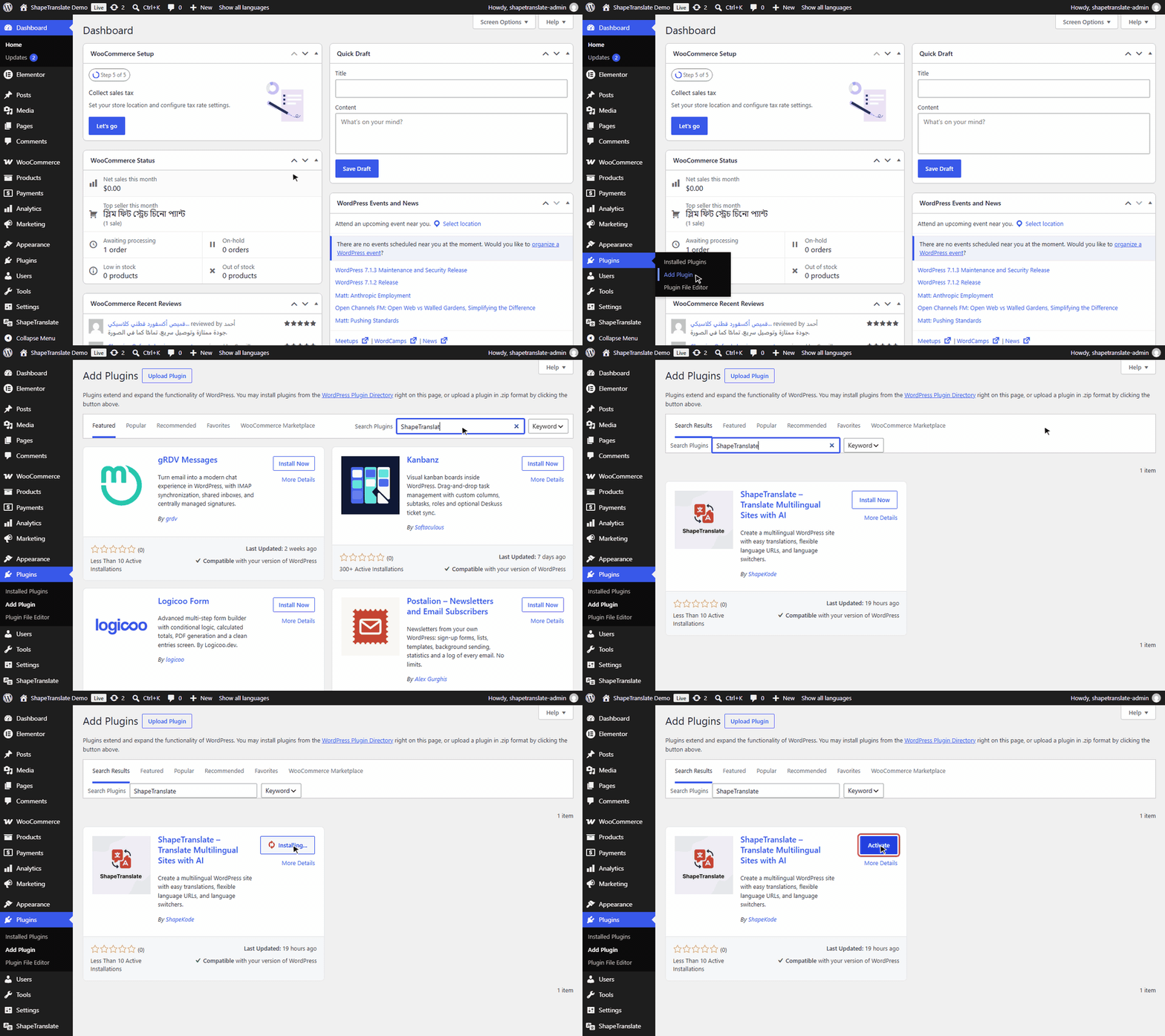
Install from WordPress.org (recommended)
ShapeTranslate is free in the WordPress Plugin Directory, so you can install it without downloading anything.
Open Add PluginGo to Plugins → Add Plugin. Older WordPress versions call the menu Add New Plugin.
SearchType ShapeTranslate in the Search Plugins box and keep the filter on Keyword. The results load as you type.
InstallClick Install Now on the ShapeTranslate card by ShapeKode.
ActivateThe button turns into Activate. Click it. ShapeTranslate opens the Setup Wizard on the next page load.
Walkthrough: install from WordPress.org
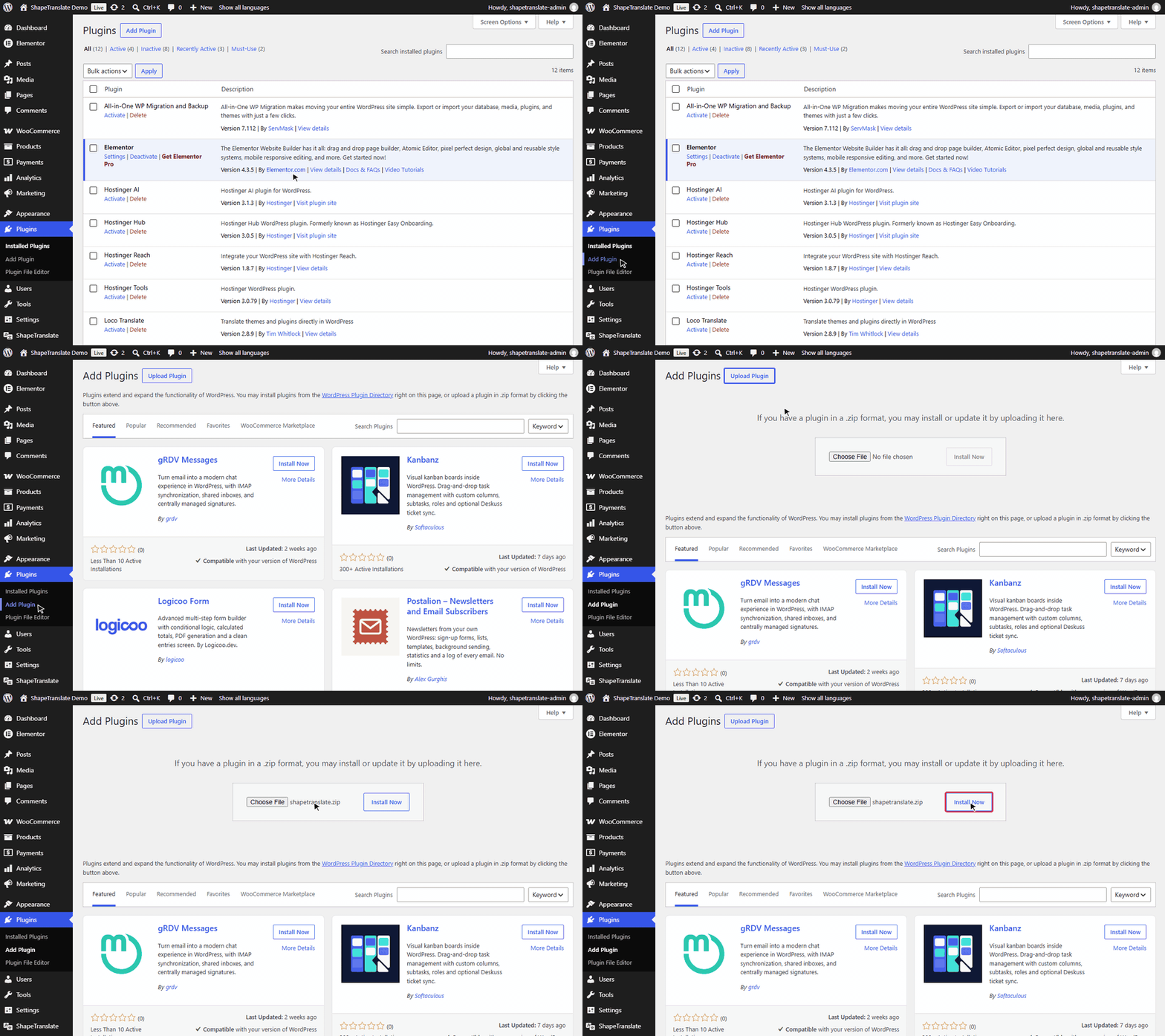
Or upload the zip file
Use this when you have shapetranslate.zip, for example on a site that can't reach WordPress.org.
Open the uploaderGo to Plugins → Add Plugin → Upload Plugin. Older WordPress versions call the menu Add New Plugin.
Choose the fileSelect shapetranslate.zip as it is, without unzipping it, and click Install Now.
ActivateClick Activate Plugin. ShapeTranslate opens the Setup Wizard on the next page load.
Walkthrough: upload the zip
Upload by FTP
UnzipUnzip shapetranslate.zip on your computer.
Upload the folderUpload the shapetranslate folder to wp-content/plugins/.
ActivateGo to Plugins and click Activate under ShapeTranslate.
After activation
A new ShapeTranslate menu appears in the admin sidebar with these screens:
Menu
Use it to
ShapeTranslate
Add and manage languages.
String Translation
Translate site title, tagline, widgets and theme strings.
Translations
See what is translated and what is missing.
Setup Wizard
Run the first-time setup again.
Settings
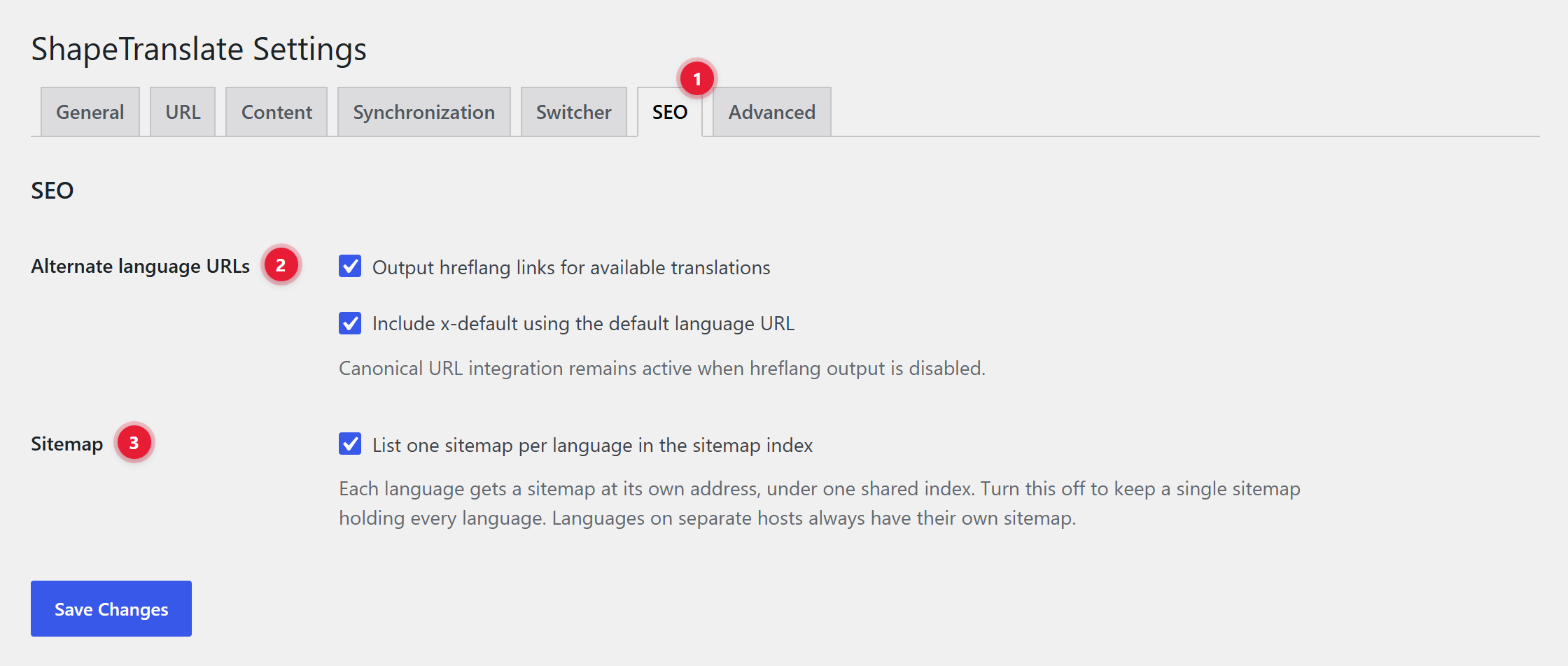
URLs, content types, sync, switcher, SEO and import/export.
Setup Wizard
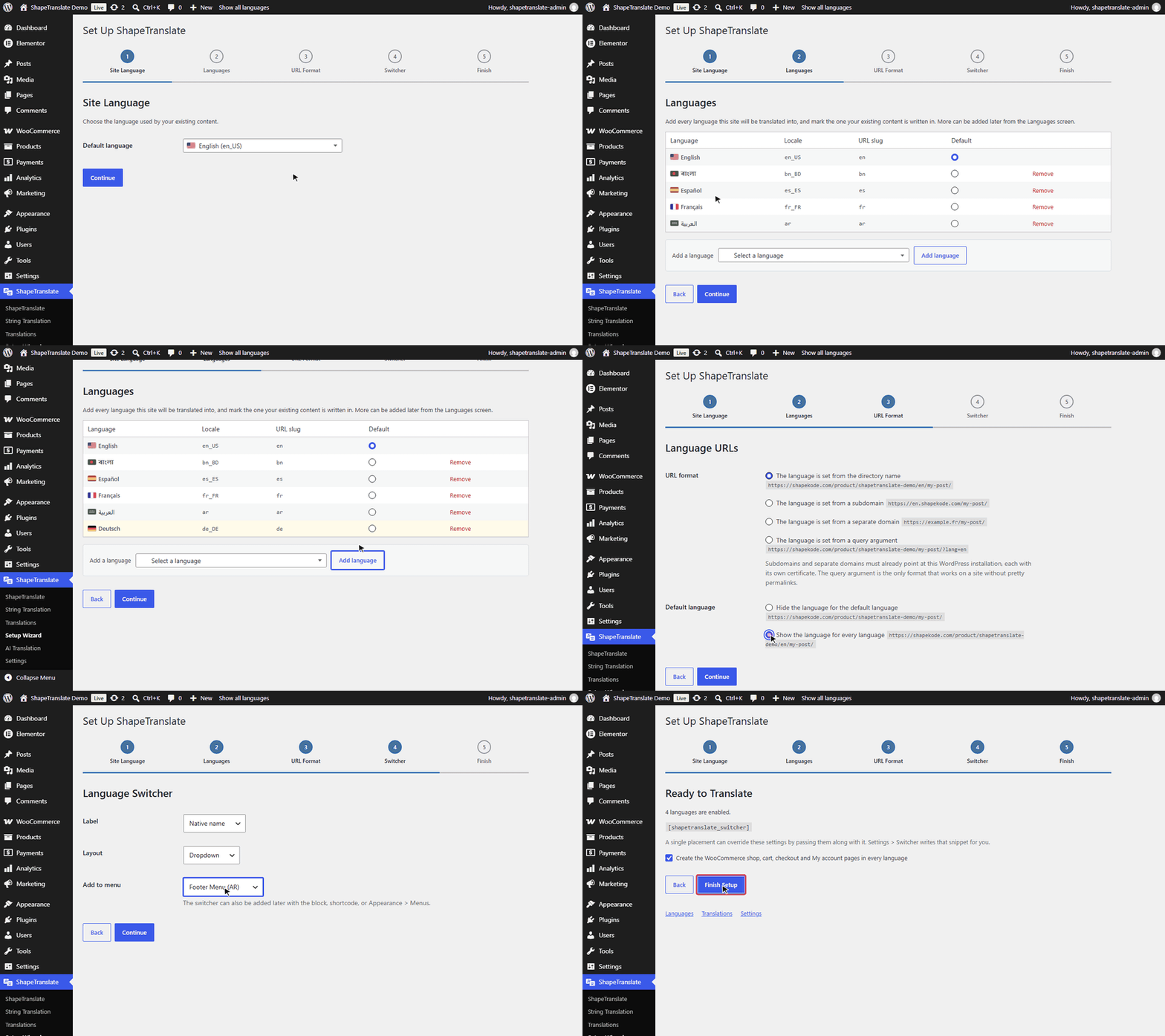
Five short steps that make your site multilingual. Find it at ShapeTranslate → Setup Wizard.
The wizard screen
The progress strip at the top shows the five steps; the highlighted one is where you are. Continue saves the step and moves on. Back returns without losing anything.
Walkthrough: all five steps
The five steps
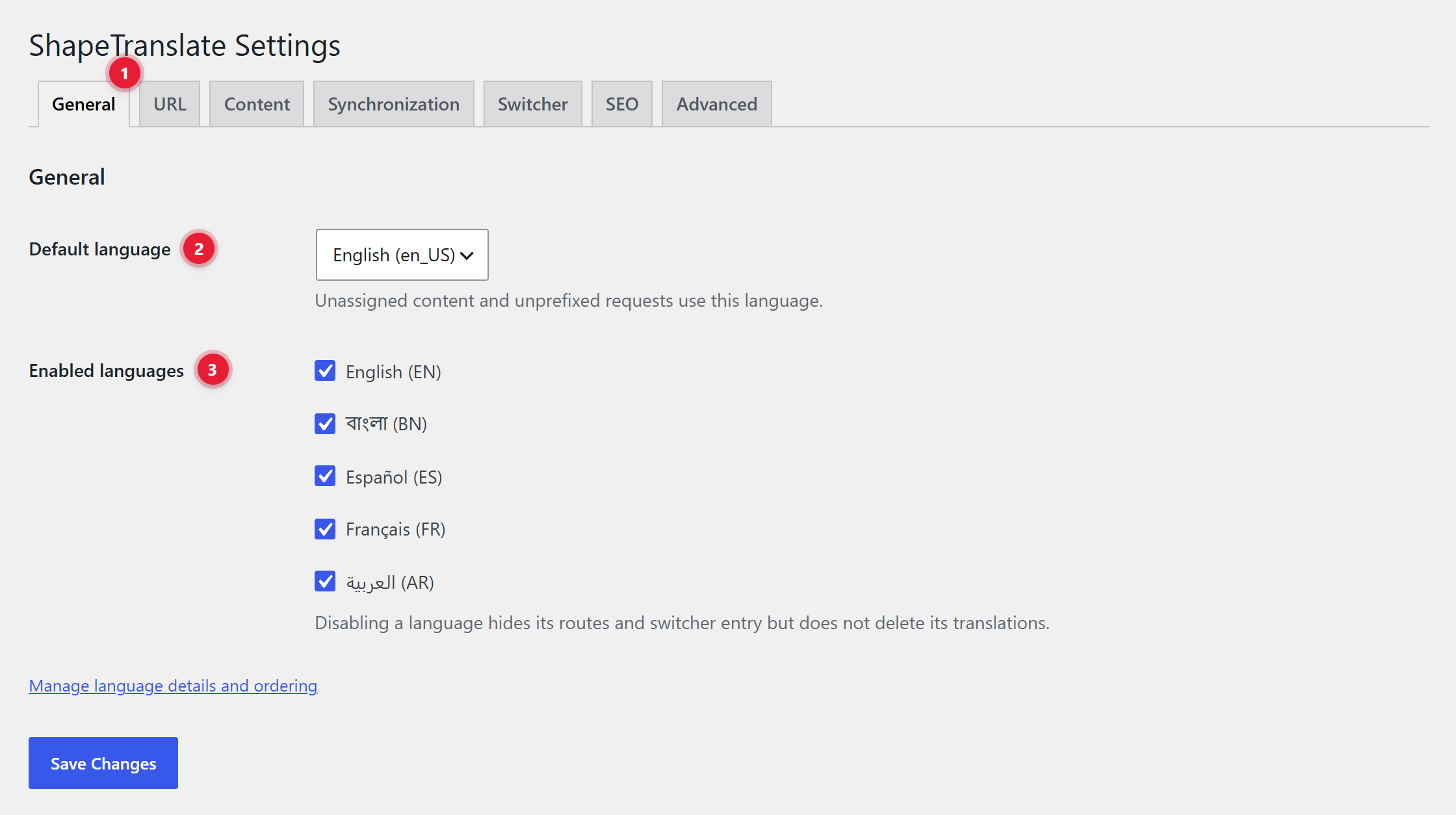
Site LanguageChoose the language your existing content is written in. It becomes the default.
LanguagesAdd every language you want to offer: type to search, pick one, click Add language. Remove takes one out; content already assigned to it keeps its language.
Language URLsChoose how URLs show the language (see URL Formats) and whether the default language shows its prefix.
Language SwitcherChoose the label, the layout and, optionally, a menu to add the switcher to.
Ready to TranslateCopy the [shapetranslate_switcher] shortcode if you need it. Click Finish Setup.
Pick the URL format carefullyChanging it later changes every public link. If you change it, clear your page and CDN caches.
Languages Screen
Add, edit, enable, reorder and delete languages at ShapeTranslate → ShapeTranslate.
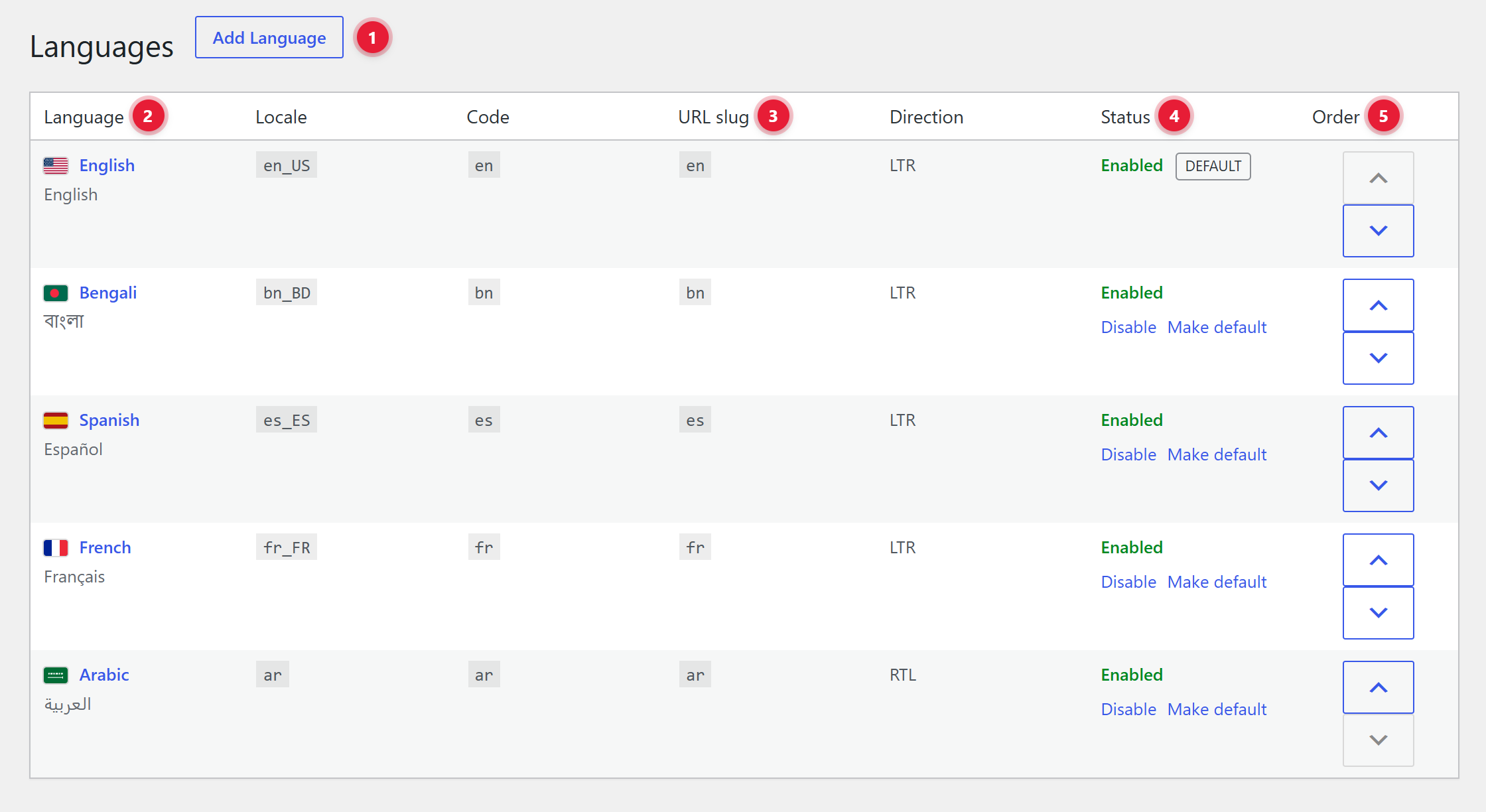
The language list
What you see
1Add Language. Opens the form below to add a new language.
2Language. Name, native name and the row actions Edit and Delete. The default language can't be deleted.
3Locale, code, URL slug. The slug is what appears in the URL, like /bn/.
4Status. Enabled or Disabled. Use Make default to change the default language, and Disable to hide a language for now.
5Order. The arrows move a language up or down. The switcher follows this order.
Change the default language
Enable the languageOnly an enabled language can be the default.
Click "Make default"Under the language's status. You'll see "Default language updated."
Deleting a languageA language still assigned to content or to a menu can't be deleted. Move or delete that content first. Deleting a language never deletes posts.
Add or Edit a Language
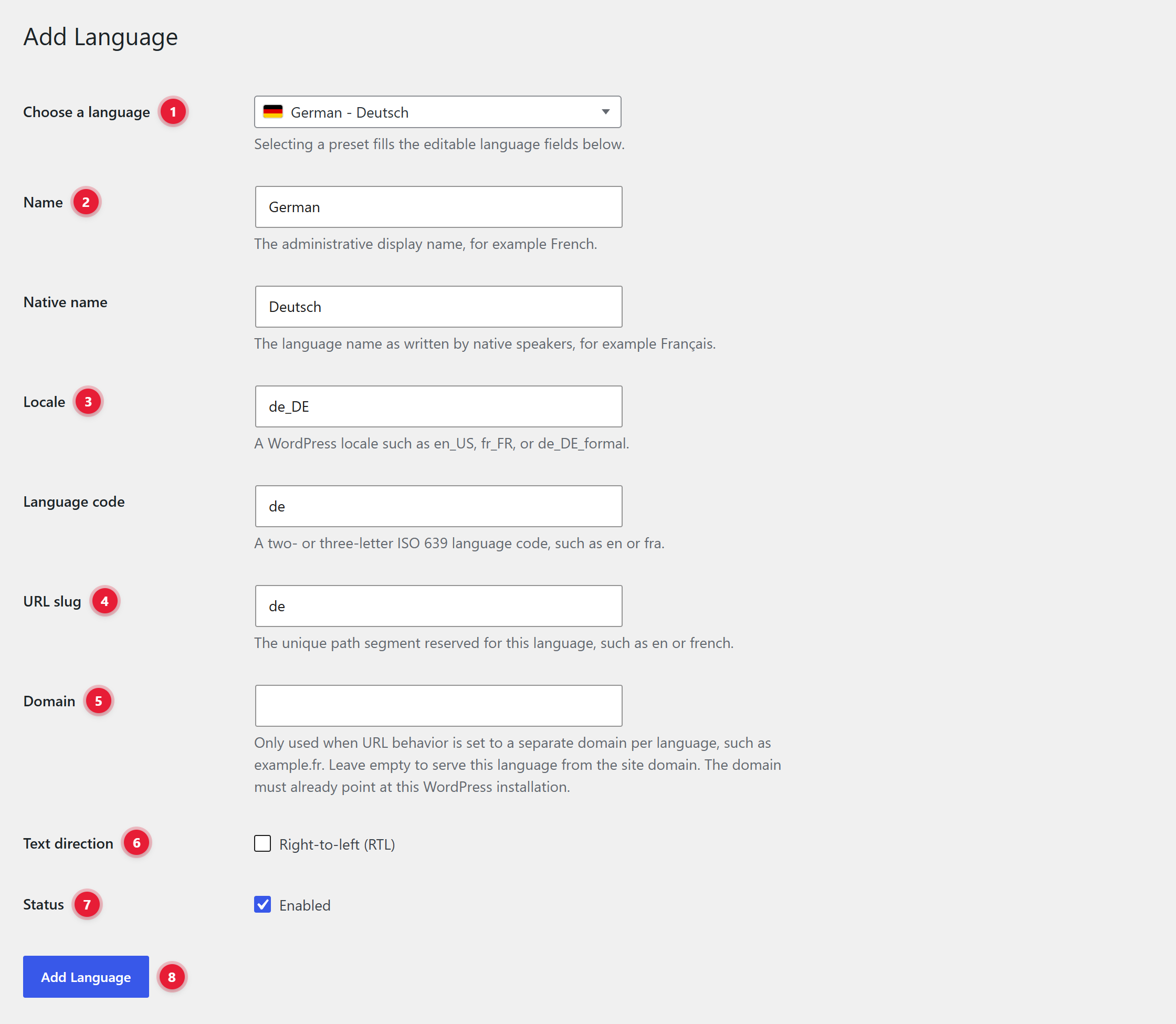
Click Add Language on the Languages screen, or Edit under a language.
The language form
What you see
1Choose a language. Pick from the list. Every field below fills itself.
2Name & native name. "German" is shown in the admin, "Deutsch" to visitors.
3Locale & code. The WordPress locale (de_DE) and ISO code (de). Leave the preset values as they are.
4URL slug. Must be unique. Example: yoursite.com/de/.
5Domain. Only for the separate-domain format, like example.fr. Leave empty otherwise.
6RTL. Tick for Arabic, Hebrew, Urdu, Persian and other right-to-left languages.
7Enabled. Untick to prepare a language without showing it to visitors yet.
8Add Language. Saves it. You'll see "Language added."
Tips
Always start from Choose a language. The preset fills the locale and code correctly.
Keep URL slugs short: bn reads better than bangla.
Add a language as disabled to prepare translations before visitors see it.
URL Formats
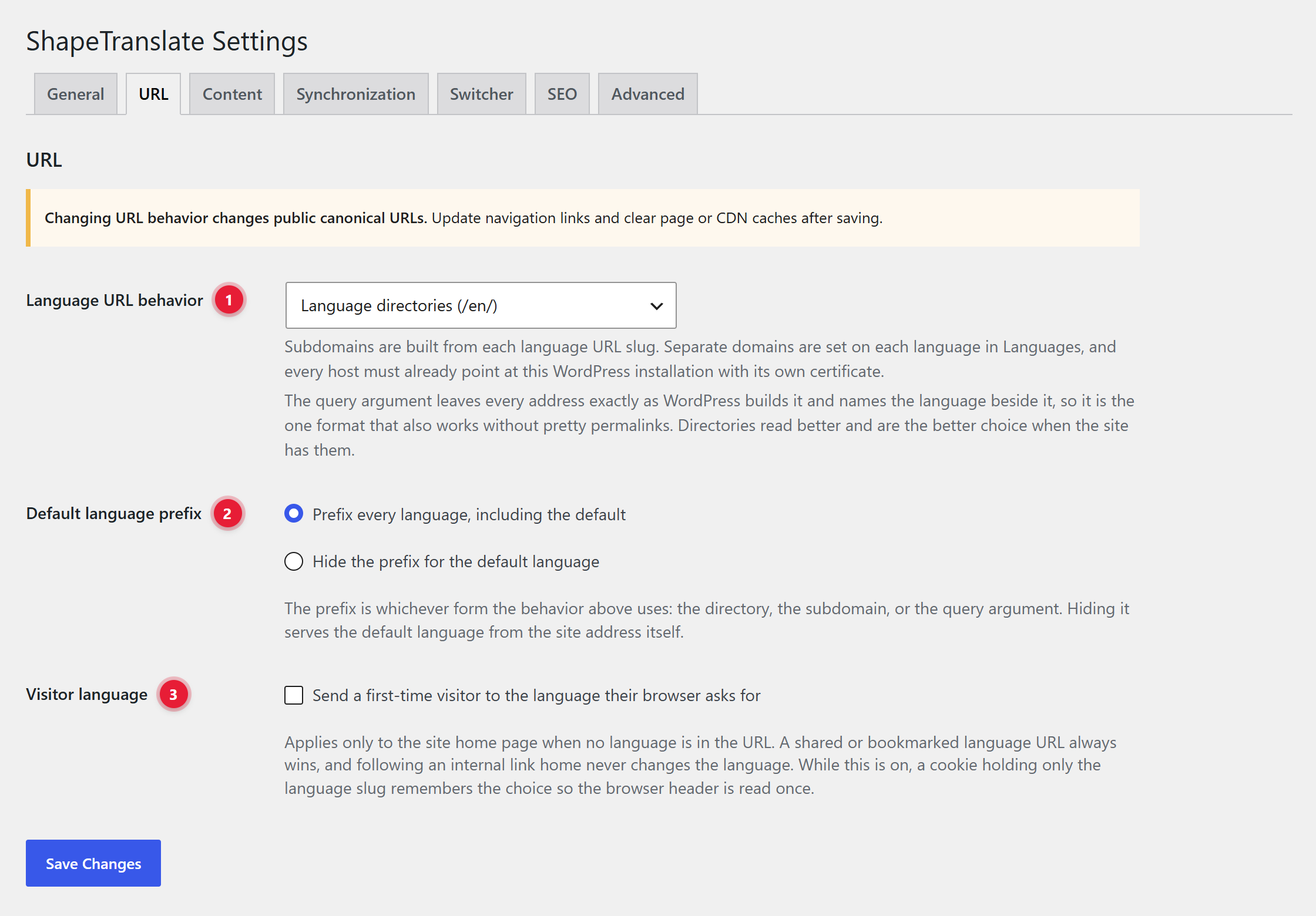
Decide how the language appears in your web addresses. Set it at ShapeTranslate → Settings → URL.
URL settings
What you see
1URL behavior. How the language appears in the address. See the table below.
2Default prefix. Hide it to keep your current URLs (/about/), and give only other languages a prefix (/bn/about/).
3Visitor language. Sends a first-time visitor on the home page to their browser's language. A shared link always wins.
Compare the formats
Format
Example
Good for
Directory (default)
yoursite.com/bn/about/
Most sites. Needs pretty permalinks.
Subdomain
bn.yoursite.com/about/
Each subdomain points to this WordPress, with its own SSL certificate.
Separate domain
yoursite.com.bd/about/
Country domains. Set each language's Domain on the Languages screen.
Query argument
yoursite.com/about/?lang=bn
Sites without pretty permalinks.
After changing the formatPublic links and canonical URLs change. Check your menus and clear page or CDN caches.
Translate Posts & Pages
Works the same for posts, pages and every public post type you enable under Settings → Content.
The Language box
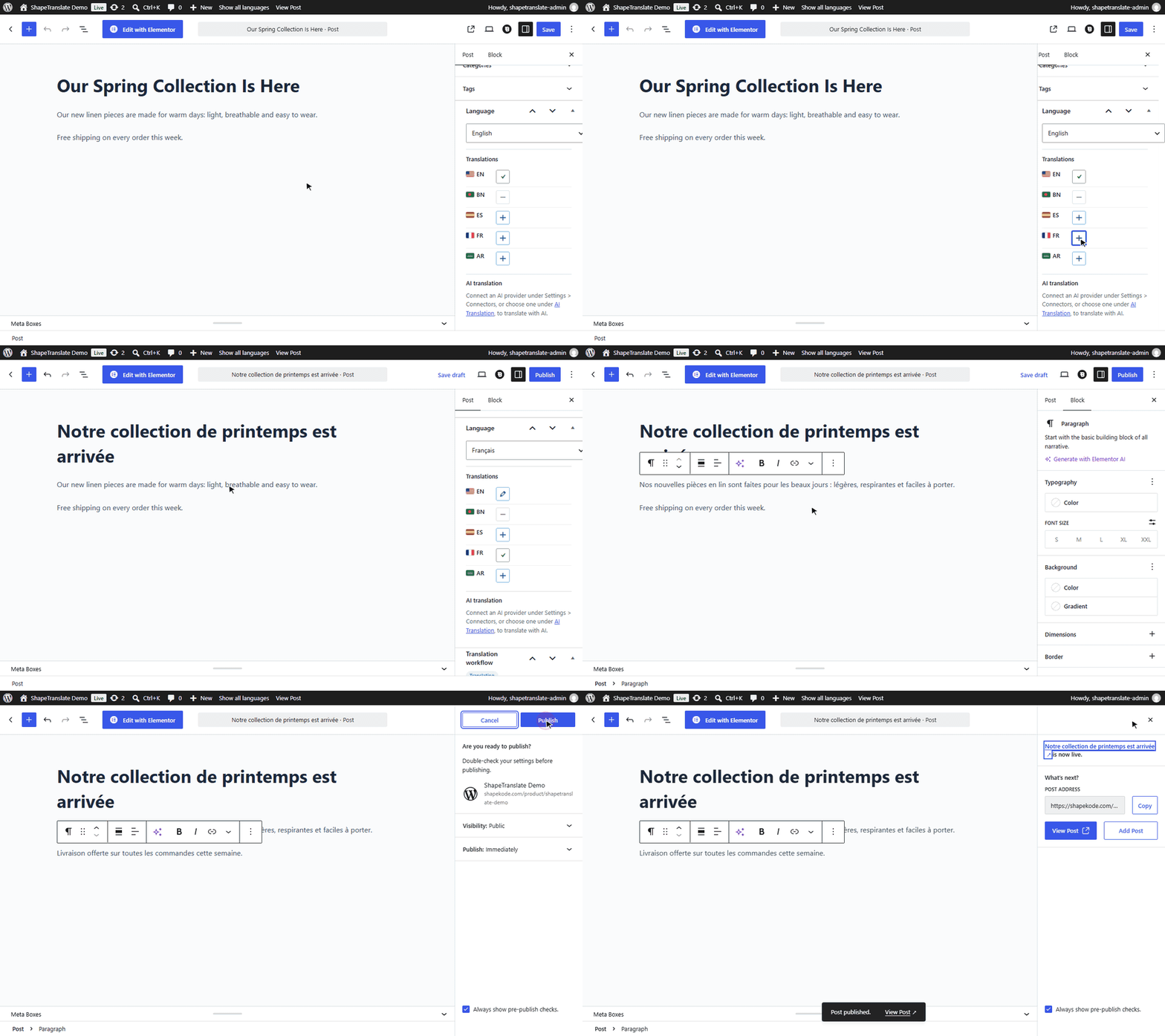
The Language box sits in the editor sidebar. Language is the language of this post; new posts start in the default language. Under Translations, ✓ marks this post, ✎ edits an existing translation and + creates a missing one.
Create a translation by hand
Save the original firstThe original needs a language before it can be translated. Click Save or Publish once.
Click + next to the languageShapeTranslate creates a draft holding the title, content, excerpt, featured image, categories, tags and custom fields. You'll see "Translated draft created and linked."
Translate the textReplace the text with the translation. Change the slug for a translated URL.
PublishThe switcher now links both pages to each other.
Walkthrough: translate a post into French
Posts List & Language Filter
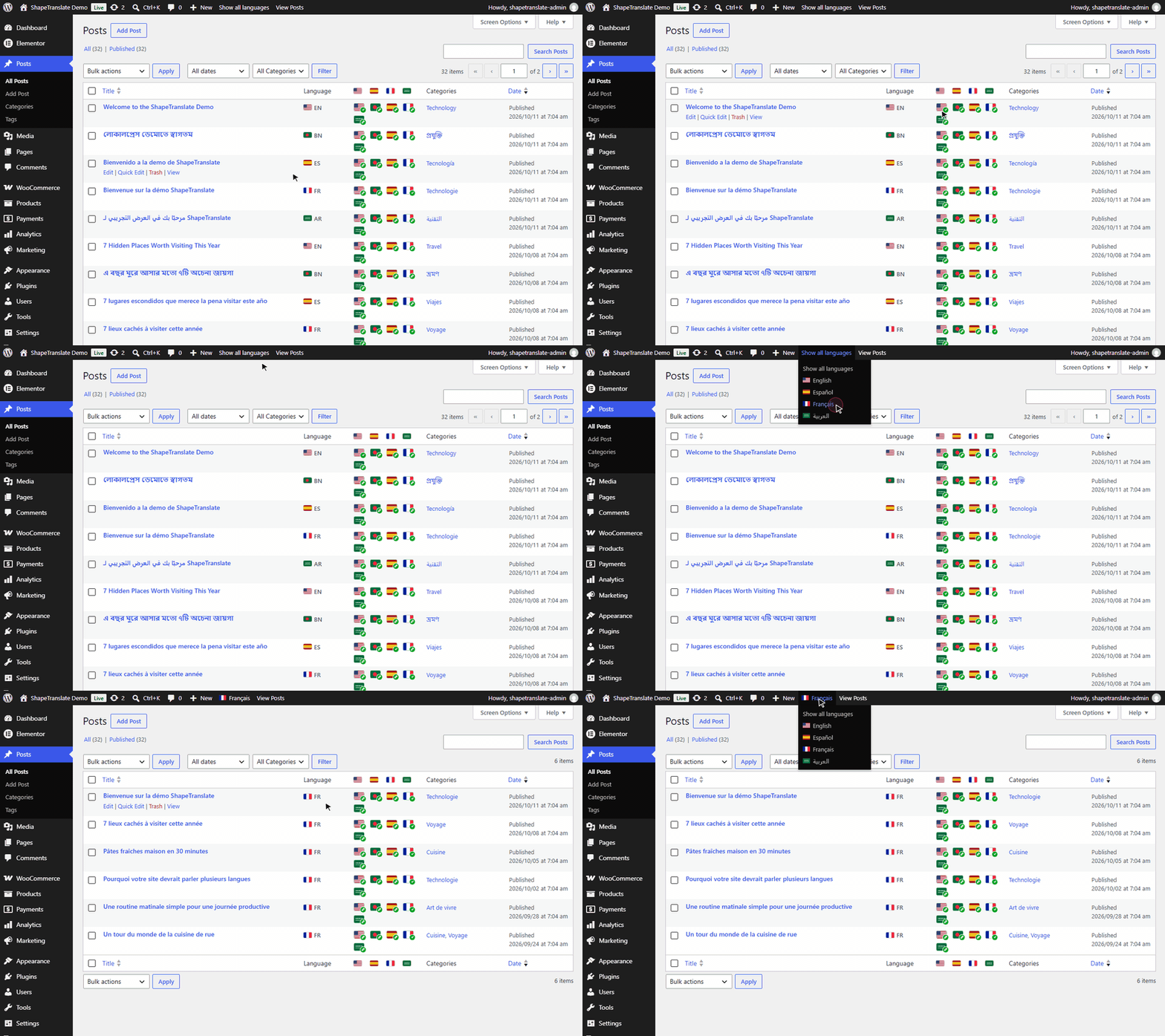
Every translatable list (Posts, Pages and custom post types) gets two columns and an admin-bar language filter.
The list screen
Language column: the language of each row.
Translations column: click + to create a translation, ✎ to edit one.
Language filter in the admin bar: shows only content in one language, or "Show all languages". New posts start in the chosen language.
Walkthrough: columns and the language filter
What the icons mean
Icon
Meaning
✓
This row's own language.
✎
A translation exists. Click to edit it.
+
Missing. Click to create the translation.
Translations Dashboard
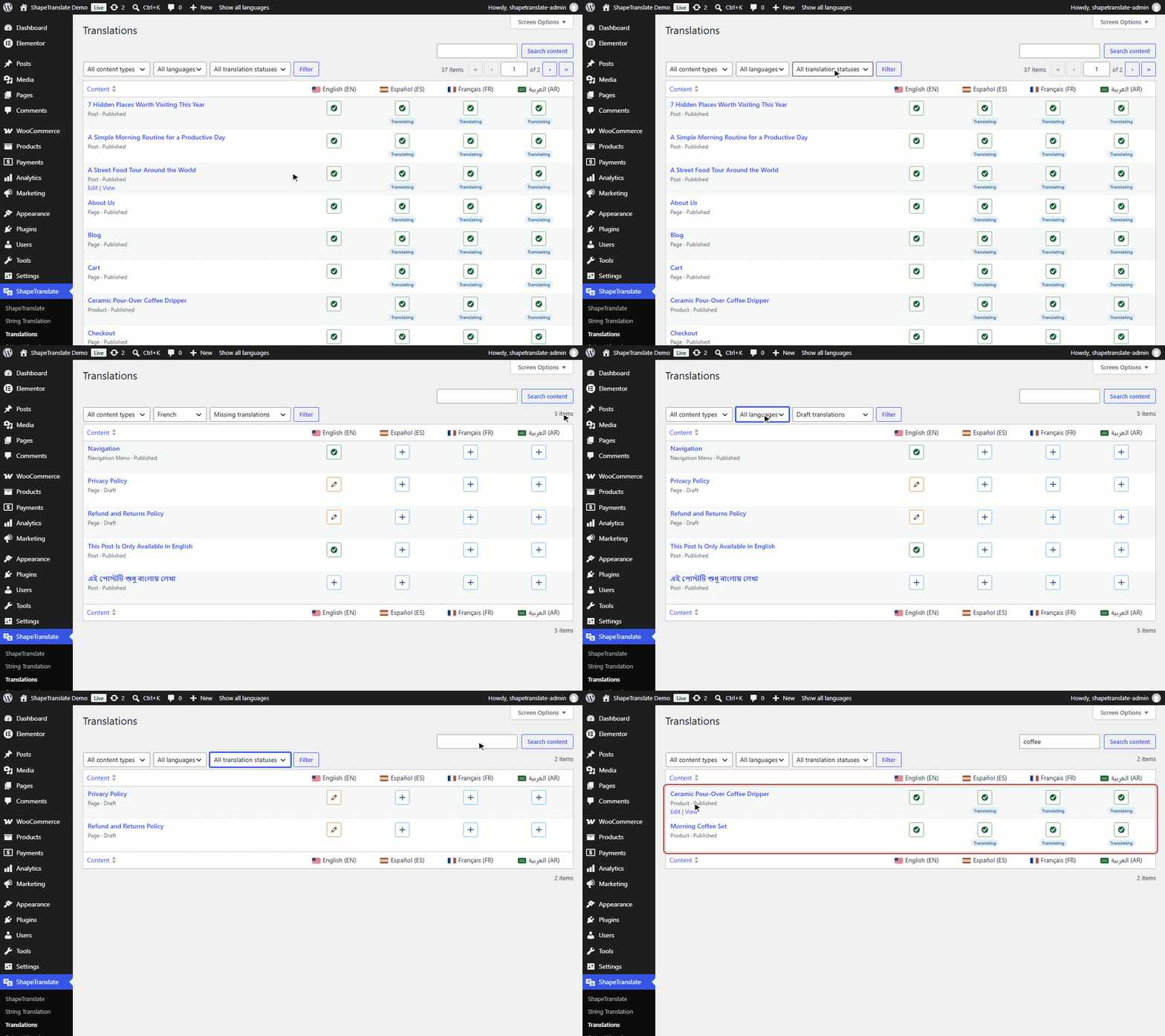
One table at ShapeTranslate → Translations that shows what is translated and what is missing across the site.
The dashboard
One column per language. Read across a row to see that item in every language.
Cells.✓ done, ✎ draft, + click to create the translation.
Filters. Content type, language and status: missing, completed or draft translations.
Search. Find content by title.
Walkthrough: columns, filters and search
Good ways to use it
Filter by Missing translations and one language to get a to-do list.
Filter by Draft translations to find work that is not published yet.
Categories & Tags
Translate categories, tags and any taxonomy you enable under Settings → Content.
Translate a term
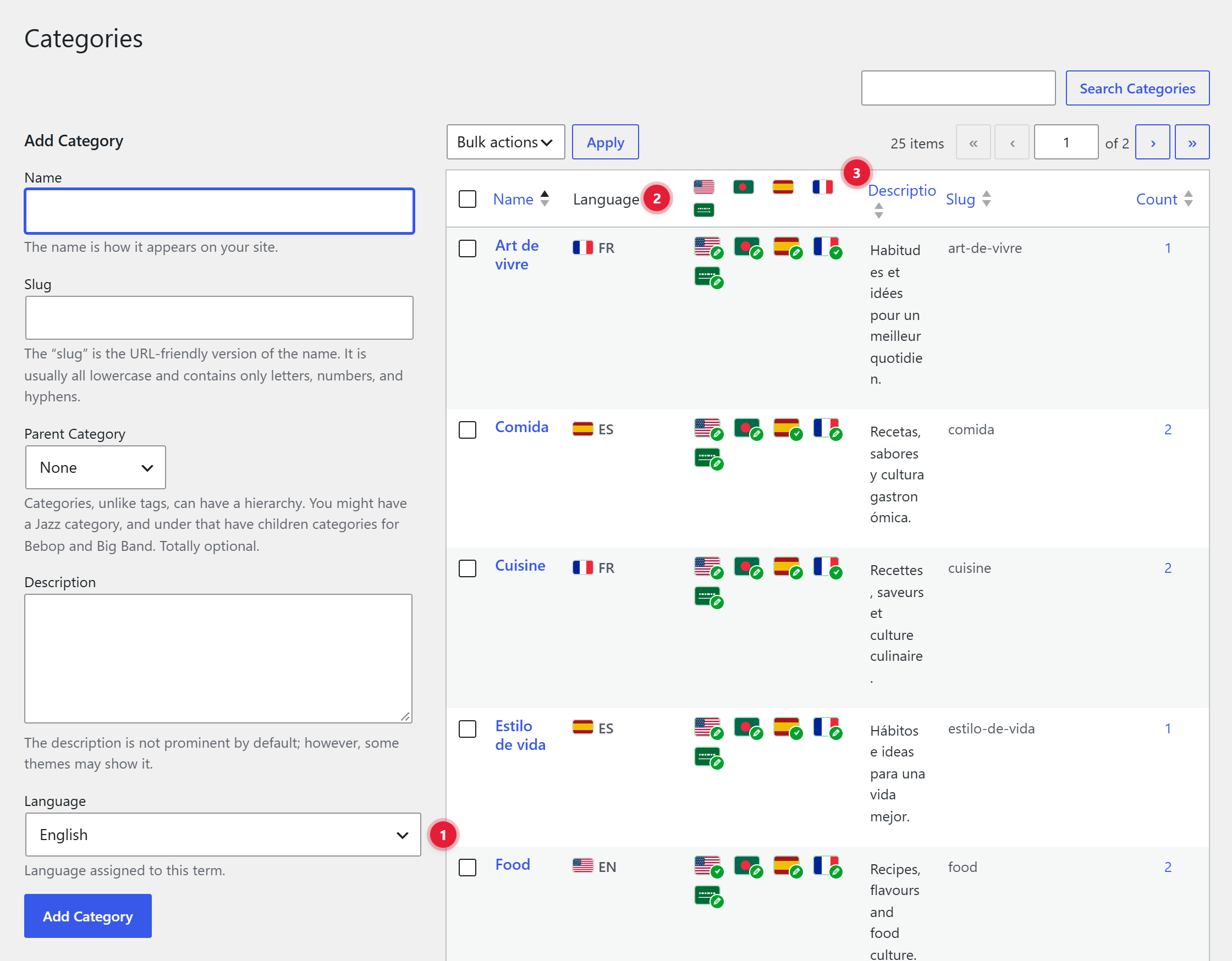
Open Posts → CategoriesEach term has a Language field, and the list has Language and Translations columns.
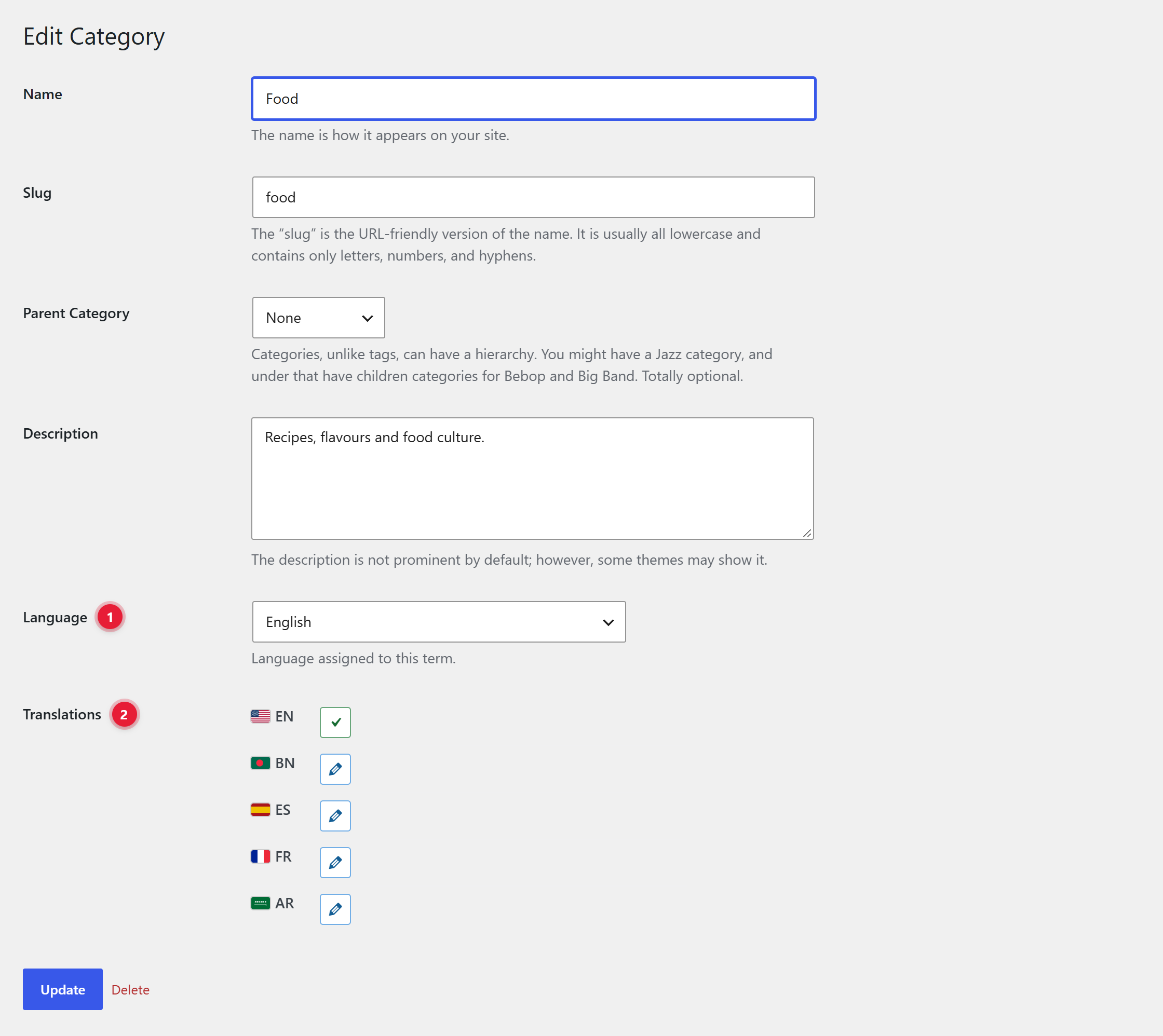
Edit a term and click +ShapeTranslate creates a linked term named like News (Français) with the slug news-fr.
Rename itSet the translated name and slug, then click Update.
The Categories screen
1Language. Choose the language when you add a new category.
2Language column. The language of each term, like EN or FR.
3Translations column. One flag per language. ✓ is the term itself, ✎ edits an existing translation, + creates a missing one.
Edit a term
1Language. The language this term belongs to.
2Translations. Click ✎ to open a translation, or + to create one. Then set the translated name and slug and click Update.
When you translate a post, its categories and tags switch to their translations automatically.
Media
Give images a different title, alt text, caption and description in each language.
Turn it on
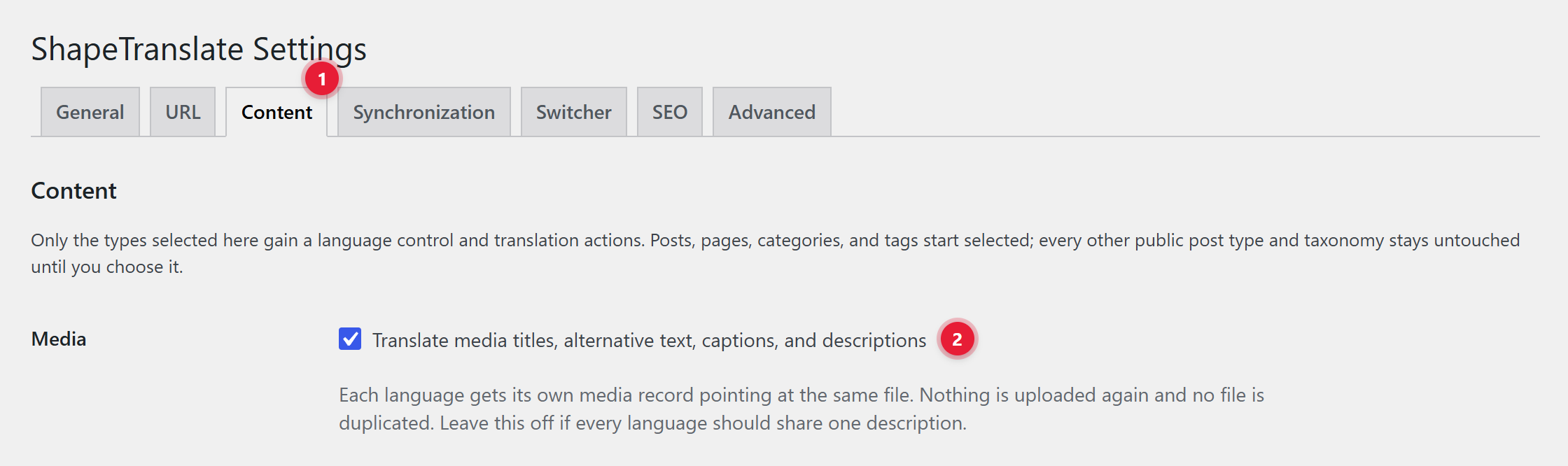
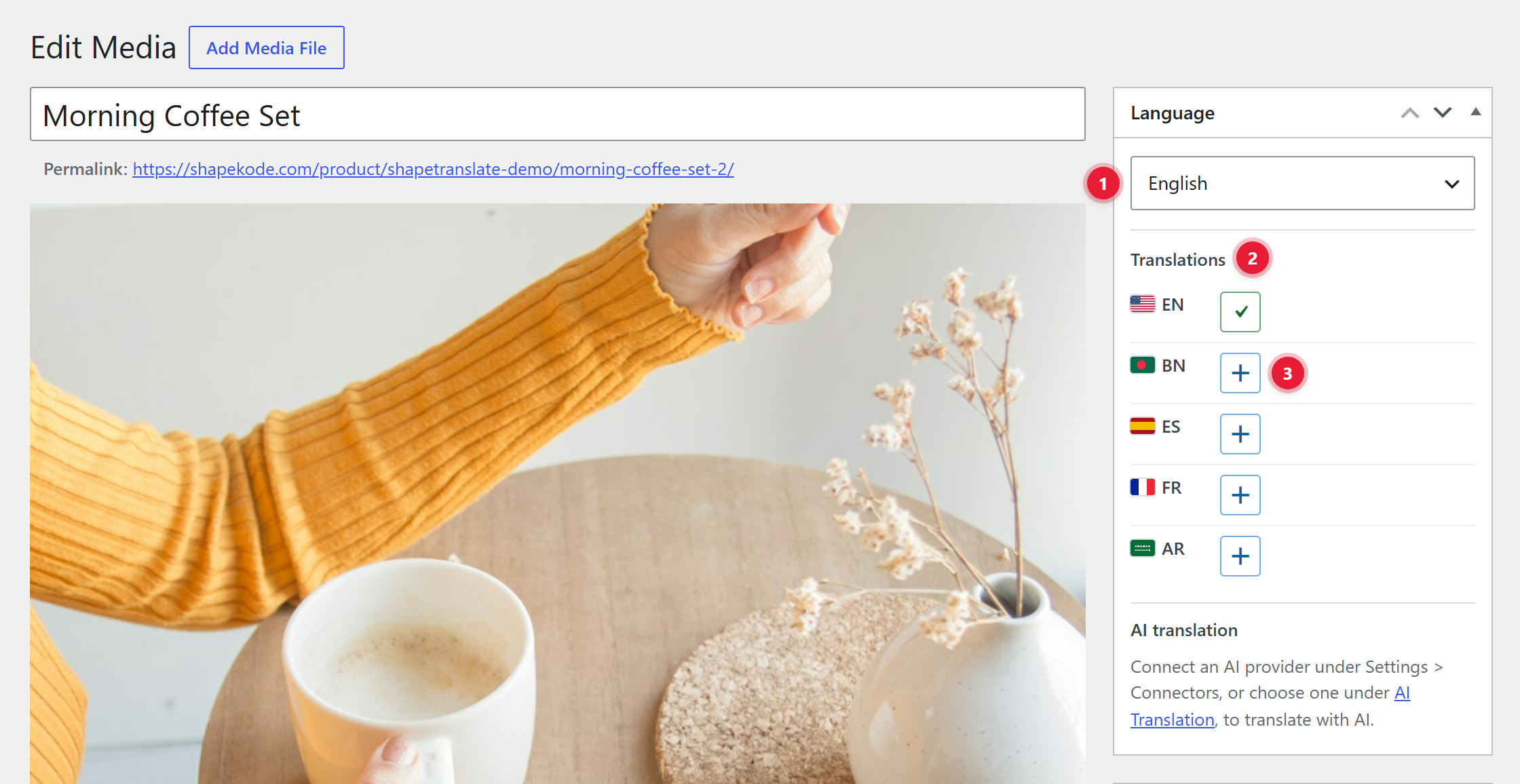
Open Settings → ContentTick Translate media titles, alternative text, captions, and descriptions.
Edit an imageThe attachment details now have a Language field, and the Media Library gets Language and Translations columns.
Create the translationClick + next to a language. ShapeTranslate creates that language's media record. Type the translated title, alternative text, caption and description, then click Update.
Step 1: turn on media translation
1Content tab. Open ShapeTranslate → Settings → Content.
2Media. Tick the option and click Save Changes at the bottom of the page.
Step 2: translate an image
1Language. The language of this media record.
2Translations. ✓ is this record. + creates the record for a language that has none yet.
3Add a translation. Click +, then fill in the title, alternative text, caption and description in that language.
The Media Library
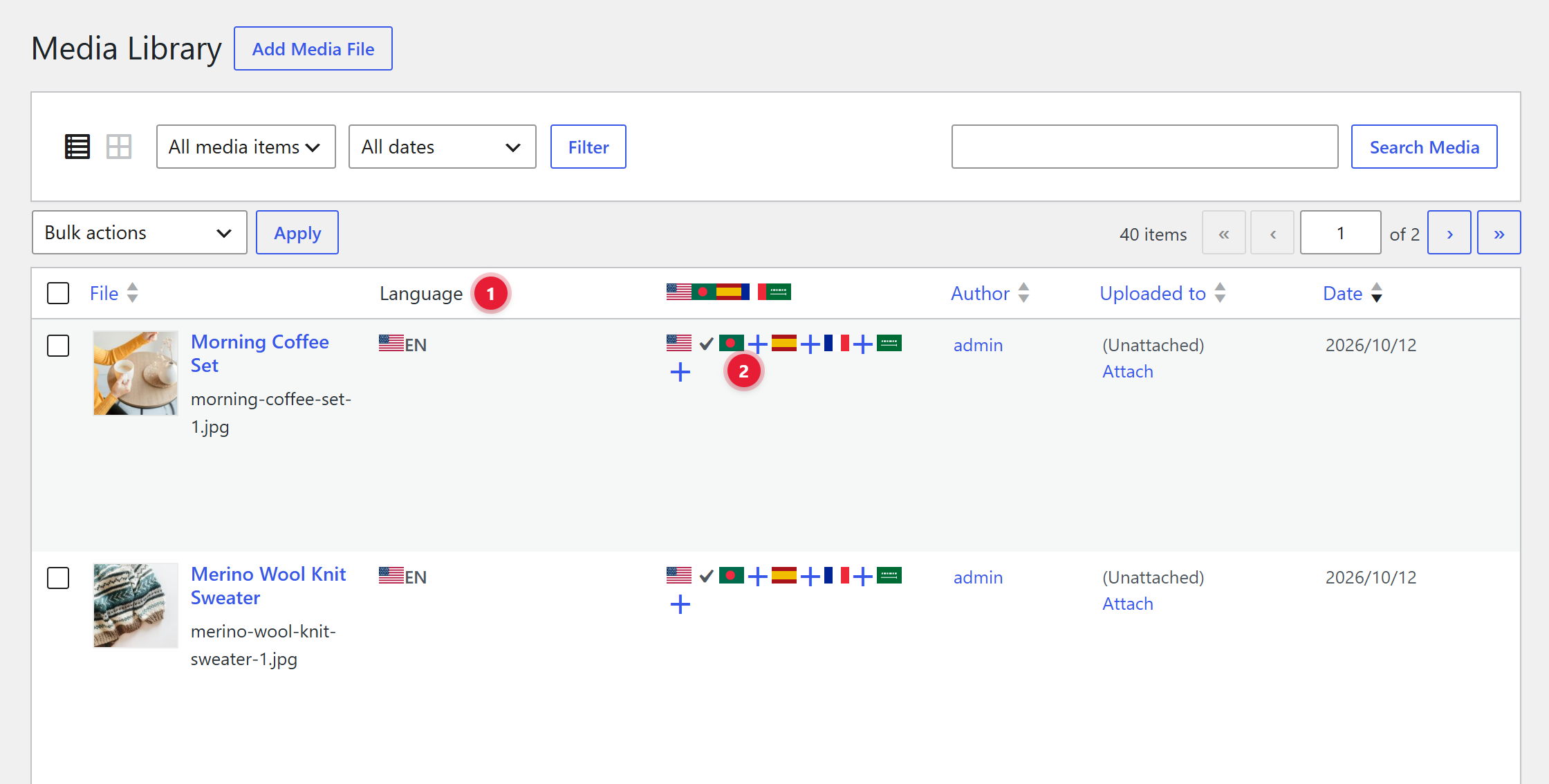
1Language column. The language of each media record.
2Translations column. ✓ is the record itself. + creates the translation for that language straight from the list.
No duplicate filesEach language gets its own media record pointing at the same file. Nothing is uploaded twice.
Menus
Give each language its own menu at Appearance → Menus. For block themes, see Site Editor.
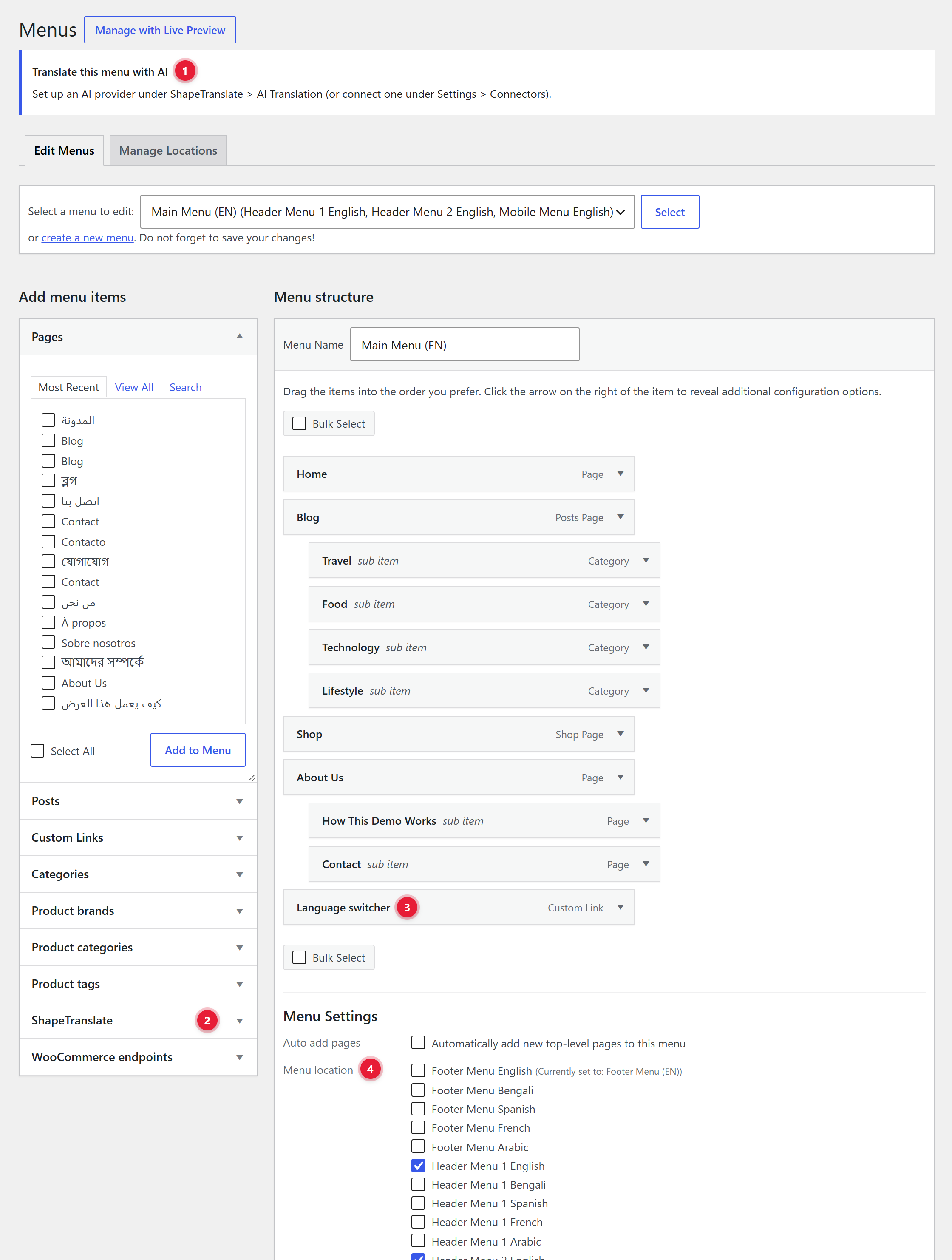
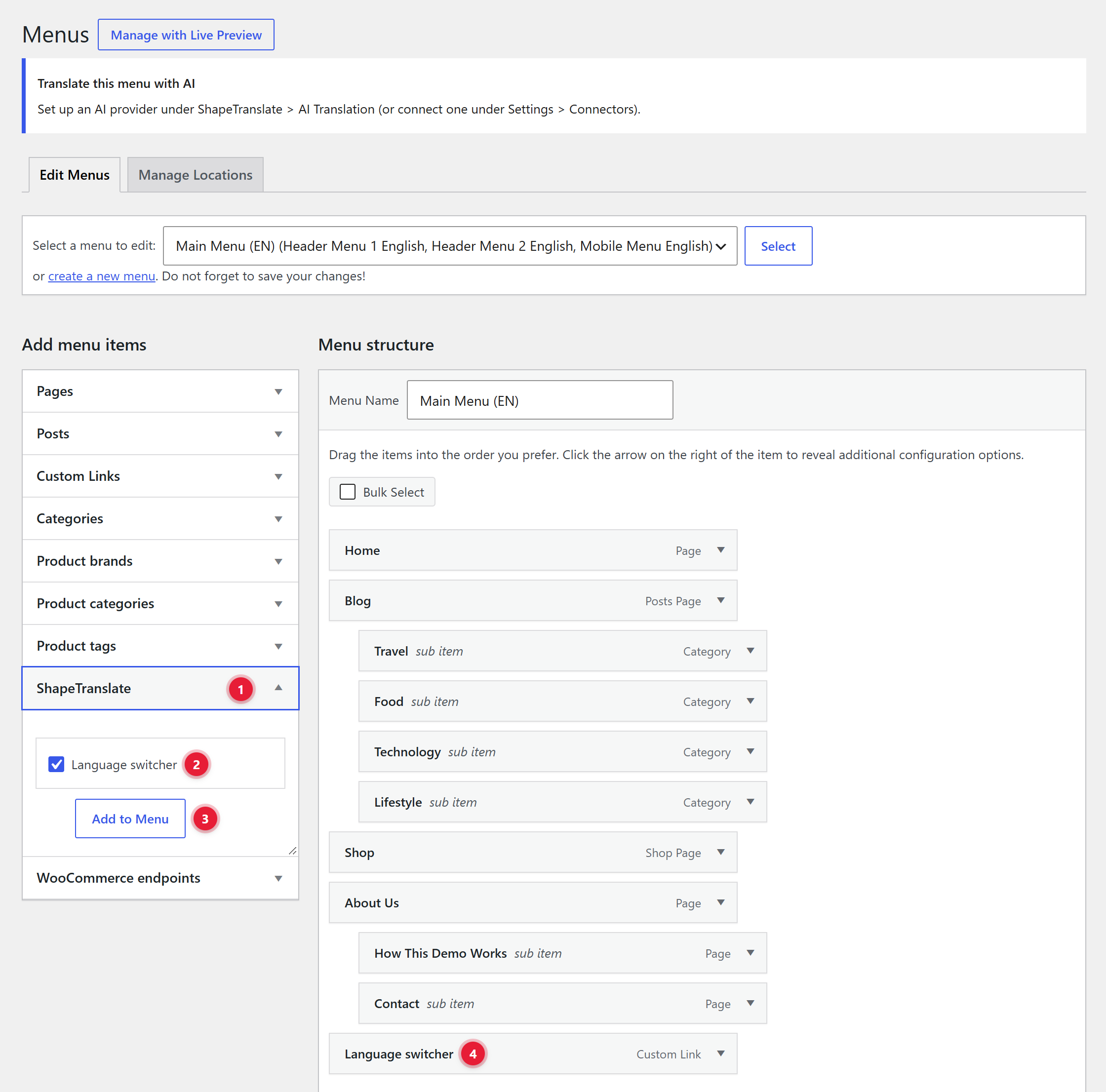
The Menus screen
What you see
2Language switcher item. Tick it and click Add to Menu.
3Switcher settings. Open the item to set label, layout, flags and how missing translations behave.
4Per-language locations. Each theme location is listed once per language. Assign each language its own menu.
Assign menus to languages
Use the per-language theme locations on the Menus screen, or
Go to Settings → Switcher → Navigation Menus and Theme Locations.
One menu can belong to one language only.
String Translation
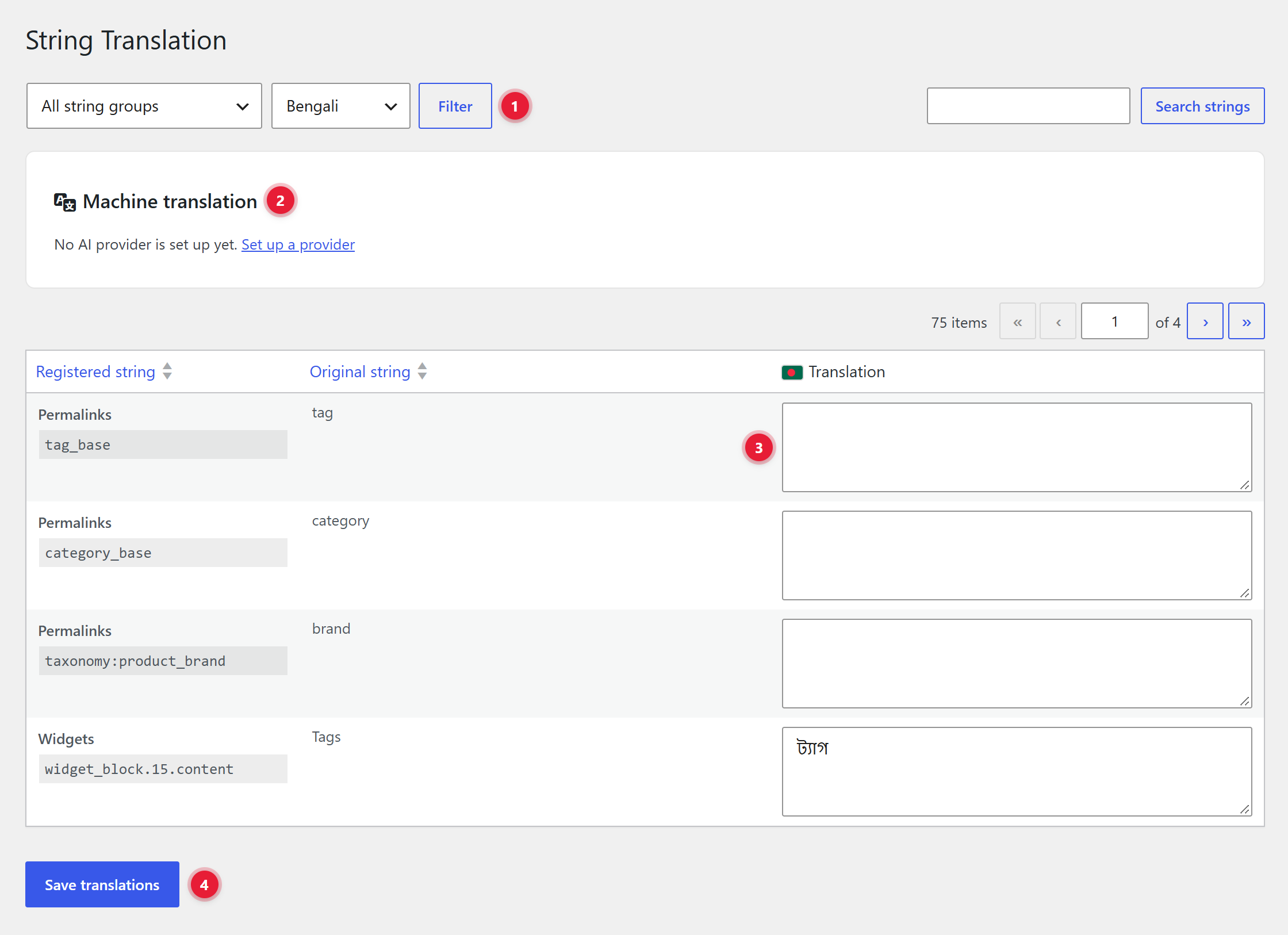
For text that isn't a post: site title, tagline, date and time formats, widget text and strings registered by themes and plugins. Find it at ShapeTranslate → String Translation.
The string editor
What you see
1Group and language. Narrow the list, for example "Widgets" strings in বাংলা.
3Translation. Type the translated text. Empty means the original is shown.
4Save translations. Saves every field on the page.
String groups
WordPressWidgetsYour theme & plugins
WordPress holds the site title, tagline, date format and time format. Widgets holds widget titles and text. Strings registered with shapetranslate_register_string(), and plugins that ship a wpml-config.xml file, add their own groups.
Switcher Placements
The switcher sends a visitor to the same page in another language. A floating switcher is on from day one, so every language is reachable right after setup.
Where you can place it
Where
How to add it
Floating switcher
On by default. Settings → Switcher → Floating switcher.
Language Switcher block
Add the block anywhere in the block editor or Site Editor.
Navigation block
Inside a Navigation block, add "Language Switcher". It can show as a submenu.
Classic menu
Appearance → Menus → ShapeTranslate box → Language switcher → Add to Menu.
Shortcode
[shapetranslate_switcher] in any post, page or widget.
Classic widget
Appearance → Widgets → "Language Switcher".
Elementor
"Language Switcher" widget in the ShapeTranslate category, with full style controls.
Theme template
<?php shapetranslate_language_switcher(); ?>
What it looks like
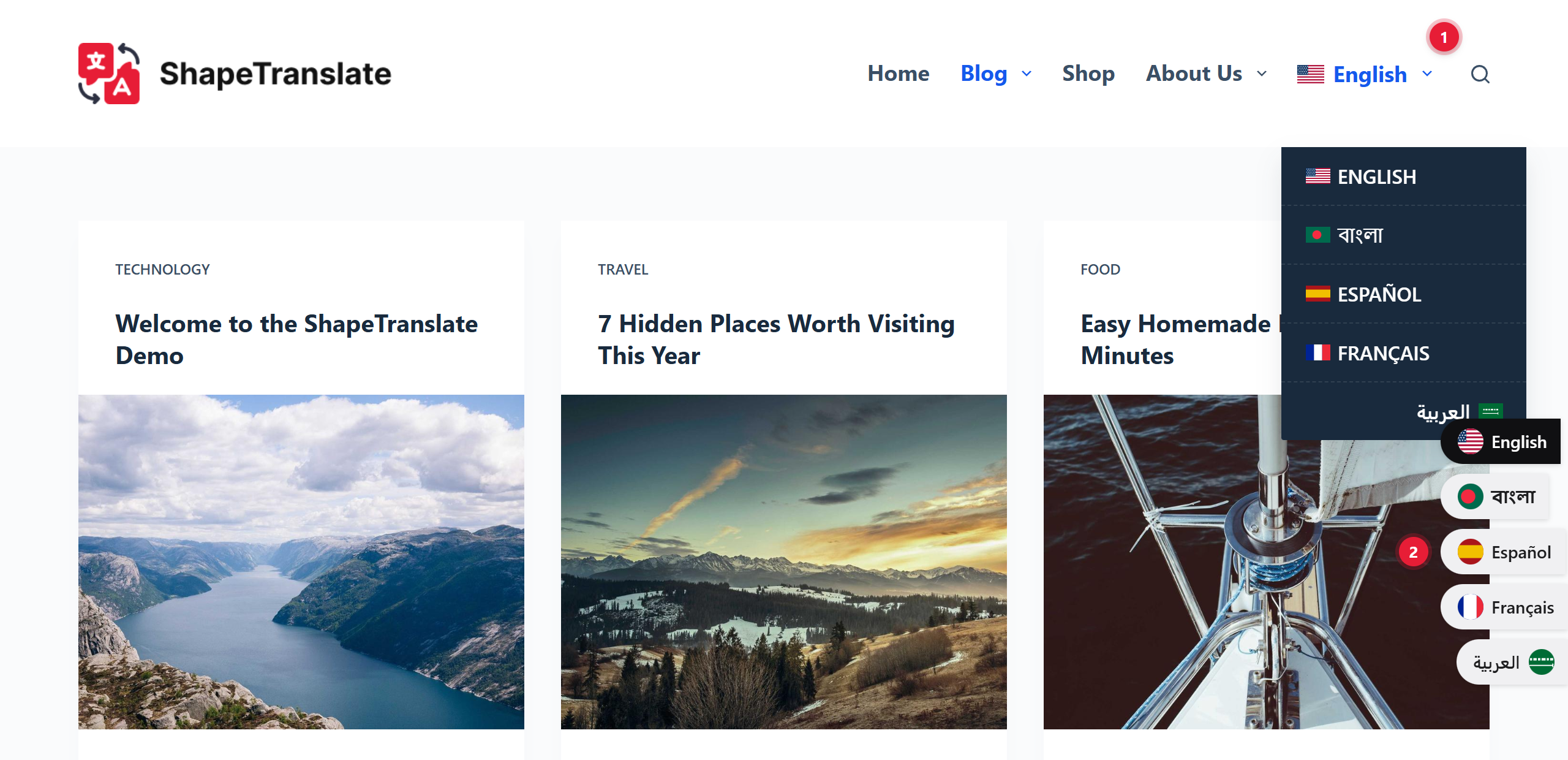
On the demo site, the switcher sits in the header menu, and the floating switcher is on.
On the site
1Menu switcher. Added from Appearance → Menus. Hover or click it to open the list of languages.
2Floating switcher. Fixed to the edge of the screen. Change its position and layout under Settings → Switcher.
Add it to a classic menu
Appearance → Menus
1ShapeTranslate box. Open it in the Add menu items column.
2Language switcher. Tick it.
3Add to Menu. Adds the switcher to the menu on the right.
4In the menu. Drag it into place, then click Save Menu.
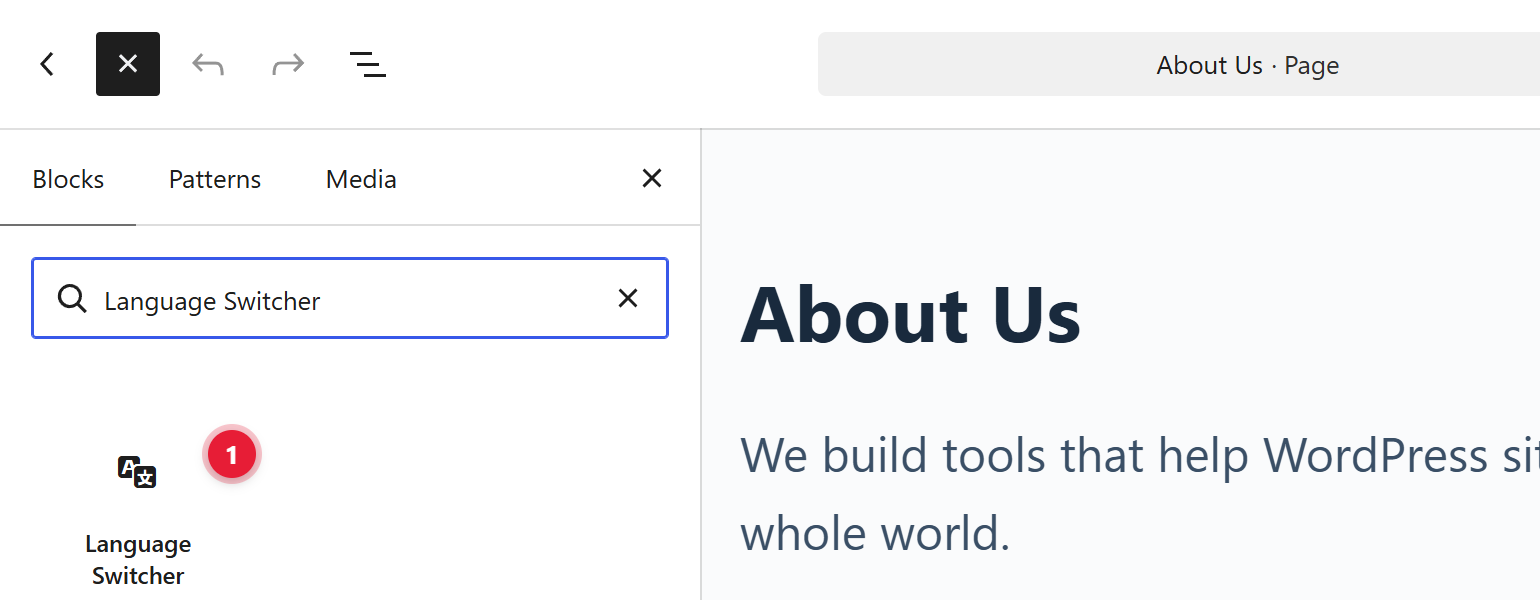
Add the block
Block editor or Site Editor
1Language Switcher block. Click + at the top left, search for "Language Switcher" and click the block. It works in posts, pages, templates and template parts.
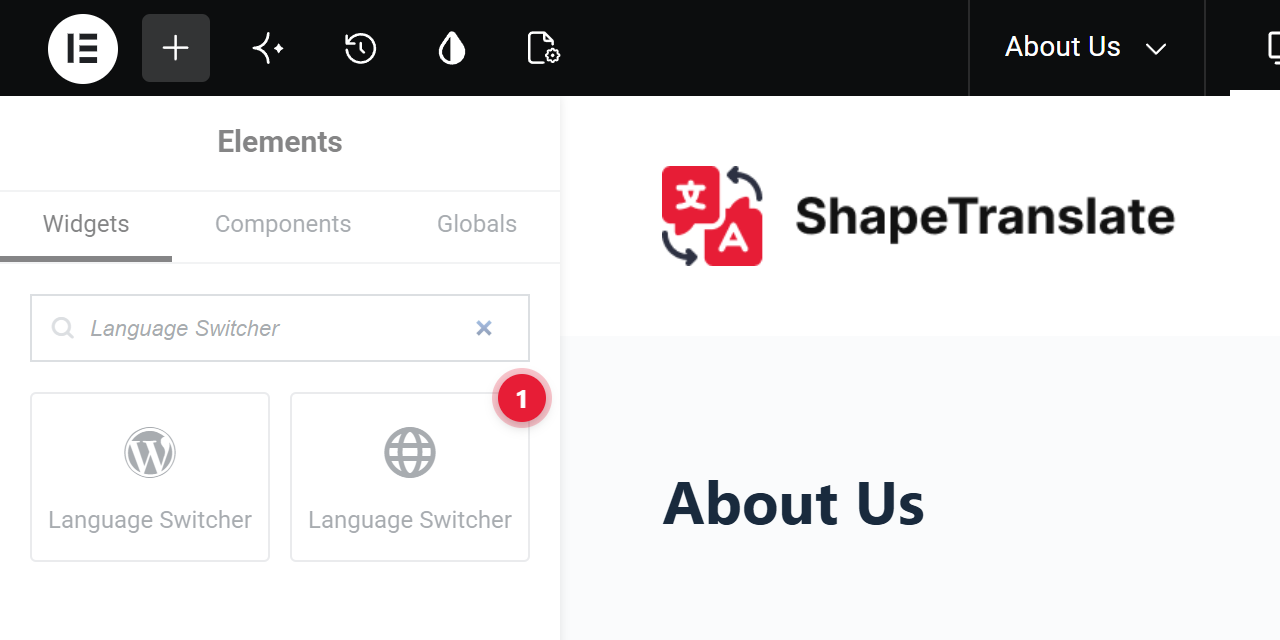
Add it with Elementor
Step 1: find the widget
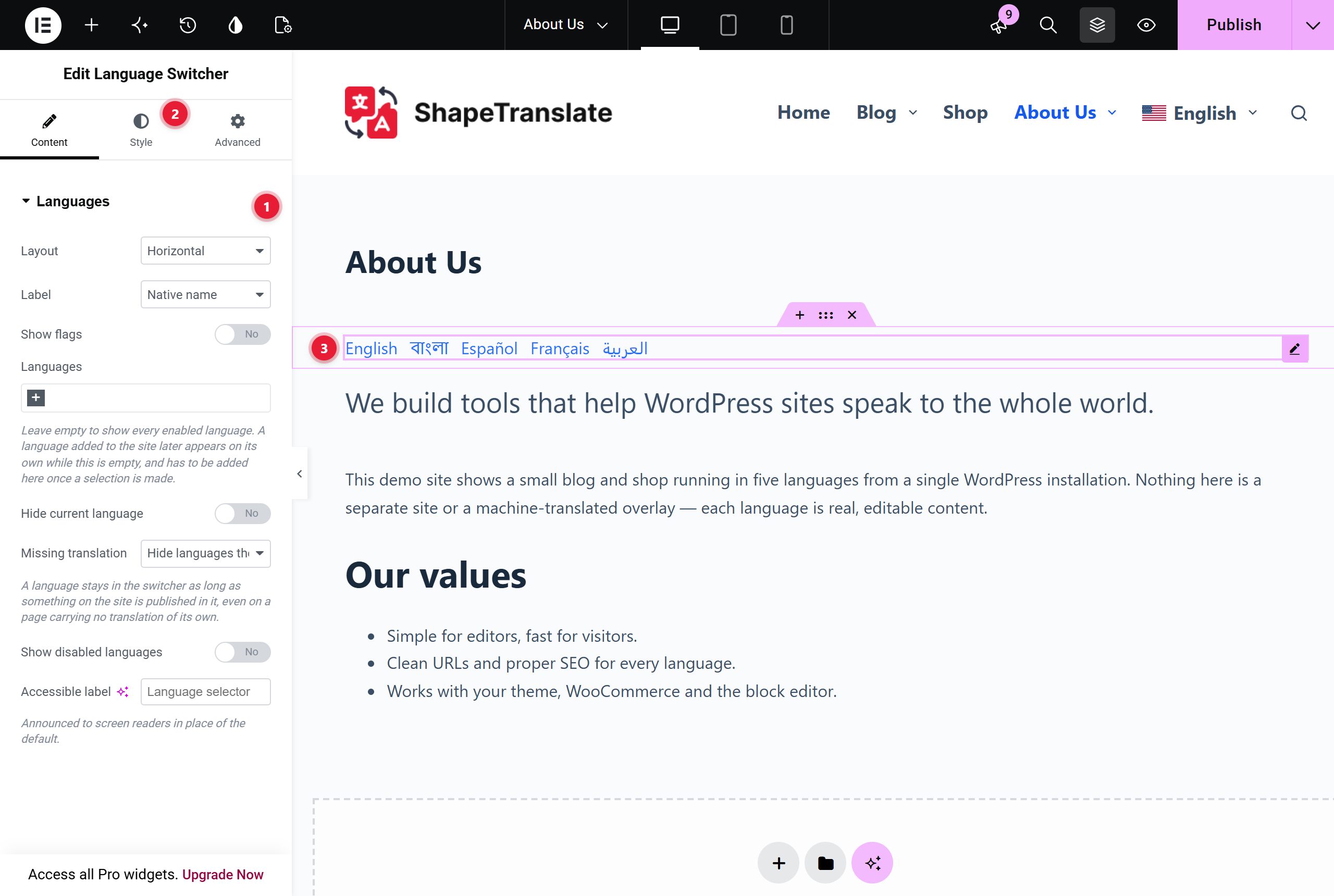
1Language Switcher (globe icon). Search for "Language Switcher" in the Elements panel, or open the ShapeTranslate category. Drag it onto the page. The one with the WordPress icon is the classic widget; use the globe one for full style controls.
Step 2: set it up
1Languages. Layout, label, flags, which languages to show, hiding the current language and what to do when a translation is missing.
2Style. Colors, typography, flag size, dropdown and spacing.
3The switcher. Shows on the canvas as you change the settings. Click Publish to save.
Turn off the floating switcherOnce your own switcher sits in the menu or header, untick "Show a floating switcher on the site".
Switcher Settings
Site-wide defaults for every switcher, at ShapeTranslate → Settings → Switcher.
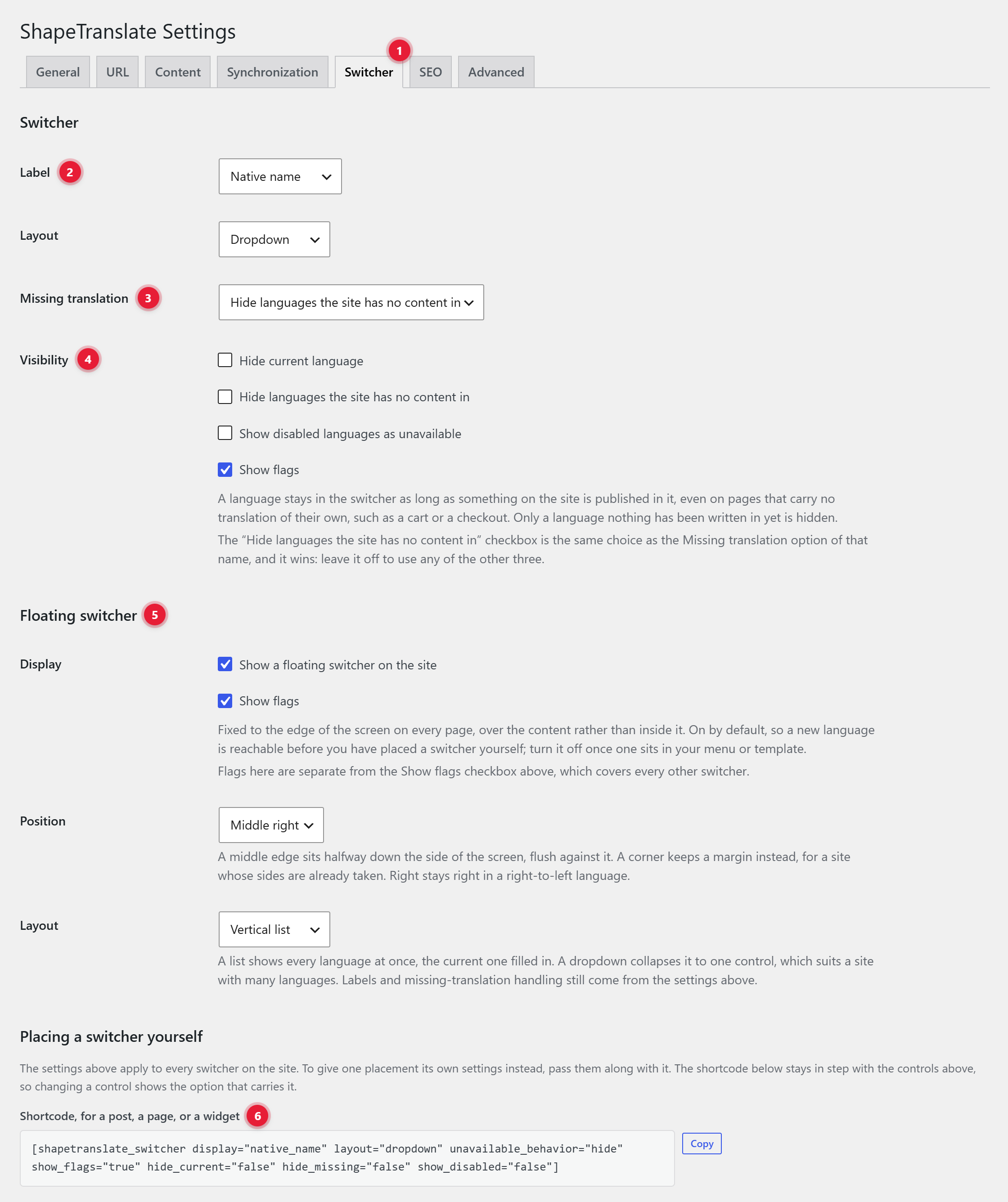
The Switcher tab
What you see
1Settings tabs. The switcher has its own tab.
2Label & layout. Show "বাংলা", "Bengali" or "BN", as a list or a dropdown.
3Missing translation. When a page has no translation: hide the language, show it as unavailable, link to that language's homepage, or keep the current URL.
4Visibility. Hide the current language, show flags, or show disabled languages.
5Floating switcher. Fixed to the screen edge. Choose one of six positions and a layout.
6Ready-made shortcode. Updates as you change the controls above. Click Copy and paste it anywhere.
Override per placement
A single block, menu item or shortcode can use its own settings. The values on this tab are only the defaults.
Site Editor (Block Themes)
Translate templates, template parts and navigation menus in block themes.
Translate a header or footer
Open the partAppearance → Editor, then open a template, template part or navigation menu.
Open the Languages panelFrom the editor's top toolbar.
Create or adopt a version+ creates a version in another language. Use an existing one adopts a part you already have.
A language without its own version uses the default language's version automatically.
Page Builders
Headers, footers, popups and templates are translated per language, and their display rules follow the language.
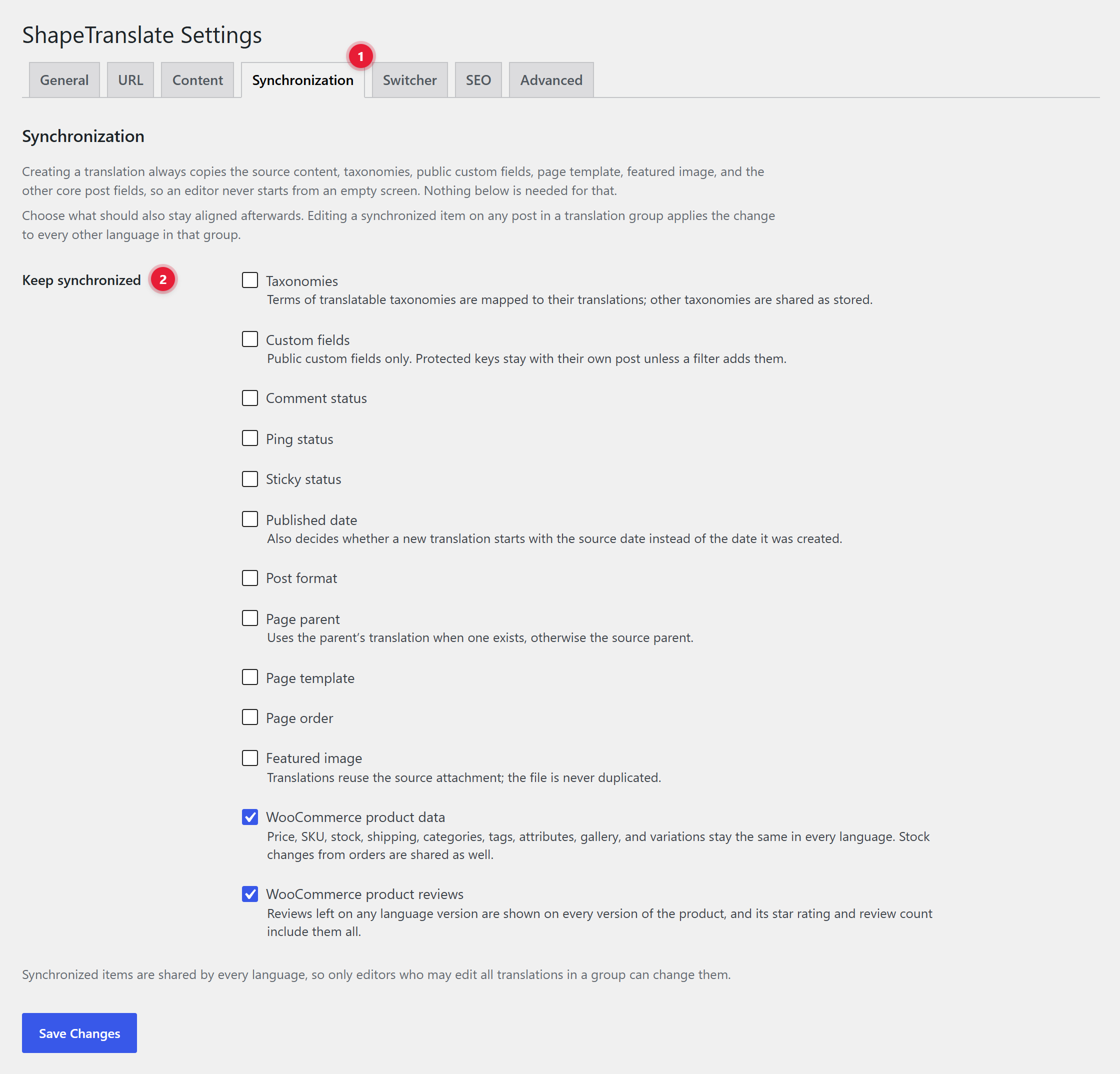
A synced item changes everywhereWith "Featured image" synced, changing the image on the বাংলা post also changes it on the English one.
Import & Export
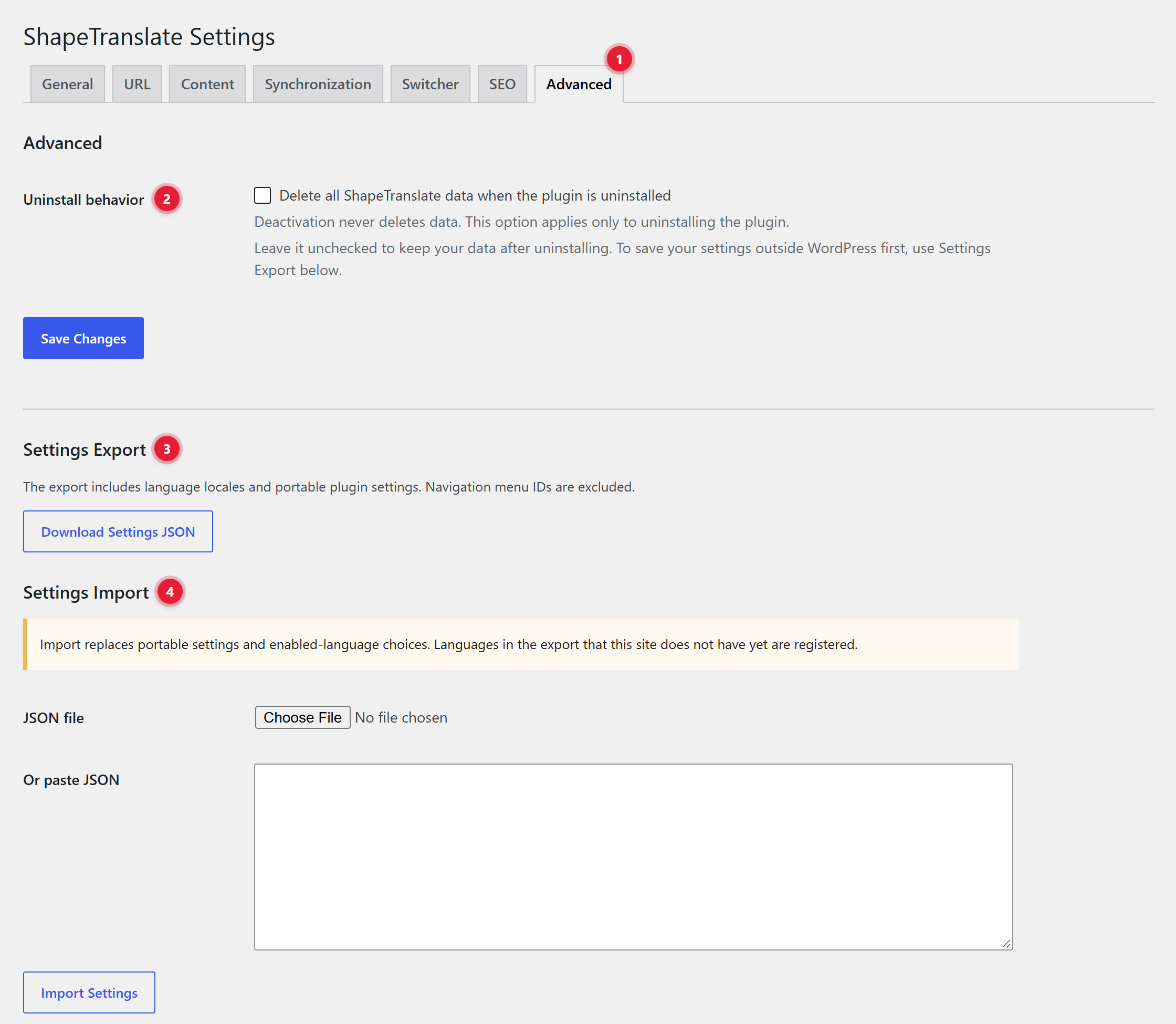
Move your ShapeTranslate settings to another site from Settings → Advanced.
Copy settings to a new site
ExportClick Download Settings JSON. The file is named like shapetranslate-settings-2026-10-11.json.
Install ShapeTranslate on the new siteAdd the same languages first. The import stops if a language in the file is not on the new site yet.
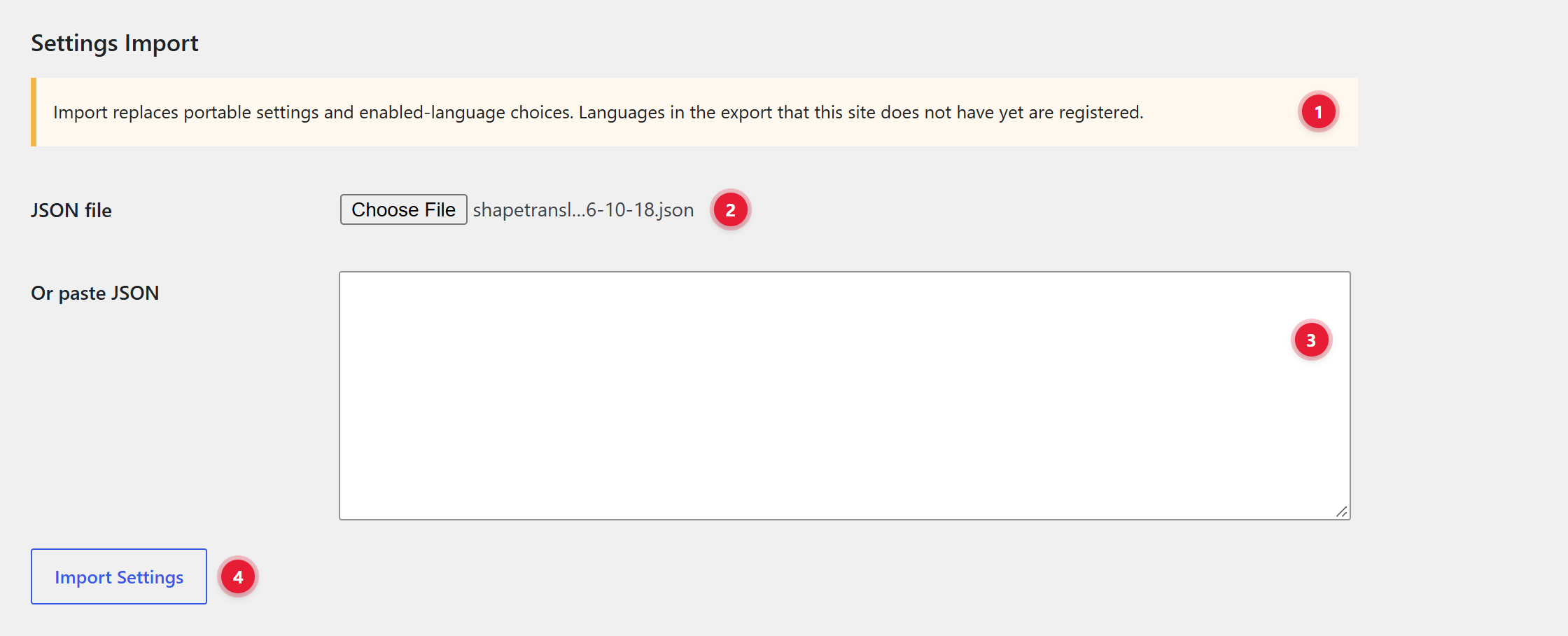
ImportChoose the file, or paste the JSON, and click Import Settings.
Step 1: export (Settings → Advanced)
1Download Settings JSON. Saves your languages and plugin settings as one file. Menu IDs are left out, because they differ on every site.
Step 3: import on the new site
1What import does. Replaces the settings and the enabled languages. Every language in the file must already exist on this site.
2JSON file. Choose the file you downloaded.
3Or paste JSON. Paste the file's contents here instead.
4Import Settings. Runs the import. Your posts and translations are not touched.
Uninstall behavior
Deactivating never deletes data. Data is removed only when you tick Delete all ShapeTranslate data when the plugin is uninstalled and then delete the plugin.
Developer Quick Start
Everything public is a global function prefixed shapetranslate_ or a hook named shapetranslate_*.
Ground rules
Use the API after shapetranslate_loaded (or on init).
All functions are safe when ShapeTranslate is inactive: they return an empty value or a WP_Error.
A language reference can be a URL slug (bn), code, locale (bn_BD), language ID or record. Empty means the current language.
shapetranslate_translate_string() returns unescaped text. Escape it, or use shapetranslate_esc_html__().
add_action( 'init', function () {
    shapetranslate_register_string( 'my-theme', 'footer_note', 'Made with care in Dhaka' );
} );

// In the template:
shapetranslate_esc_html_e( 'my-theme', 'footer_note', 'Made with care in Dhaka' );
Make text saved in a WordPress option translatable, so get_option() returns the right language on the front end.
How it works
You declare an option, and the keys inside it that hold text. Every text value found there becomes a registered string. Translate it on the Strings screen, in the group named after the plugin or theme. The code that reads the option needs no change.
Declare with wpml-config.xml
Say a plugin saves its settings in the option my_plugin_settings:
Load a page that reads the optionOpen any front-end page that uses it. The strings register the first time the option is read.
Open the Strings screenFind the group named after your plugin or theme (for example plugins/my-plugin).
TranslateType the translations. Visit the site in that language to check.
Settings screens stay safeTranslations are applied on the front end only. In wp-admin, the plugin's own settings form always shows the stored original, so saving it never overwrites the original with a translation.
Alternative: register one string in PHP
For a single value in your own code, skip the XML:
Register, then print
add_action( 'init', function () {
    shapetranslate_register_string( 'my-plugin', 'button_text', get_option( 'my_plugin_button' ) );
} );

// Where you print it:
shapetranslate_esc_html_e( 'my-plugin', 'button_text', get_option( 'my_plugin_button' ) );
Options whose names start with shapetranslate are never translated.
wpml-config.xml Reference
Configure custom post types, taxonomies, custom fields and strings in one XML file. Plugins that already ship this file work with no extra code.
Where ShapeTranslate looks
Location
Use
Root of each active plugin
Shipped by the plugin author.
Root of the active theme and its parent theme
Shipped by the theme author.
wp-content/mu-plugins/ and its sub-folders
Must-use plugins.
wp-content/shapetranslate/wpml-config.xml
Your own rules for a plugin that ships none. Read last, and safe from updates.
The file name is always wpml-config.xml. Changes are picked up automatically when a plugin or theme is activated, deactivated, switched or updated, and when the file's modified time changes.
translate="1" makes the type or taxonomy available to translate. It includes non-public types such as page builder headers and templates. It does not tick the box in Settings: the site owner still decides what is translated.
translate="0" removes it completely. It cannot be turned on from Settings.
Custom fields
Declare what happens to a post meta key when a translation is created or synchronized.
Action
Behavior
copy
Copied into a new translation, then kept in step with the original on every save (when custom field synchronization is on in Settings).
copy-once
Copied into a new translation, then left alone.
translate
Copied into a new translation as a starting point, then left alone, so later saves never overwrite an editor's work.
ignore
Never copied. Also removes a key ShapeTranslate would otherwise copy. A missing or unknown action counts as ignore.
A declaration can never switch synchronization on. If a site turned custom field synchronization off, copy only seeds new translations, while ignore always applies.
No. Translate the post, then load the translation yourself with shapetranslate_get_post().
If no enabled language uses the switched locale, ShapeTranslate leaves its answer as it was.
WordPress emails
WordPress sends the welcome and password-reset emails in the user's locale. ShapeTranslate saves it for you: a visitor who registers on a translated page gets that page's locale saved in the profile.
Accounts created in wp-admin are left alone, because they say nothing about the new user's language.
Users who can edit posts are left alone, because the locale is also the language of their dashboard.
A locale that is already saved is never replaced.
Users who registered before ShapeTranslate was installed have no locale. Set it in their profile.
Plugins that load their own translations
Most plugins need nothing. A plugin that loads its text domain by hand should load it again on each switch:
Register from a translated pageOpen a page with a language prefix, such as /bn/, and create an account.
Check the profileThe user's locale is the one of that language.
Trigger the emailUse the password reset. The email should arrive in that language, even if you started it from another one.
The plugin has to switchShapeTranslate cannot know who an email is for. A plugin that never calls switch_to_locale() sends in the language of the request. Ask its author to add the switch, or send the email yourself as shown above.
Hooks
Hook
Use
shapetranslate_current_language_id
Change the language ShapeTranslate answers in.
shapetranslate_translate_option
Decide whether a declared option is translated on this request.
shapetranslate_should_switch_locale
Stop ShapeTranslate from changing the WordPress locale for a request.
shapetranslate_request_locale
Change the locale used for a language-prefixed request.
REST API & Constants
Routes under shapetranslate/v1 and wp-config.php constants.
wp-content/shapetranslate. Place your own wpml-config.xml files here.
There are no WP-CLI commands in version 1.0.1.
Data Storage
Where ShapeTranslate keeps languages, translations and settings.
What
Where
Post language and group
Hidden taxonomies shapetranslate_language and shapetranslate_post_group (not post meta).
Term language and group
Hidden taxonomies shapetranslate_term_language and shapetranslate_term_group.
Languages
Option shapetranslate_language_registry.
Settings
Options shapetranslate_settings and shapetranslate_workflow_settings.
Registered strings
Tables {prefix}shapetranslate_strings and {prefix}shapetranslate_string_translations.
Visitor's language
Cookie shapetranslate_language (only the language slug).
FAQ & Troubleshooting
Quick answers to the questions we hear most.
Common questions
Language URLs show a 404 page.
Go to Settings → Permalinks and click Save Changes once. If the site uses plain permalinks, choose a pretty structure or switch ShapeTranslate to the query argument format.
The switcher doesn't show a language.
Check that the language is enabled. By default the switcher hides a language the site has nothing published in yet. Publish something in it, or change Missing translation under Settings → Switcher.
The switcher sends visitors to the home page.
That page has no translation in that language yet, and Missing translation is set to "Link to language homepage". Create the translation from the Translations dashboard.
Visitors see the wrong language on the home page.
With browser detection on, the home page must not be cached by a CDN or server cache. Exclude the home page there, or let it vary on the Accept-Language header.
I can't delete a language.
It's still assigned to content or a menu. Move that content to another language or delete it first. The default language can never be deleted; make another language the default first.
Will deactivating ShapeTranslate delete my translations?
No. Data is removed only if you tick "Delete all ShapeTranslate data when the plugin is uninstalled" under Settings → Advanced and then delete the plugin.
Can I switch from WPML or Polylang?
ShapeTranslate reads wpml-config.xml files from themes and plugins, and offers WPML-style functions such as shapetranslate_object_id(). While Polylang or WPML is active, ShapeTranslate leaves front-end routing to them.
ShapeTranslate 1.0.1 · by ShapeKode · GPLv2 or laterScreens are illustrations of the real admin pages; labels match the plugin.